
Appearance (Theme)
Articles in this section
🚀 Getting Started
📥 Importing Recipes
- How to Import Recipes
- Import from a Website
- Import from Instagram
- Import from Facebook
- Import from TikTok
- Import from Pinterest
- Import from YouTube
- Scan a Recipe from Photo
- Dictate a Recipe by Voice
- Import by Pasting Text
- Use the In-App Browser
- Write a Recipe from Scratch
- Review & Edit Before Saving
- Understanding Import Credits
📂 Managing Recipes
👨🍳 Cooking Mode
📅 Meal Planning
🛒 Grocery List
📤 Sharing & Export
💳 Billing & Subscription
⚙️ Account & Settings
ℹ️ About Cookonut
💡 Ideas & Feedback
Cookonut offers light and dark themes so you can use the app comfortably day or night. Choose the look that works best for you — or let it follow your phone’s system setting.
How to Change the Theme
- Open Cookonut
- Go to the More tab
- Tap Personalization
- Under Appearance, choose your preferred theme:
- Light
- Dark
- System
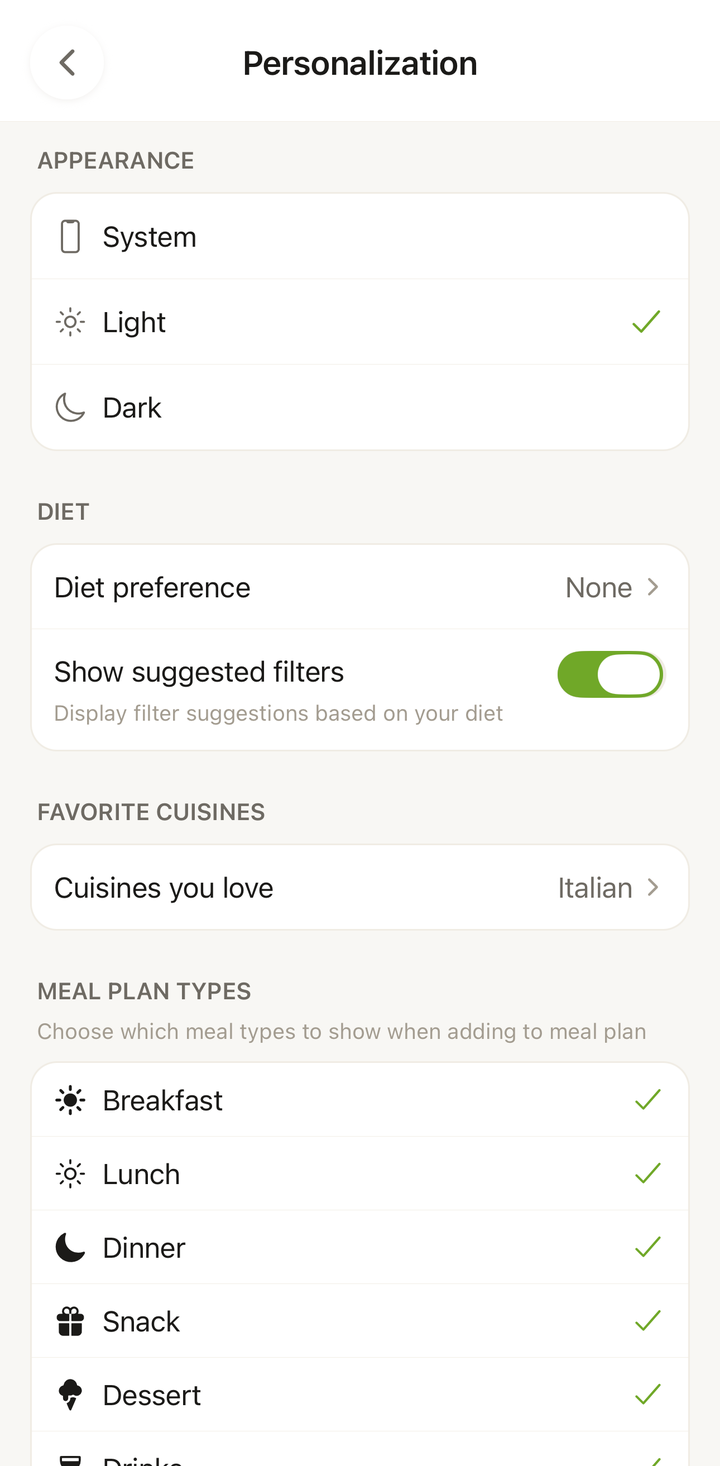
Theme Options
Light Mode
A bright, clean interface with a white background and dark text. Best for:
- Daytime use
- Well-lit environments
- Users who prefer a classic, bright look
Dark Mode
A darker interface with muted backgrounds and light text. Best for:
- Evening and nighttime use
- Low-light environments (like a dimly lit kitchen)
- Reducing eye strain
- Saving battery on phones with OLED screens
System (Automatic)
Automatically follows your phone’s system-wide appearance setting:
- When your phone is in light mode, Cookonut uses light mode
- When your phone switches to dark mode (often at sunset), Cookonut switches too
- No manual toggling needed
This is the recommended option for most users — it keeps Cookonut in sync with the rest of your phone.
Dark Mode in the Kitchen
Many Cookonut users find dark mode especially useful during cooking:
- Less distracting when your phone is on the counter
- Easier on the eyes in kitchens with dim lighting
- Cooking mode looks great in dark theme — the large text against a dark background is very readable
Theme and Cooking Mode
Your chosen theme applies to cooking mode as well. If you prefer dark mode for cooking but light mode for browsing recipes, you can:
- Set the theme to System
- Switch your phone to dark mode when it’s time to cook
- Or change the theme under More > Personalization before entering cooking mode
Theme and Exported Content
Your theme choice affects how the app looks on screen but does not affect exported content:
- PDF exports use a standard light format regardless of your theme
- Printed recipes always print with dark text on white background
- Shared recipe text is plain text and not affected by theme
Tips
- System mode is the most convenient — set it once and forget about it
- Dark mode can save significant battery on OLED phones
- Try both themes to see which you prefer — you can switch anytime
- Your theme preference syncs across devices through your account
Thanks for your feedback! We're glad it helped.