
Import from YouTube
Articles in this section
🚀 Getting Started
📥 Importing Recipes
- How to Import Recipes
- Import from a Website
- Import from Instagram
- Import from Facebook
- Import from TikTok
- Import from Pinterest
- Import from YouTube
- Scan a Recipe from Photo
- Dictate a Recipe by Voice
- Import by Pasting Text
- Use the In-App Browser
- Write a Recipe from Scratch
- Review & Edit Before Saving
- Understanding Import Credits
📂 Managing Recipes
👨🍳 Cooking Mode
📅 Meal Planning
🛒 Grocery List
📤 Sharing & Export
💳 Billing & Subscription
⚙️ Account & Settings
ℹ️ About Cookonut
💡 Ideas & Feedback
YouTube is packed with cooking content — from quick recipe shorts to detailed cooking tutorials. Cookonut can extract recipes from YouTube videos so you don’t have to pause and scribble notes while watching.
How to Import from YouTube
Share the video straight from YouTube to Cookonut — no copying links needed.
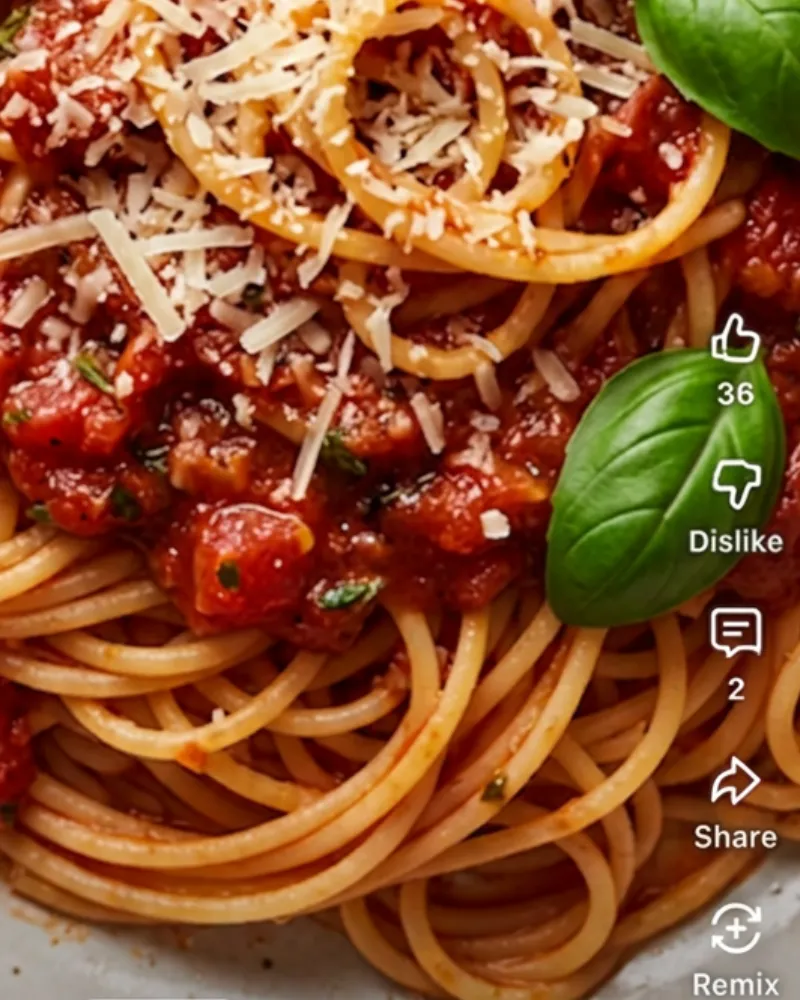
tap Share
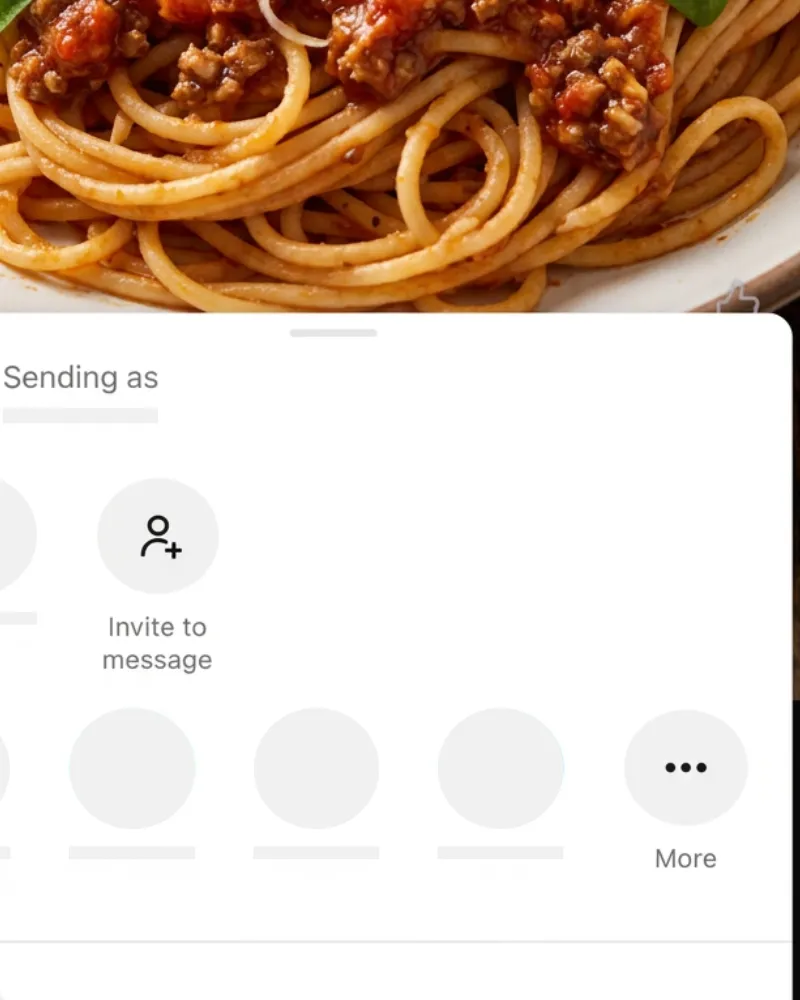
tap More
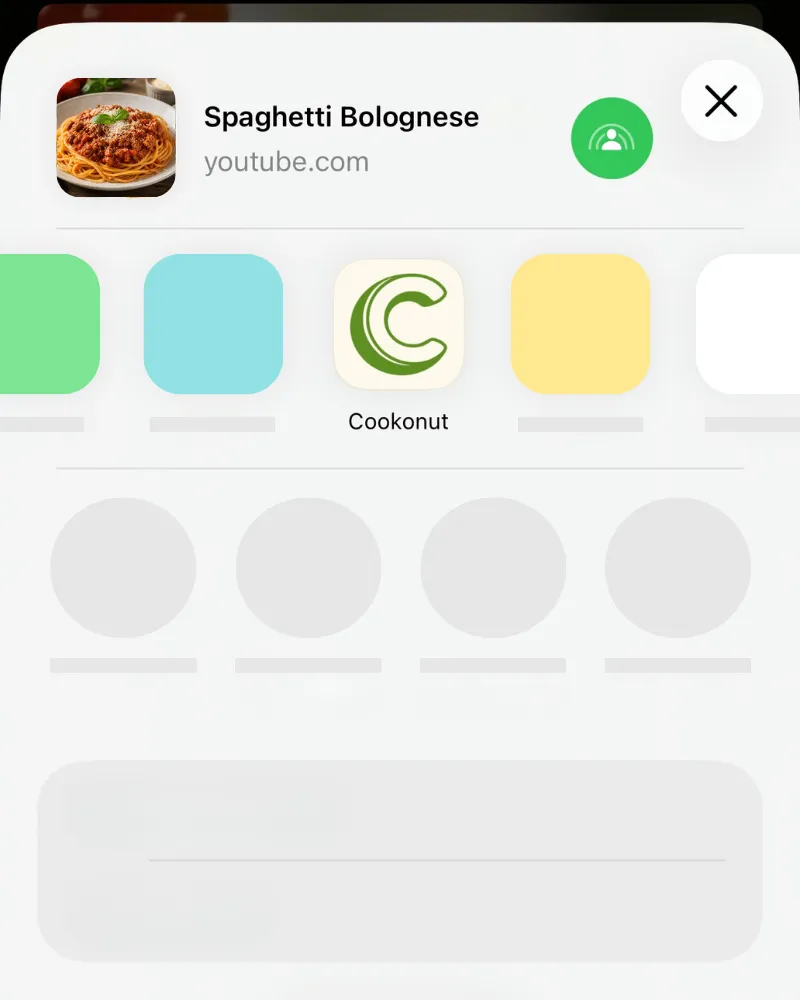
tap Cookonut
- Open the YouTube video with the recipe
- Tap Share below the video
- Select Cookonut from the share options (tap More to find it if needed)
- Cookonut opens with the link ready — tap Import
The screenshots above show iOS. On Android the flow is the same through the share menu — use the iOS and Android tabs at the top for device-specific steps.
If the description links to a recipe
If the video description doesn’t include the full recipe but links to a recipe website, Cookonut follows that link and pulls the recipe from the linked page.
What Cookonut Extracts
Cookonut works through the video in layers and only moves on when the previous layer didn’t give a complete recipe:
- Title and description — the video’s written text
- The video itself — for Shorts and videos up to 3 minutes, AI watches the video: speech, on-screen text, visible actions. It’s read straight from YouTube, nothing is downloaded to your phone.
Depending on what the creator included, you may get the title, ingredients, instructions and a thumbnail. If the recipe came from the video, the preview shows a notice asking you to double-check amounts and step order.
Tips for Better YouTube Imports
For videos up to 3 minutes, the video itself is analyzed, so the description matters less. For longer videos, the import depends on the description:
- Videos with full recipes in the description produce excellent imports — ingredients, quantities, and steps are all there
- Shorts and short videos with no written recipe still work
- Videos longer than 3 minutes with no written recipe produce minimal results — consider using voice dictation while watching instead
Check the Description First
Before importing, take a quick look at the YouTube video description. If you see a full list of ingredients and steps written out, the import will likely be great. If the description only has promotional links and social media handles, you may want to try a different import method. This matters mainly for videos longer than 3 minutes; shorter videos are analyzed directly.
YouTube Shorts
YouTube Shorts work the same way — open the Short, tap Share, and select Cookonut from the share options.
Shorts are analyzed as video, so a sparse description is fine — just review amounts and step order in the preview.
Videos Longer Than 3 Minutes Without a Written Recipe
If a video is longer than 3 minutes and the creator only explains the recipe verbally:
- Play the video
- Open Cookonut and choose Voice Dictation
- Repeat the recipe as you hear it, pausing the video as needed
- Or jot down notes and use the Paste Text import method
This ensures you capture every detail, even from videos without written descriptions.
Credit Usage
Each YouTube import uses 1 credit from your monthly pool. Free plan users get 10 credits per month; Premium users have unlimited imports. The credit covers every layer — you never pay more because Cookonut had to watch the video.
After Saving
Once saved, your YouTube recipe is a full, searchable recipe in your collection — no need to rewatch the video every time you want to cook it. Add it to a cookbook, plan it for the week, or jump straight into cooking mode.
Thanks for your feedback! We're glad it helped.