
Download & Create Your Account
Articles in this section
🚀 Getting Started
📥 Importing Recipes
- How to Import Recipes
- Import from a Website
- Import from Instagram
- Import from Facebook
- Import from TikTok
- Import from Pinterest
- Import from YouTube
- Scan a Recipe from Photo
- Dictate a Recipe by Voice
- Import by Pasting Text
- Use the In-App Browser
- Write a Recipe from Scratch
- Review & Edit Before Saving
- Understanding Import Credits
📂 Managing Recipes
👨🍳 Cooking Mode
📅 Meal Planning
🛒 Grocery List
📤 Sharing & Export
💳 Billing & Subscription
⚙️ Account & Settings
ℹ️ About Cookonut
💡 Ideas & Feedback
Getting Cookonut on your phone and setting up your account takes less than a minute. Here’s everything you need to know.
Download the App
Cookonut is available on both major platforms:
- Open the App Store (iPhone/iPad) or Google Play (Android)
- Search for Cookonut
- Tap Get or Install
- Wait for the download to finish, then open the app
Create Your Account
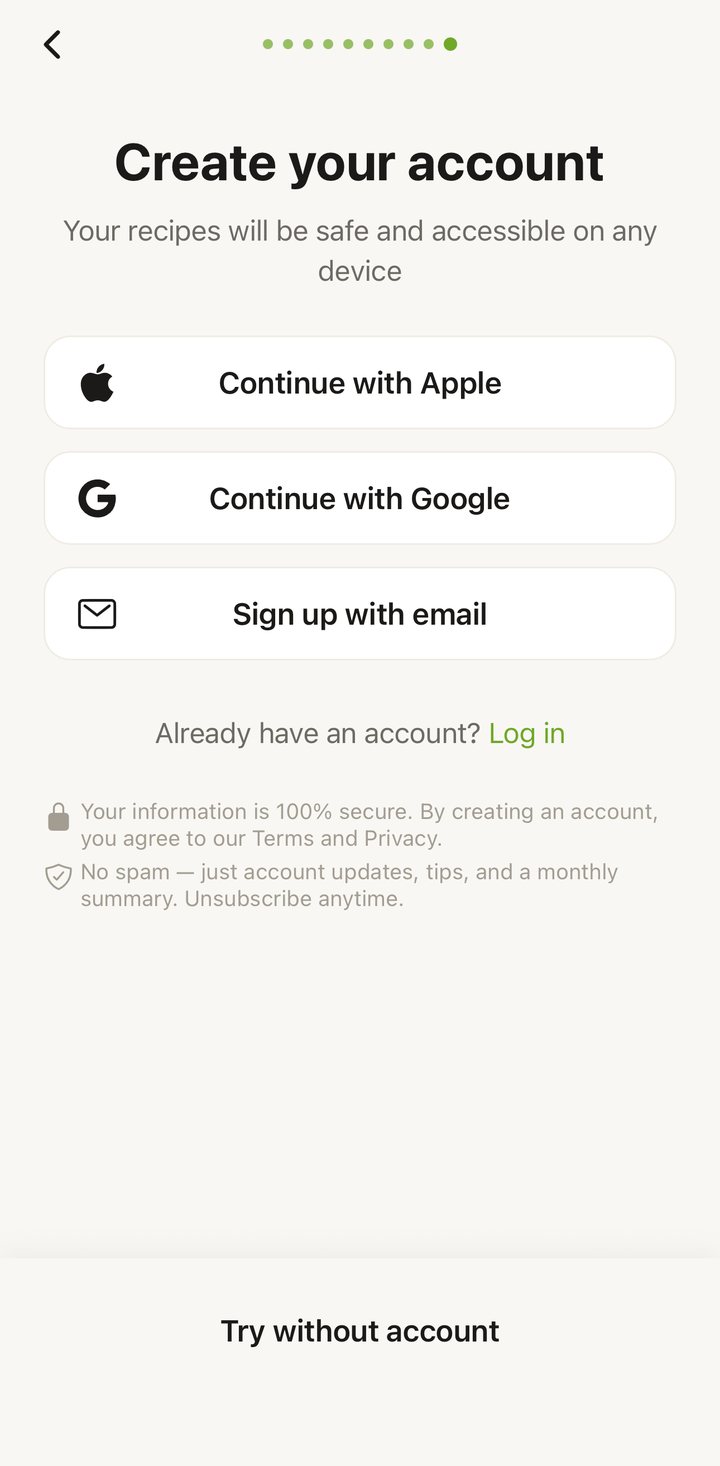
When you first open Cookonut, you’ll see the welcome screen. You have several ways to sign up:
- Tap “Get Started” on the welcome screen
- Choose your sign-up method:
- Continue with Apple (iOS) — uses your Apple ID, no password needed
- Continue with Google — uses your Google account
- Sign up with email — enter your email address and create a password
- If you chose email, check your inbox for a verification email and tap the confirmation link
- Once verified, you’re signed in and ready to go
Quick Onboarding
After creating your account, Cookonut walks you through a few quick setup steps:
- Choose your language — Cookonut supports 9 languages: English, Polish, German, French, Spanish, Italian, Portuguese, Brazilian Portuguese, and Dutch
- Pick your preferred units — metric (grams, ml) or imperial (ounces, cups)
- Select your interests — this helps personalize your experience later
These choices can all be changed later in Settings, so don’t worry about getting them perfect right away.
Already Have an Account?
If you previously created a Cookonut account and are logging in on a new device:
- Tap “Sign In” on the welcome screen
- Use the same method you originally signed up with (Apple, Google, or email)
- Your recipes, cookbooks, and meal plans will sync automatically from the cloud
Your data is always backed up to the cloud, so switching devices is seamless.
Troubleshooting Sign-Up
“Email already in use” — You may have previously created an account. Try signing in instead, or use the “Forgot Password” option.
Verification email not arriving — Check your spam/junk folder. If it’s not there, tap “Resend” on the verification screen. Make sure you typed your email address correctly.
Apple Sign-In not working — Make sure you’re signed into your Apple ID in your device’s Settings app. Apple Sign-In requires iOS 13 or later.
Google Sign-In not working — Ensure you have a Google account set up on your device. Try closing and reopening the app if the Google sign-in screen doesn’t appear.
What Happens Next
Once you’re signed in, you’ll land on the Recipes tab — your home base. From here, you can:
- Tap the + button to import or create your first recipe
- Explore the other tabs: Cookbooks, Meal Plan, and Grocery List
- Open the More tab to fine-tune your preferences
Your free account comes with 10 AI import credits per month, space for up to 50 recipes, and full access to meal planning, grocery lists, cooking mode, and more. No credit card required.
Ready to save your first recipe? Head to the Import Your First Recipe guide to learn how.
Thanks for your feedback! We're glad it helped.