
Import by Pasting Text
Articles in this section
🚀 Getting Started
📥 Importing Recipes
- How to Import Recipes
- Import from a Website
- Import from Instagram
- Import from Facebook
- Import from TikTok
- Import from Pinterest
- Import from YouTube
- Scan a Recipe from Photo
- Dictate a Recipe by Voice
- Import by Pasting Text
- Use the In-App Browser
- Write a Recipe from Scratch
- Review & Edit Before Saving
- Understanding Import Credits
📂 Managing Recipes
👨🍳 Cooking Mode
📅 Meal Planning
🛒 Grocery List
📤 Sharing & Export
💳 Billing & Subscription
⚙️ Account & Settings
ℹ️ About Cookonut
💡 Ideas & Feedback
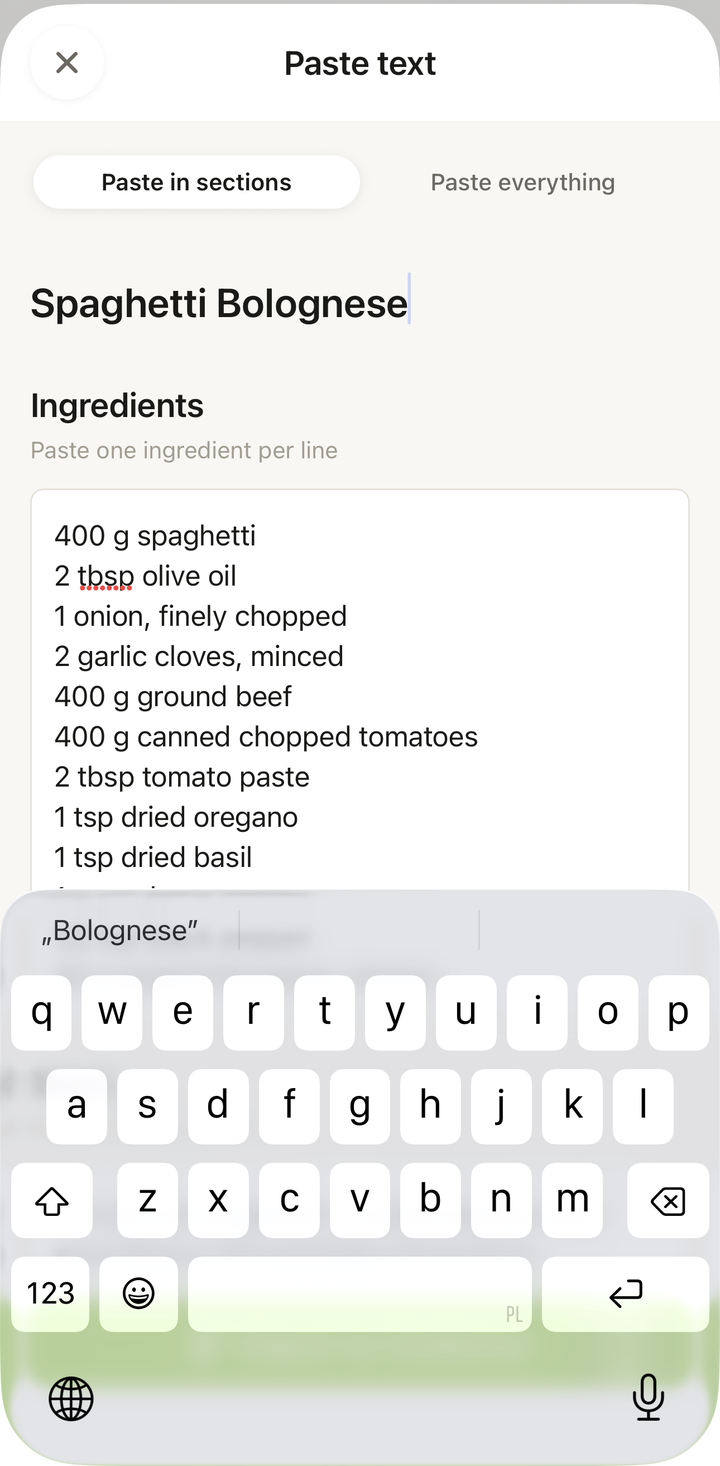
Got a recipe in an email, a text message, a PDF, or a document? Just copy the text and paste it into Cookonut. The app will identify the ingredients, instructions, and other details and organize them into a clean recipe. Paste text is for the recipe text itself — if all you have is a web link, use Search the web instead.
How to Import by Pasting Text
- Copy the recipe text from wherever you found it — an email, a message thread, a notes app, a PDF, or any other source
- Open Cookonut and go to the Recipes tab
- Tap the + button
- Choose Paste text
- Paste the copied text into the text field
- Tap Import
- Wait while Cookonut analyzes and structures the text
What Cookonut Does with Your Text
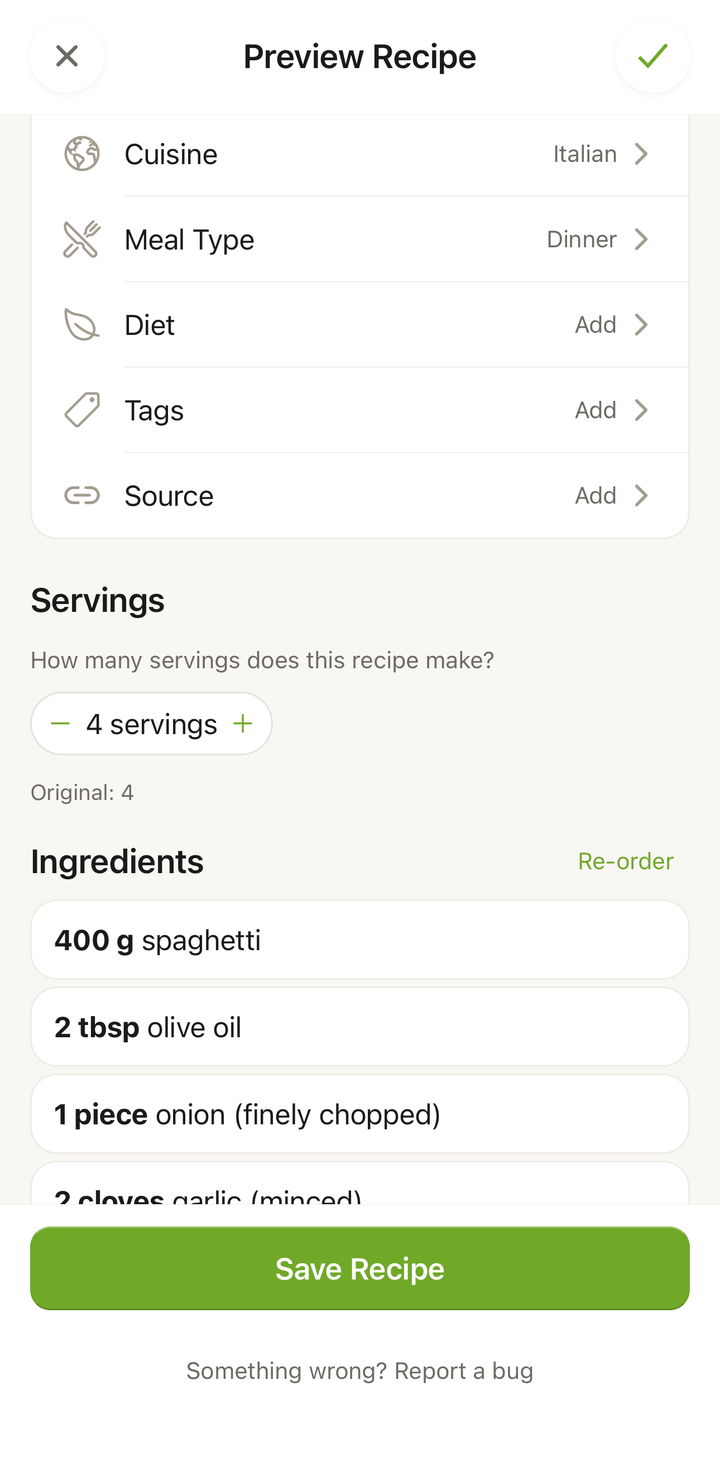
Cookonut reads through the pasted text and automatically identifies:
- The recipe name
- Ingredients — including quantities, units, and item names
- Instructions — broken into numbered steps
- Prep time, cook time, and servings — if mentioned in the text
- Tags — meal type, cuisine, and other categorizations
You don’t need to format the text in any special way. Cookonut can handle:
- Recipes with ingredients listed at the top and steps below
- Recipes written as flowing paragraphs
- Recipes with bullet points, numbered lists, or no formatting at all
- Text in any of the 9 supported languages
Common Sources for Paste Text
This method is especially useful when you have recipe text that isn’t on a web page:
- Emails — a friend sent you their recipe
- Text messages or chat apps — recipes shared over WhatsApp, iMessage, Messenger, etc.
- Notes apps — recipes you jotted down previously
- PDFs or documents — cooking class handouts, ebooks
- Social media comments — recipes posted in comment threads
- Forums and discussion boards — recipes from Reddit, Facebook groups, etc.
Tips for Better Results
- Include as much detail as possible — the more text you provide, the better Cookonut can structure the recipe
- Include the recipe title in the text if possible
- Don’t worry about formatting — Cookonut handles messy text well
- Remove non-recipe content if convenient — advertisements, personal stories, and unrelated text won’t break the import, but removing them can improve accuracy
- Quantities help — “2 cups flour” imports better than “flour”
When to Use Paste Text vs. Other Methods
| Situation | Best choice |
|---|---|
| Recipe on a web page | Use Search the web |
| Recipe in a text message or email | Use Paste text |
| Recipe in a screenshot or photo | Use Scan recipe |
| Recipe someone is telling you | Use Dictate recipe |
Review and Save
After processing, the import preview shows the structured recipe. Check:
- All ingredients are captured with correct amounts
- Steps are in the right order and make sense
- Times and servings are accurate
- Nothing important was missed
Edit anything that needs fixing, then tap Save.
Credit Usage
Each paste text import uses 1 credit from your monthly pool. Free plan users get 10 credits per month; Premium users have unlimited imports.
Thanks for your feedback! We're glad it helped.