
Use the Meal Plan Randomizer
Articles in this section
🚀 Getting Started
📥 Importing Recipes
- How to Import Recipes
- Import from a Website
- Import from Instagram
- Import from Facebook
- Import from TikTok
- Import from Pinterest
- Import from YouTube
- Scan a Recipe from Photo
- Dictate a Recipe by Voice
- Import by Pasting Text
- Use the In-App Browser
- Write a Recipe from Scratch
- Review & Edit Before Saving
- Understanding Import Credits
📂 Managing Recipes
👨🍳 Cooking Mode
📅 Meal Planning
🛒 Grocery List
📤 Sharing & Export
💳 Billing & Subscription
⚙️ Account & Settings
ℹ️ About Cookonut
💡 Ideas & Feedback
Can’t decide what to cook this week? The meal plan randomizer picks recipes from your collection to fill empty slots. It’s a great way to rediscover recipes you’ve saved but forgotten about, and it takes the decision fatigue out of meal planning.
How to Use the Randomizer
- Go to the Plan tab
- Tap the ••• icon at the top to open the Manage week sheet
- Choose Generate random week (Auto-fill week with recipes)
- Step through the 3-step wizard:
- Step 1 — What meals? Select which meal types to fill (Breakfast, Lunch, Dinner, etc.). The list shows only the types you’ve kept visible, in your order and under your names
- Step 2 — Any preferences? Optionally filter by Favorites, a minimum rating, cuisines, or diets — or choose Skip, use all recipes
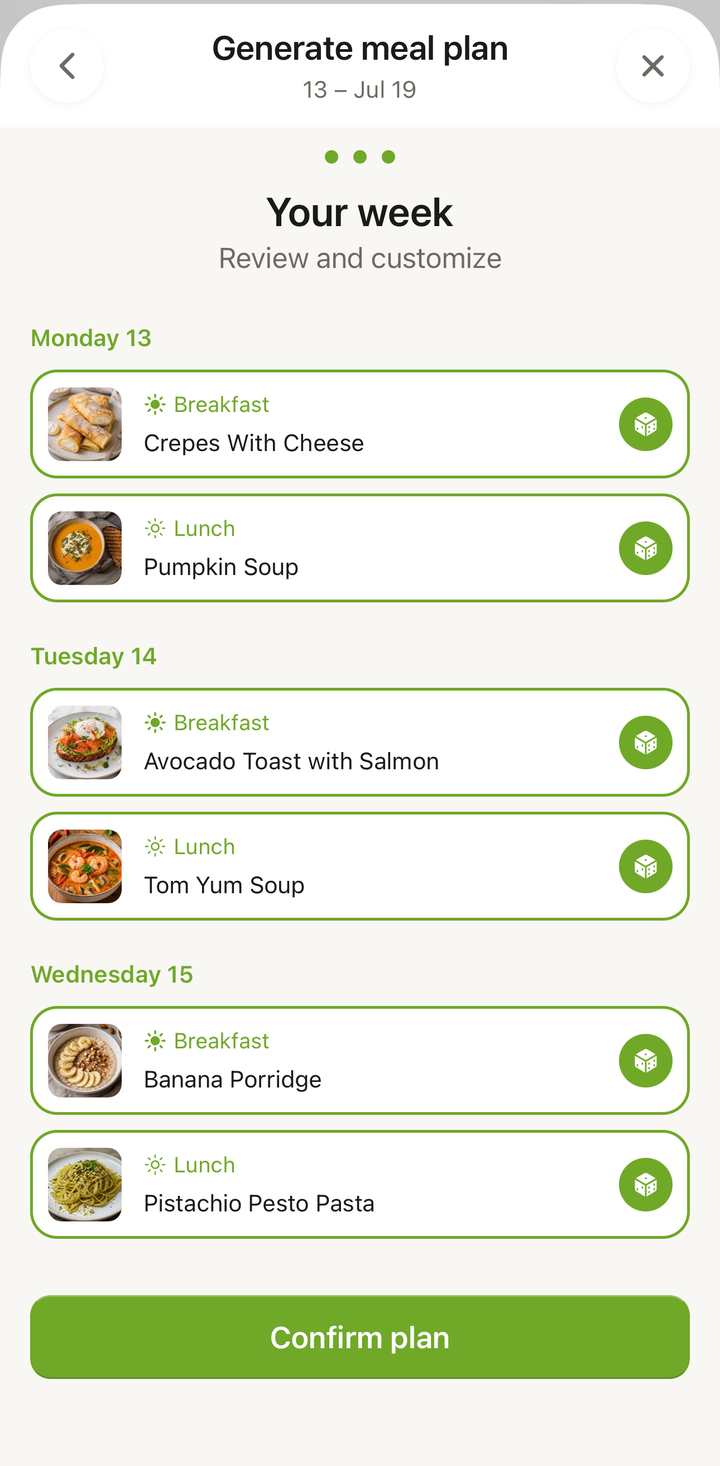
- Step 3 — Your week. Review the suggestions, Re-roll any individual slot or Re-roll all, then tap Confirm plan
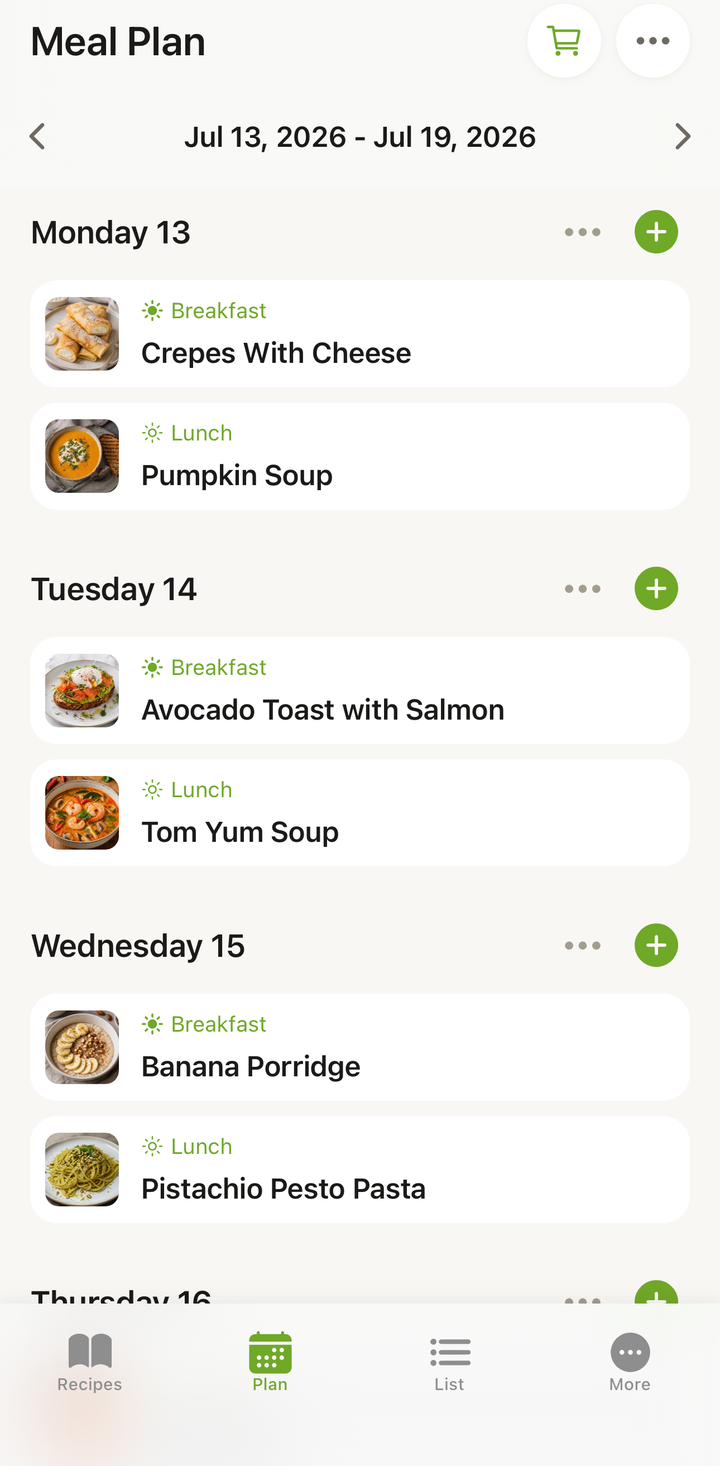
- Your week fills with recipes from your collection
If the Week Already Has Meals
If the week already has recipes planned, the wizard asks how to handle them:
- Replace all — clears the week and fills it with fresh random suggestions
- Fill empty slots only — keeps your existing meals and only fills the gaps
This lets you randomize a half-planned week without losing the meals you already chose.
Reviewing Suggestions
On the Your week step you’re not locked in. For each suggested recipe:
- Keep it if it looks good — no action needed
- Re-roll it to swap that single slot for a different recipe
- Re-roll all to reshuffle the whole week at once
Once you’re happy, tap Confirm plan. The randomizer is a starting point, not a commitment — think of it as Cookonut saying, “How about these?”
How the Randomizer Picks
The randomizer selects from your saved recipe collection. It tries to:
- Match meal types — breakfast recipes go in breakfast slots, dinner recipes in dinner slots
- Vary the selection — avoid suggesting the same recipe twice in one week
- Use recipes you haven’t cooked recently — to bring variety to your rotation
Randomize Only the Empty Slots
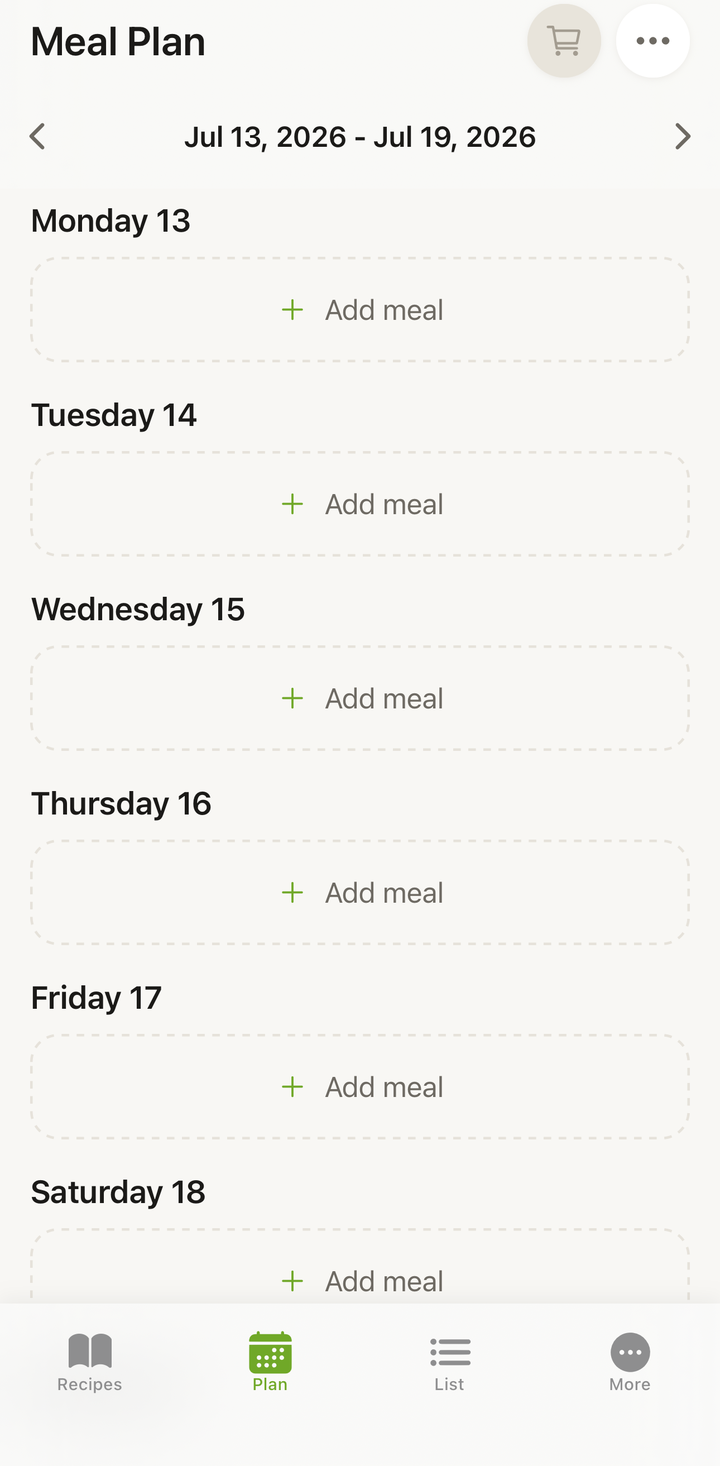
If most of your week is already planned and you just need help with a few meals:
- Open Manage week (•••) and choose Generate random week
- Step through the wizard
- When asked, choose Fill empty slots only — your existing plans stay untouched
This gives you control over which meals get randomized.
When to Use the Randomizer
Weekly planning sessions — Generate a random week at the start of your planning session to get a starting point, then refine from there.
Breaking out of a rut — If you’ve been cooking the same five meals on repeat, the randomizer surfaces recipes you’ve forgotten about.
When you’re uninspired — Sometimes you just don’t want to think about food planning. Let Cookonut do the thinking.
Trying new things — If you’ve imported many recipes but only cook a handful regularly, the randomizer pushes you to try something new.
Tips for Better Randomizer Results
- The more recipes you’ve saved, the better — a collection of 30+ recipes gives the randomizer enough variety to produce interesting plans
- Tag your recipes accurately — meal type tags help the randomizer place breakfast recipes at breakfast time and dinner recipes at dinner time
- Curate your collection — if there are recipes you never want to cook, delete them so they don’t appear in random suggestions
- Use cookbooks strategically — you might randomize from a specific cookbook like “Weeknight Dinners” for weekday meals
- Randomize early in the week — plan on Sunday so you can build a shopping list and shop before the week starts
After Randomizing
Once you’ve reviewed and confirmed the randomized plan:
- Tap the cart icon in the Plan header to open Add to Shopping List
- Select the days to add and confirm
- Check the list on the List tab and add any extras
- You’re ready for the week
The whole process — generate random week, review, build shopping list — can take less than five minutes.
The Randomizer Is a Premium Feature
Generating a random week is part of Smart Meal Planning, included with Cookonut Premium. Building your weekly plan by hand stays free on every plan.
If you just want a single random suggestion at no cost, use Pick a Recipe instead — the dice button on your recipe list picks one random recipe from your collection on any plan.
Thanks for your feedback! We're glad it helped.