
Set & Manage Cooking Timers
Articles in this section
🚀 Getting Started
📥 Importing Recipes
- How to Import Recipes
- Import from a Website
- Import from Instagram
- Import from Facebook
- Import from TikTok
- Import from Pinterest
- Import from YouTube
- Scan a Recipe from Photo
- Dictate a Recipe by Voice
- Import by Pasting Text
- Use the In-App Browser
- Write a Recipe from Scratch
- Review & Edit Before Saving
- Understanding Import Credits
📂 Managing Recipes
👨🍳 Cooking Mode
📅 Meal Planning
🛒 Grocery List
📤 Sharing & Export
💳 Billing & Subscription
⚙️ Account & Settings
ℹ️ About Cookonut
💡 Ideas & Feedback
Cookonut’s built-in timers help you track everything from a 2-minute garlic sauté to a 3-hour slow braise. No more fumbling with a separate timer app while your hands are busy cooking.
How Timers Work
When you’re in cooking mode and a step mentions a time — like “simmer for 20 minutes” or “bake at 180°C for 35 minutes” — Cookonut can detect the duration and offer a quick timer.
Starting a Timer from a Step
- Enter cooking mode for any recipe
- Navigate to a step that includes a time
- You’ll see a timer button with the detected duration
- Tap it to start the countdown
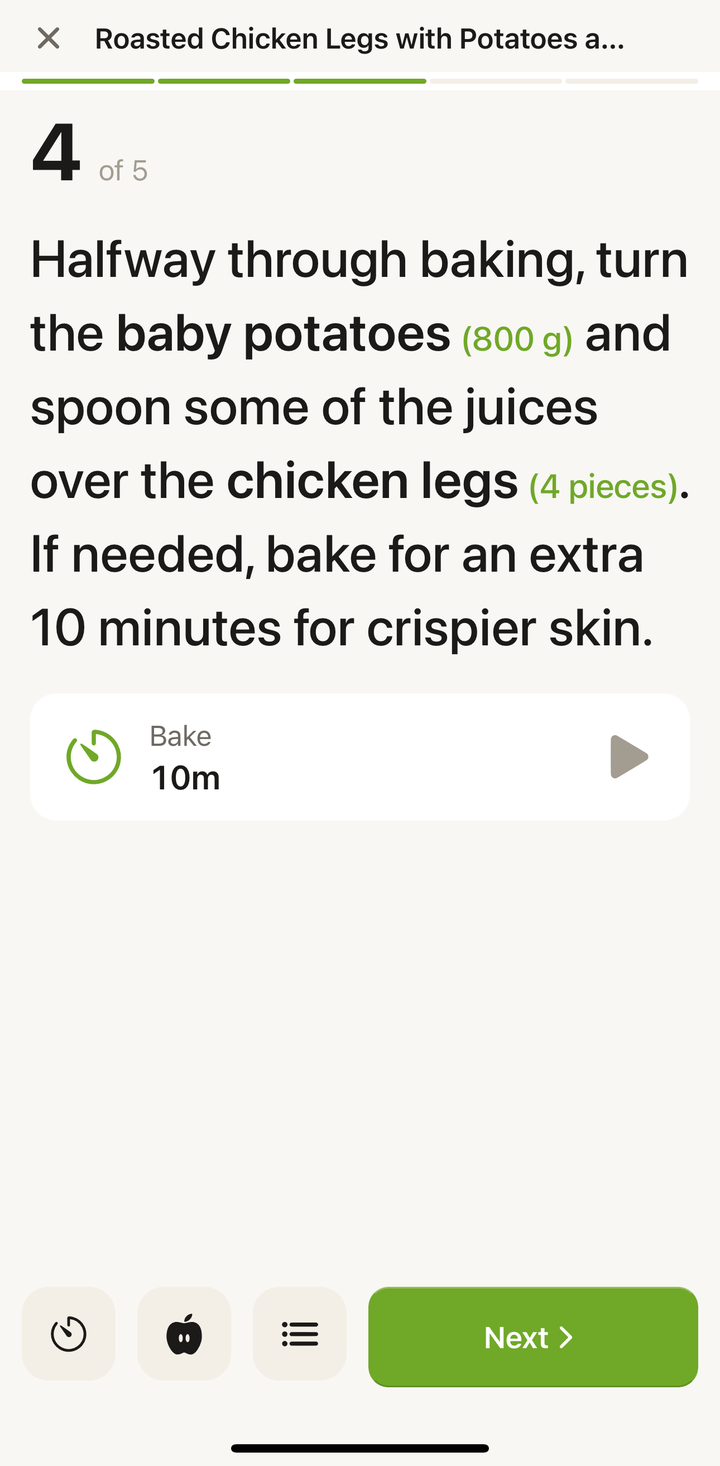
The timer starts immediately and runs in the background, so you can continue moving through other steps.
Starting a Custom Timer
If you want to set a timer for a custom duration (different from the detected time, or for a step without a detected time):
- Tap the timer icon in the cooking mode toolbar
- Set the desired duration
- Tap Start
Running Multiple Timers
Real cooking often involves multiple things happening at once — the oven timer, the pot simmering, the resting time. Cookonut supports multiple simultaneous timers:
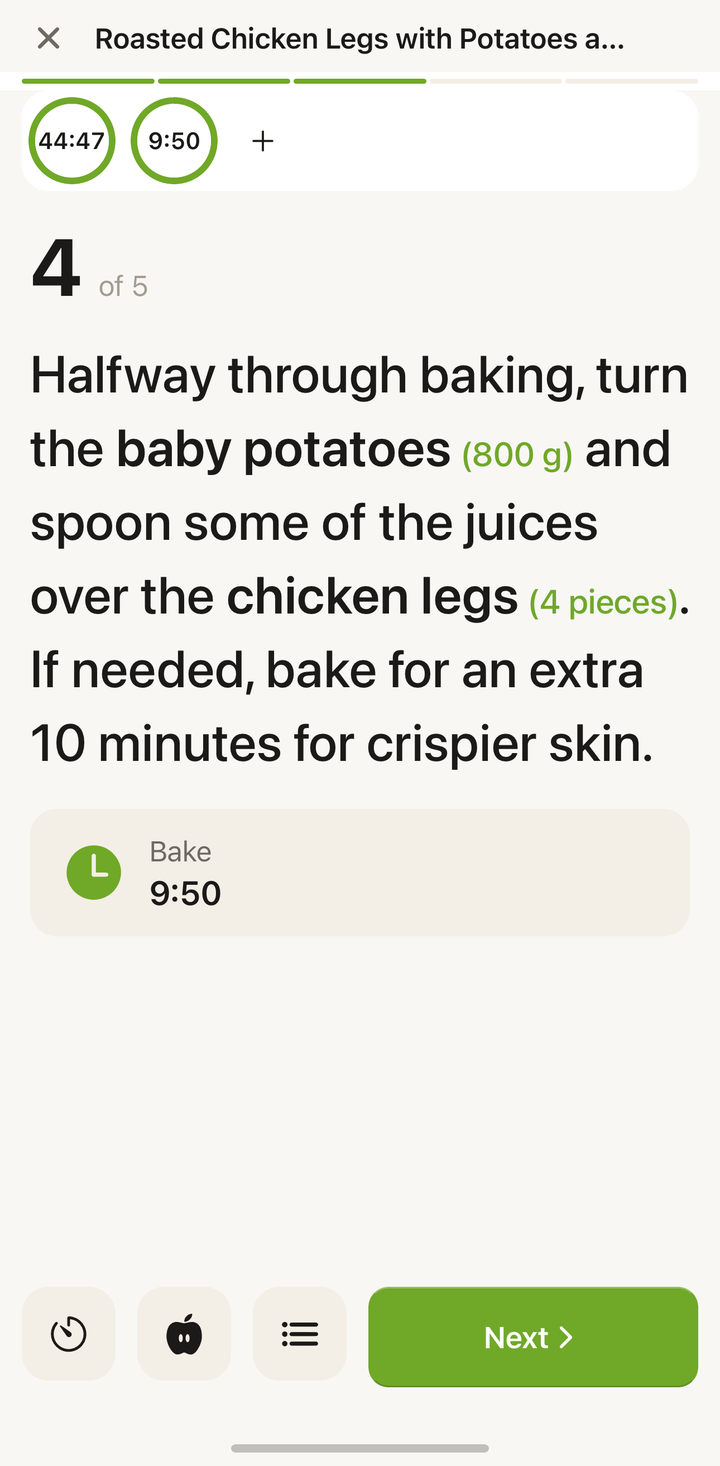
- Each timer runs independently
- You can see all active timers from the timer panel
- Each timer shows its label and remaining time
- Timers continue running even as you navigate between steps
Timer Notifications
When a timer finishes:
- You’ll hear an alarm sound
- A notification appears (even if the app is in the background or your screen is locked)
- The timer flashes or highlights in the timer panel
Make sure you have notifications enabled for Cookonut in your phone’s settings to receive alerts when the app is in the background.
Managing Active Timers
From the timer panel, you can:
- Pause a timer if you need to hold off
- Resume a paused timer
- Cancel a timer you no longer need
- See all running timers at a glance
Timers and Leaving Cooking Mode
Timers live inside cooking mode. While you stay in cooking mode they keep running as you move between steps. But when you exit cooking mode, all active timers are stopped and their notifications are cancelled — they won’t keep running or alert you in the background. If you have running timers when you try to leave, Cookonut warns you first so you don’t lose them by accident.
Tips for Using Timers Effectively
- Start timers as soon as you begin the step — don’t wait until you’ve finished reading the instruction
- Use descriptive names when setting custom timers so you remember what each one is for
- Set the timer slightly shorter for things you want to check on — you can always add more time, but you can’t uncook something
- Multiple timers are your friend for complex recipes — don’t try to keep track of three things in your head
Common Timer Scenarios
Baking: Set a timer for the bake time, then check on the dish when it goes off. For recipes that say “25-30 minutes,” set it for 25 and check.
Simmering: Start a 20-minute simmer timer and move on to prep your next ingredient.
Resting: Set a rest timer for meat or dough — easy to forget without an alarm.
Marinating: Start a longer timer and do something else entirely. The notification will remind you when it’s time.
Timers Are Part of Premium
Timers are built into cooking mode, which is a Cookonut Premium feature. With Premium, you can run as many simultaneous timers as you need, as often as you cook. See Free vs Premium for everything that’s included.
Thanks for your feedback! We're glad it helped.