
Copy a Meal Plan Week
Articles in this section
🚀 Getting Started
📥 Importing Recipes
- How to Import Recipes
- Import from a Website
- Import from Instagram
- Import from Facebook
- Import from TikTok
- Import from Pinterest
- Import from YouTube
- Scan a Recipe from Photo
- Dictate a Recipe by Voice
- Import by Pasting Text
- Use the In-App Browser
- Write a Recipe from Scratch
- Review & Edit Before Saving
- Understanding Import Credits
📂 Managing Recipes
👨🍳 Cooking Mode
📅 Meal Planning
🛒 Grocery List
📤 Sharing & Export
💳 Billing & Subscription
⚙️ Account & Settings
ℹ️ About Cookonut
💡 Ideas & Feedback
Had a great meal plan week that you’d love to repeat? Instead of rebuilding it from scratch, you can copy an entire week’s plan to a different week.
How to Copy a Week
- Go to the Plan tab
- Navigate to the week you want to copy (the source week)
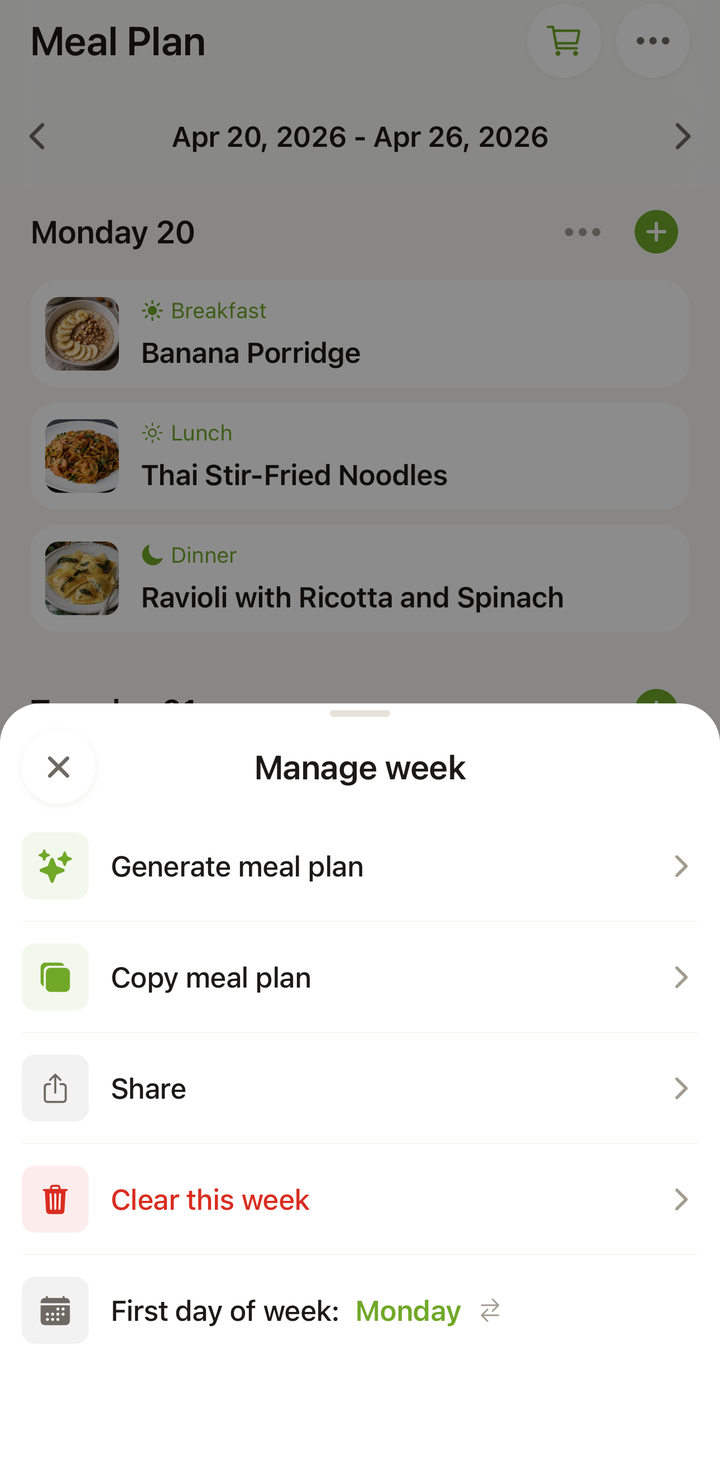
- Tap the ••• icon at the top to open the Manage week sheet
- Choose Copy meal plan
- Under Copy to week, tap Select a week — the week you want to paste the plan into
- Confirm the copy — you’ll see a Meal plan copied confirmation
What Gets Copied
When you copy a week, all meal assignments are duplicated:
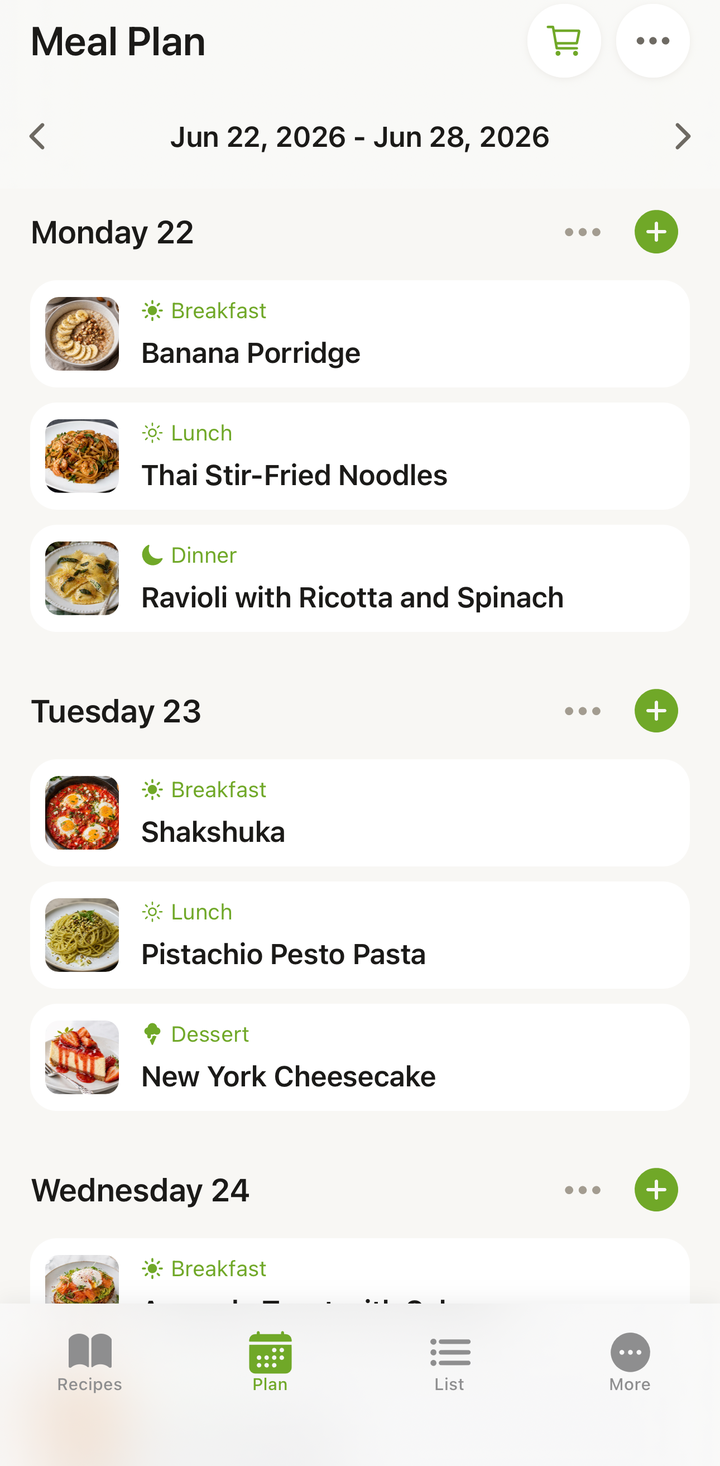
- Every recipe in every slot (breakfast, lunch, dinner, snack) for all seven days
- The specific recipes and their positions in the week
Editing the Copied Week
After copying, the target week is fully editable. You can:
- Swap individual meals — keep most of the plan but change a few meals
- Remove recipes you don’t want this time
- Add new recipes to empty or replaced slots
Think of the copy as a template — a starting point that you customize for the new week.
Use Cases
Repeating a good week: You meal prepped beautifully last week and want to do it again. Copy the week and make minor adjustments.
Creating a rotation: Set up 2-3 weeks of plans, then rotate between them. Each week, copy one of your standard plans and adjust as needed.
Planning ahead: Copy this week’s plan to next week as a starting point, then swap out a few meals to keep things fresh.
Sharing patterns: If you and your partner plan meals, copy a week that worked well and then discuss adjustments together.
What If the Target Week Already Has Plans?
If the target week already has some meals planned, you’ll see a Target week has meals dialog with two choices:
- Replace all — clears the target week and pastes the copied plan in its place
- Keep & add — keeps the existing meals and merges the copied recipes alongside them
Pick whichever fits: replace for a clean copy, or keep & add to combine both weeks.
Building a Fresh Shopping List
After copying and adjusting a week, don’t forget to build a fresh shopping list:
- Review the copied and adjusted plan
- Tap the cart icon in the Plan header
- In the Add to Shopping List modal, select the days to add and confirm
- Cookonut creates a list based on the updated plan, ready on the List tab
Even if the plan is identical to the source week, build a fresh shopping list — you may already have some ingredients at home from last time.
Tips
- Build “template weeks” that you copy and adjust regularly — like a “Standard Work Week” plan or a “Healthy Reset Week”
- Copy to the future — plan two or three weeks ahead when you have time
- Mix copy and randomize — copy a base plan, then randomize just the empty or removed slots for variety
- Adjust servings after copying if your household size changes (guests visiting, kids away, etc.)
Copying Is a Premium Feature
Copying a week is part of Smart Meal Planning, included with Cookonut Premium. Building each week’s plan by hand stays free on every plan. See Free vs Premium for everything that’s included.
Thanks for your feedback! We're glad it helped.