
Share Your Grocery List
Articles in this section
🚀 Getting Started
📥 Importing Recipes
- How to Import Recipes
- Import from a Website
- Import from Instagram
- Import from Facebook
- Import from TikTok
- Import from Pinterest
- Import from YouTube
- Scan a Recipe from Photo
- Dictate a Recipe by Voice
- Import by Pasting Text
- Use the In-App Browser
- Write a Recipe from Scratch
- Review & Edit Before Saving
- Understanding Import Credits
📂 Managing Recipes
👨🍳 Cooking Mode
📅 Meal Planning
🛒 Grocery List
📤 Sharing & Export
💳 Billing & Subscription
⚙️ Account & Settings
ℹ️ About Cookonut
💡 Ideas & Feedback
Need someone else to pick up groceries? Or want to split the shopping? Share your grocery list from Cookonut in just a couple of taps.
How to Share Your Grocery List
- Go to the List tab
- Tap the ••• icon to open the Options sheet
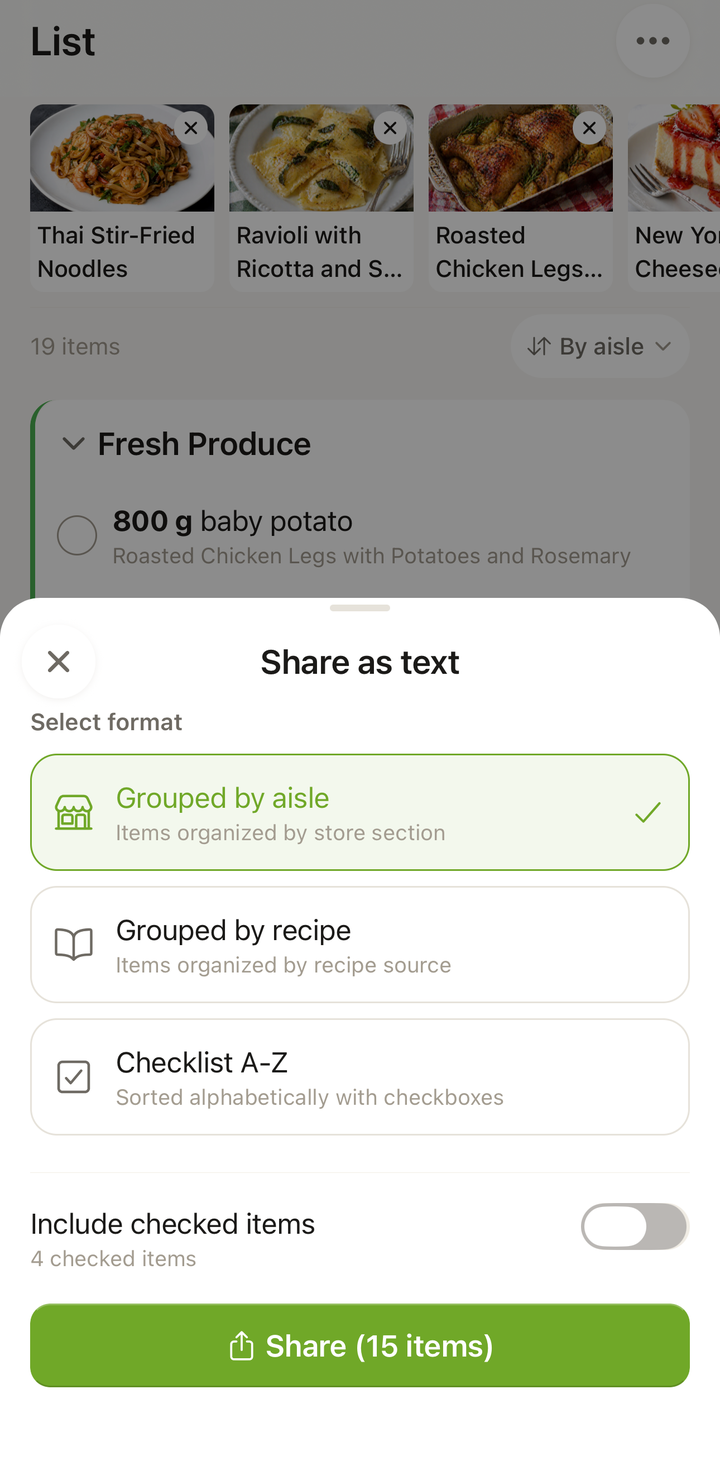
- Choose Share as text
- The Share List format chooser opens — pick a format:
- Grouped by aisle
- Grouped by recipe
- Checklist A-Z
- and toggle Include checked items on or off
- The system share sheet opens — choose how you want to share:
- Text message / iMessage
- Messenger
- Copy to clipboard
- Or any other app in your system share sheet
What Gets Shared
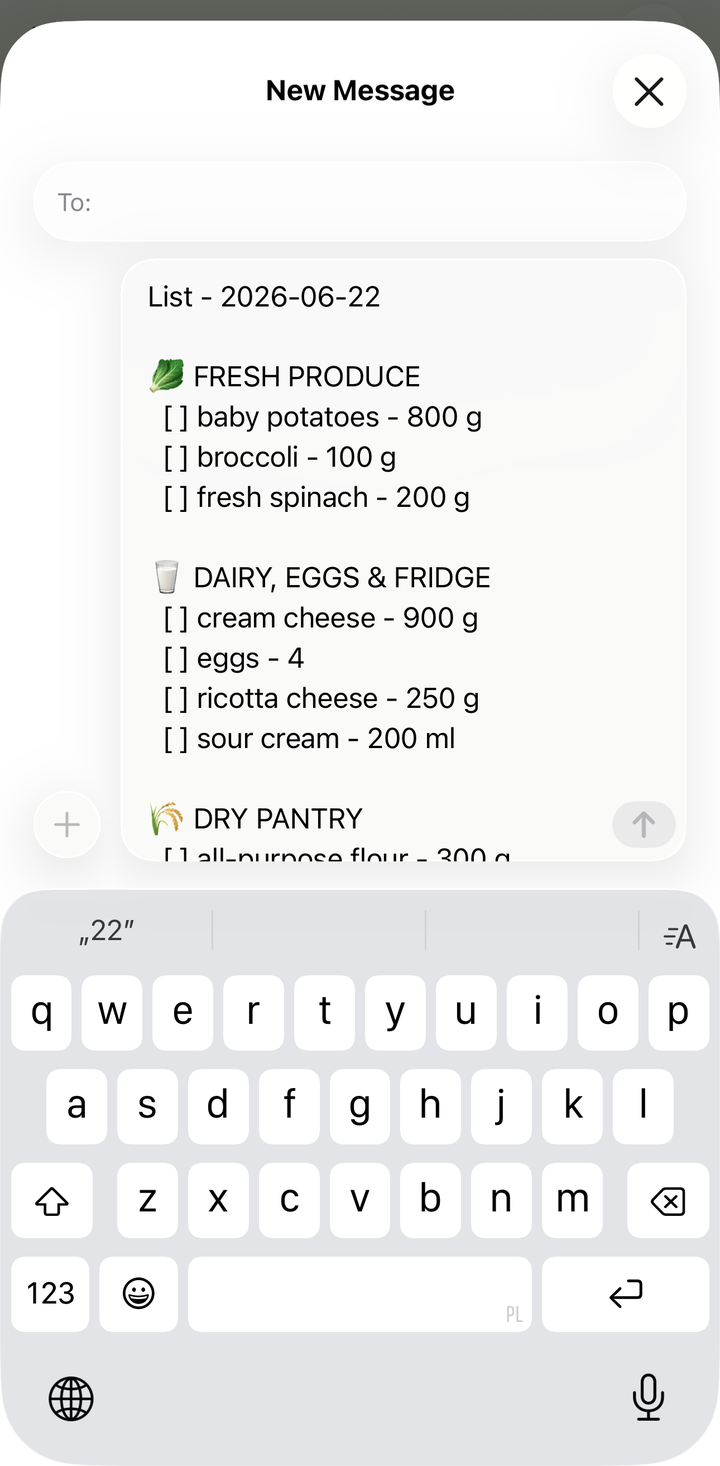
Cookonut sends a clean, readable text version of your grocery list. The recipient sees something like:
Grocery List
Produce
- 3 onions
- 500g chicken breast
- 2 bell peppers
- 1 head of garlic
Dairy
- 200g feta cheese
- 250ml heavy cream
Pantry
- Olive oil
- Soy sauce
- 400g spaghetti
Items are grouped by category for easy reading. Checked-off items can be excluded so the recipient only sees what still needs buying.
Sharing Scenarios
Splitting the shopping: Share the list with your partner. One person covers produce and meat, the other handles dairy and pantry. You can both check items off your own copy.
Sending someone to the store: Your roommate is heading to the grocery store. Share the list so they know exactly what to get, with quantities.
Coordinating with family: Share the weekly grocery list in the family group chat. Anyone who’s near a store can pick things up.
Asking “Do we need anything?”: When someone texts to ask if you need anything from the store, forward the grocery list instantly.
Sharing Only Unchecked Items
If you’ve already checked off items you have at home and only want to share what still needs buying:
- In the Share List format chooser, leave Include checked items turned off
- This way the recipient only sees what actually needs to be purchased
Copying to Clipboard
If you want to paste the list somewhere specific:
- Tap the ••• icon and choose Share as text
- Pick a format in the Share List chooser
- From the system share sheet, choose Copy to Clipboard
- Open any app (Notes, a document, a chat) and paste the list
This is useful for adding the grocery list to a shared notes document or a task management app.
Tips
- Share right before someone goes shopping — so the list is current
- Update the list after sharing if plans change — share again with the updated version
- Remove items you already have before sharing to keep the list focused
- Add custom items (like household supplies) before sharing so the list is complete
Sharing Is Free
Sharing your grocery list is available on all plans, including the free tier.
Thanks for your feedback! We're glad it helped.