
Organize Your Recipe Collection
Articles in this section
🚀 Getting Started
📥 Importing Recipes
- How to Import Recipes
- Import from a Website
- Import from Instagram
- Import from Facebook
- Import from TikTok
- Import from Pinterest
- Import from YouTube
- Scan a Recipe from Photo
- Dictate a Recipe by Voice
- Import by Pasting Text
- Use the In-App Browser
- Write a Recipe from Scratch
- Review & Edit Before Saving
- Understanding Import Credits
📂 Managing Recipes
👨🍳 Cooking Mode
📅 Meal Planning
🛒 Grocery List
📤 Sharing & Export
💳 Billing & Subscription
⚙️ Account & Settings
ℹ️ About Cookonut
💡 Ideas & Feedback
As your recipe collection grows, a little organization goes a long way. Cookonut gives you several tools to keep everything tidy and findable — cookbooks, tags, categories, and powerful search. Here’s how to build a collection you’ll actually enjoy using.
Cookbooks: Your Main Organizational Tool
Cookbooks are like folders for your recipes. Create them around any theme that makes sense for your life:
- By meal type — “Breakfasts,” “Quick Lunches,” “Dinner Party”
- By cuisine — “Italian,” “Thai,” “Mexican”
- By occasion — “Holiday Baking,” “BBQ Season,” “Meal Prep Sundays”
- By dietary need — “Vegetarian,” “Gluten-Free,” “Low Carb”
- By source — “Grandma’s Recipes,” “Blog Favorites,” “TikTok Finds”
A recipe can belong to multiple cookbooks, so you don’t have to choose just one. Your chicken tikka masala can live in both “Indian” and “Weeknight Dinners.”
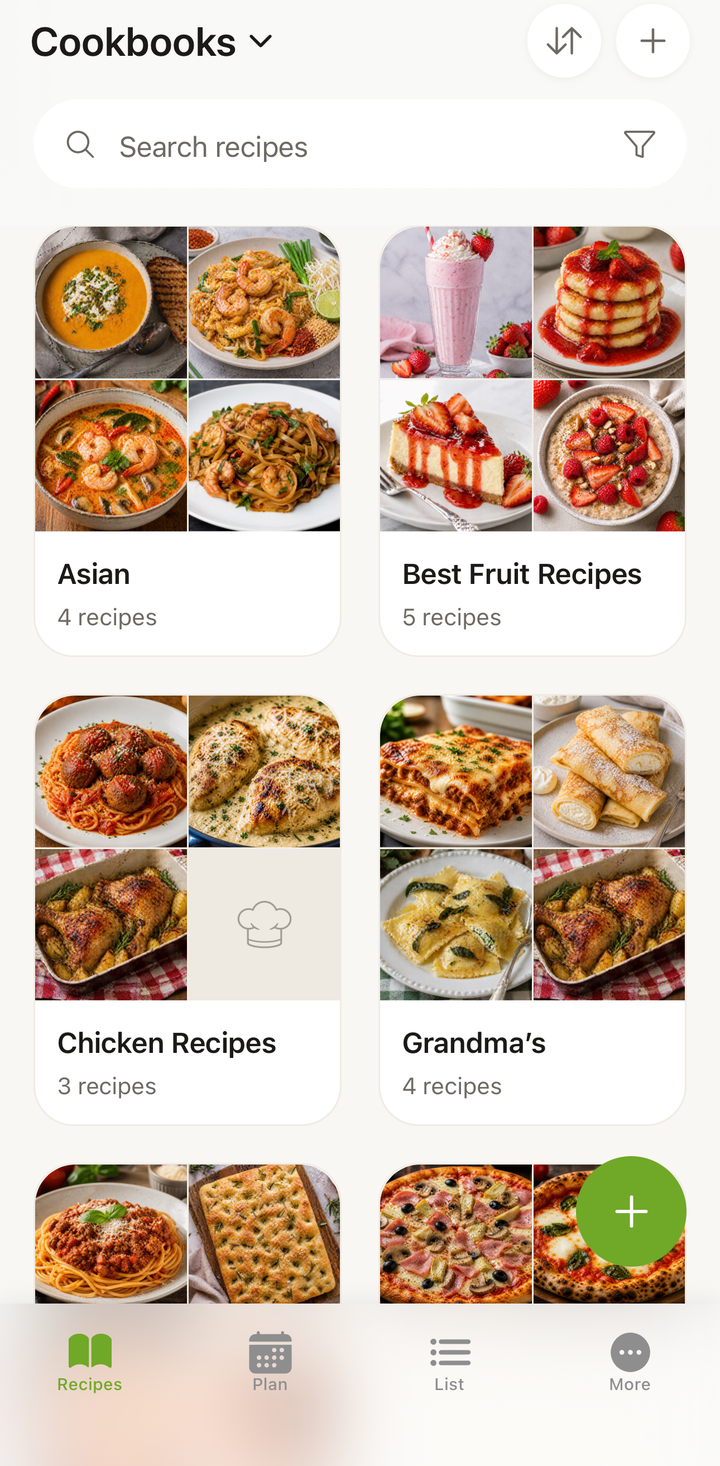
To assign a recipe to a cookbook:
- Open the recipe
- Tap the ••• options menu
- Choose Assign to cookbook
- Check one or more cookbooks
You can also long-press a recipe card in the list and choose Manage Cookbooks to check or uncheck cookbooks. Unchecking a cookbook removes the recipe from it.
Tags: Flexible Labels
Tags are lightweight labels you can attach to any recipe. Unlike cookbooks, tags are quick, informal markers. Some ideas:
- “kid-friendly”
- “under-30-min”
- “make-ahead”
- “comfort-food”
- “date-night”
- “tried-and-loved”
To add tags:
- Open a recipe and tap ••• → Edit recipe
- Tap the Tags row to open the tag picker
- Toggle tags on or off, or type a tag name to create one
- Tap the checkmark to save
Tags are searchable and filterable, so adding them consistently pays off over time.
Categories: Built-In Organization
Cookonut automatically categorizes recipes by:
- Meal type — breakfast, lunch, dinner, snack, dessert
- Cuisine — Italian, Asian, American, etc.
These categories are suggested during import and can be edited anytime. They power the filter system on the Recipes tab.
A Simple Organization System
If you’re just getting started, here’s a practical approach:
- Create 3-5 cookbooks based on how you actually plan meals (e.g., “Quick Weeknights,” “Weekend Projects,” “Meal Prep”)
- Add meal type and cuisine during import — it takes two seconds and makes filtering powerful
- Use tags sparingly for things that don’t fit neatly into cookbooks (e.g., “guest-approved”)
- Don’t over-organize — you can always reorganize later
Keeping Things Tidy
As your collection grows past 20-30 recipes, these habits help:
- Assign a cookbook during import — do it on the preview screen before saving
- Delete recipes you’ll never make — it’s okay to let go
- Edit titles for consistency — “The Best Ever Triple Choc Cookies!!!” becomes “Triple Chocolate Cookies”
- Use the search and filter tools — they’re faster than scrolling through a long list
Finding Recipes Quickly
Once your recipes are organized, finding them is easy:
- Search by name, ingredient, or keyword
- Filter by meal type, cuisine, cook time, or tags
- Browse cookbooks for themed browsing
- Search by ingredients when you want to cook with what you have
The more consistent your organization, the faster you’ll find what you’re looking for. But even with minimal organization, Cookonut’s search is powerful enough to help you find any recipe quickly.
Thanks for your feedback! We're glad it helped.