
Grocery List Views
Articles in this section
🚀 Getting Started
📥 Importing Recipes
- How to Import Recipes
- Import from a Website
- Import from Instagram
- Import from Facebook
- Import from TikTok
- Import from Pinterest
- Import from YouTube
- Scan a Recipe from Photo
- Dictate a Recipe by Voice
- Import by Pasting Text
- Use the In-App Browser
- Write a Recipe from Scratch
- Review & Edit Before Saving
- Understanding Import Credits
📂 Managing Recipes
👨🍳 Cooking Mode
📅 Meal Planning
🛒 Grocery List
📤 Sharing & Export
💳 Billing & Subscription
⚙️ Account & Settings
ℹ️ About Cookonut
💡 Ideas & Feedback
Cookonut offers different ways to view your grocery list, so you can organize your shopping in the way that works best for you. Switch between views depending on whether you shop by aisle, by recipe, or just want a simple checklist.
Available Views
The List tab has four views, selectable from the toggle at the top of the list: By aisle, By recipe, A-Z, and Recently added.
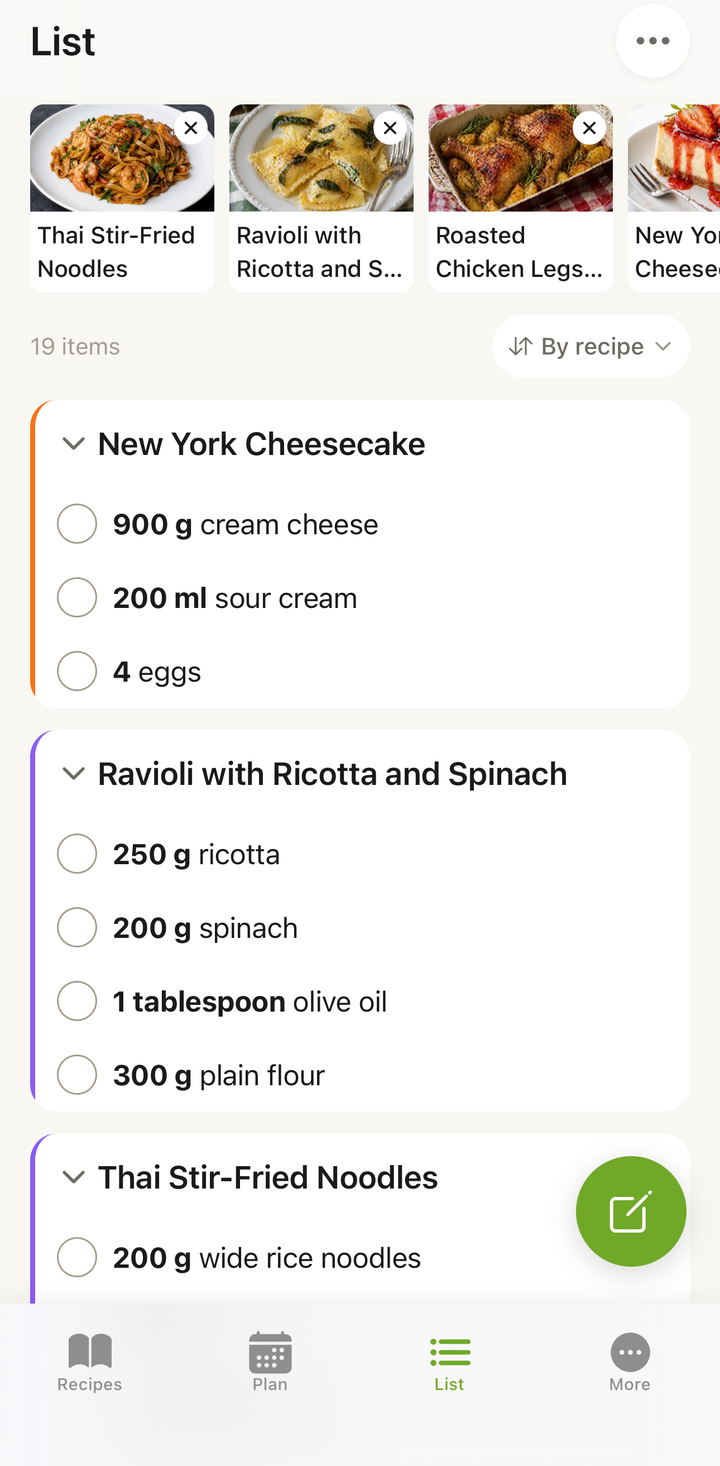
By recipe
This is the default view. Items are grouped by which recipe they belong to:
- Chicken Stir-Fry — chicken breast, soy sauce, sesame oil, bell pepper…
- Greek Salad — cucumber, tomatoes, feta cheese, olives…
- Banana Bread — bananas, flour, sugar, eggs…
- Custom Items — anything you added manually
This view is helpful when you want to see exactly what each recipe needs, or when you’re deciding at the store whether to skip a recipe this week.
By aisle
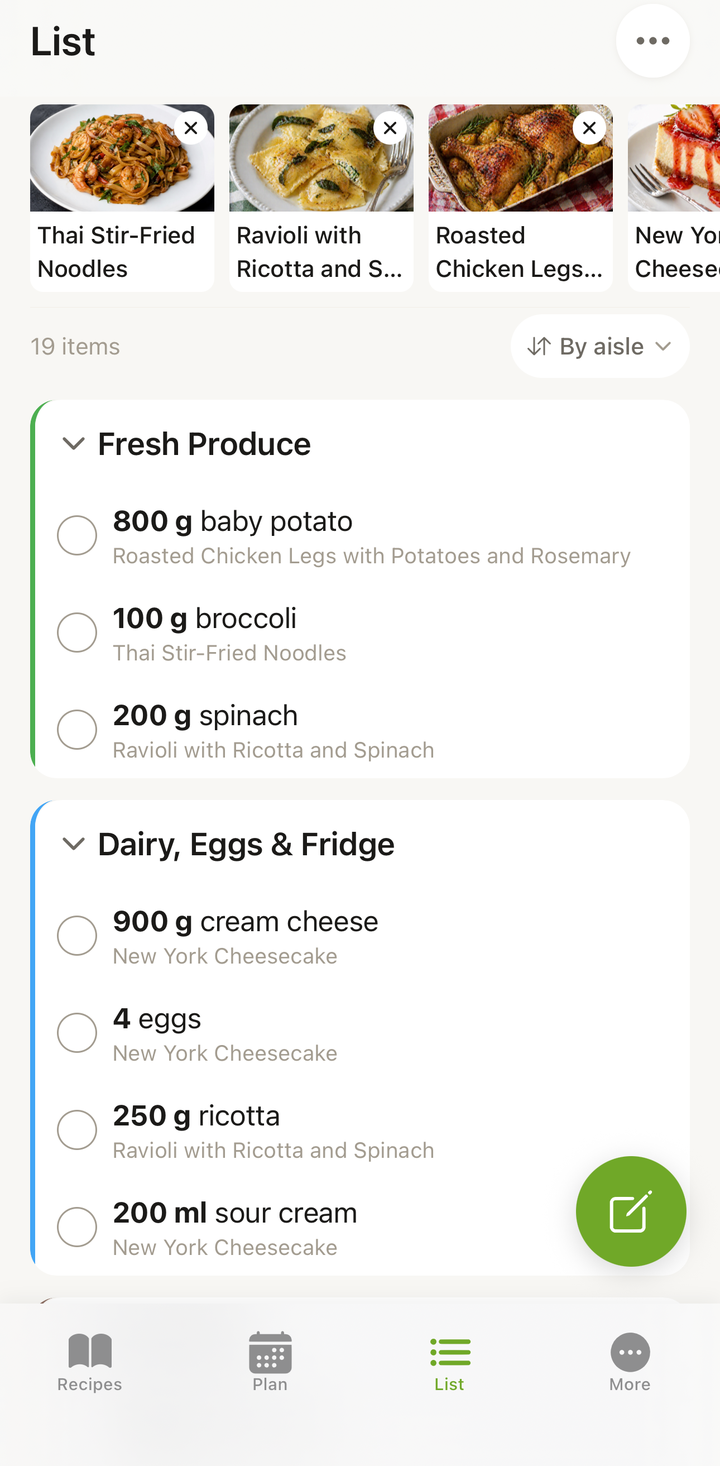
Items are grouped by the aisle or category you’d find them in at the store, such as:
- Fresh Produce — fruits and vegetables
- Meat & Seafood — chicken, beef, fish
- Dairy/Eggs & Fridge — milk, cheese, yogurt, butter
- Bakery & Deli — bread, rolls
- Frozen — frozen vegetables, ice cream
- Dry Pantry, Canned & Jarred, Spices & Herbs, and more
This mirrors how most grocery stores are laid out, so you can work through the list aisle by aisle without backtracking. Items that don’t fit a category land under Uncategorized.
An item in the wrong section can be moved, and Cookonut remembers the choice for that ingredient on every future list — see Change an Item’s Aisle.
A-Z
A single, alphabetical checklist of everything you need — no recipe or aisle grouping, just every item sorted from A to Z.
This view works well for:
- Quickly finding a specific item by name
- Small shopping lists
- People who prefer a simple, flat checklist
Recently added
Shows items newest-first, so the things you just added appear at the top. Handy when you’re adding items on the fly and want to confirm they landed on the list.
Switching Between Views
- Go to the List tab
- Use the view selector at the top of the list
- Tap to switch between By aisle, By recipe, A-Z, and Recently added
Your chosen view is remembered for next time, but you can switch anytime.
Checking Off Items
In all views, tap an item’s checkbox to mark it as done:
- Checked items get dimmed or move to the bottom
- You can uncheck items if you change your mind
- The count at the top shows your progress (e.g., “12 of 23 items checked”)
Which View Should You Use?
| Situation | Best view |
|---|---|
| Shopping at a supermarket | By aisle — shop aisle by aisle |
| Deciding whether to skip a recipe | By recipe — see what each recipe needs |
| Finding a specific item fast | A-Z — alphabetical checklist |
| Confirming items you just added | Recently added — newest first |
Combining Views
You might start in By recipe to review what you need for each meal, then switch to By aisle when you arrive at the store for efficient aisle-by-aisle shopping.
Tips
- By aisle is the most efficient for in-store shopping
- By recipe (the default) helps when you’re reviewing your plan and might drop a recipe
- A-Z is fastest when you’re hunting for one specific item
- Recently added is handy while you’re still building the list
- Checked items are preserved when you switch views — nothing is lost
Grocery List Views Are Free
All grocery list views and features are available on all plans, including the free tier.
Thanks for your feedback! We're glad it helped.