
Push Notification Settings
Articles in this section
🚀 Getting Started
📥 Importing Recipes
- How to Import Recipes
- Import from a Website
- Import from Instagram
- Import from Facebook
- Import from TikTok
- Import from Pinterest
- Import from YouTube
- Scan a Recipe from Photo
- Dictate a Recipe by Voice
- Import by Pasting Text
- Use the In-App Browser
- Write a Recipe from Scratch
- Review & Edit Before Saving
- Understanding Import Credits
📂 Managing Recipes
👨🍳 Cooking Mode
📅 Meal Planning
🛒 Grocery List
📤 Sharing & Export
💳 Billing & Subscription
⚙️ Account & Settings
ℹ️ About Cookonut
💡 Ideas & Feedback
Cookonut can send push notifications to your phone — from cooking timer alerts to meal planning reminders. You can turn each type on or off individually.
Looking for email settings? See Email Notifications.
Push Notification Types
The push notification settings screen (More > Notifications) is organized into sections.
Cooking
- Timer alerts — An alert when a cooking timer finishes. This is the most important notification — don’t cook without it.
Sharing
- Shared recipes — A push notification when someone shares a recipe with you directly through Cookonut.
Meal Planning
- Planning reminders — Weekly push notifications reminding you to plan your meals. You can choose the time of day and the specific days of the week you’d like to be reminded.
Account
This section only appears if it’s relevant to you — for example, during a free trial or with an active Premium subscription.
- Trial reminders — A heads-up before your free trial ends, so you can decide whether to subscribe.
- Premium reminders — A push notification before your Premium subscription renews or expires.
- Monthly limit refresh — (Free plan only) Once a month, when your free 10 recipe imports refresh, you get a short heads-up. Sent at most 3 times after you join the Free plan (or after coming off Premium). You can turn it off anytime.
Tips & Suggestions
- Feature tips — Occasional push notifications suggesting features you haven’t tried yet, like voice import or photo scanning.
In-App Messages
- Banners & Announcements — Updates and announcements displayed as banners inside the app. These don’t send push notifications to your phone — they only appear when you open Cookonut.
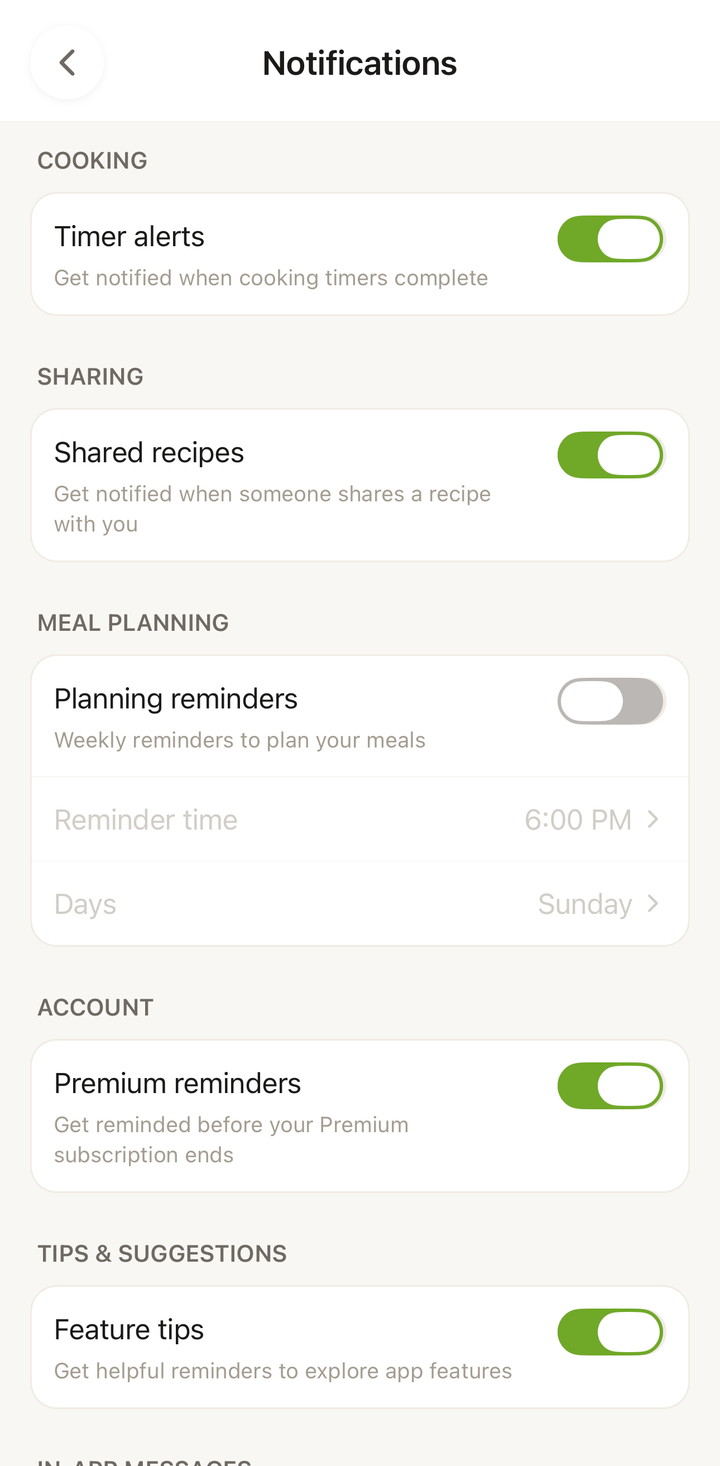
How to Manage Push Notifications
- Open Cookonut
- Go to the More tab
- Tap Notifications
- Toggle each notification type on or off
- Tap Save to apply your changes
Changes take effect immediately. You can come back and adjust these at any time.
System-Level Permissions
Your phone also controls whether Cookonut can send push notifications:
On iPhone/iPad
- Open your phone’s Settings app
- Scroll down and tap Cookonut
- Tap Notifications
- Toggle Allow Notifications on or off
- Customize sound, badges, and notification style
On Android
- Open your phone’s Settings app
- Tap Apps (or Apps & Notifications)
- Find and tap Cookonut
- Tap Notifications
- Toggle notification categories on or off
If Cookonut notifications aren’t showing up, check these system settings first — they override the in-app settings.
Recommended Setup
| Notification | Default | Our recommendation |
|---|---|---|
| Timer alerts | On | Keep on — you don’t want to miss a timer |
| Shared recipes | On | Keep on if you share recipes with others |
| Planning reminders | Off | Turn on if you’d like a weekly nudge to plan meals |
| Trial reminders | On | Keep on so you know when your trial ends |
| Premium reminders | On | Keep on so you’re not surprised by renewals |
| Monthly limit refresh | On | Nice nudge that your free imports have reset (Free plan only, capped at 3 sends) |
| Feature tips | On | Useful while you’re learning the app, turn off later |
| Banners & Announcements | On | Keep on for in-app news |
Most users can leave the defaults and only turn off what they find unnecessary.
Cooking Timer Notifications
Timer notifications are the most critical. When you set a cooking timer:
- The timer runs even if you switch to another app or lock your phone
- When the timer finishes, a notification appears with a sound
- You can see the timer alert on your lock screen
Make sure notifications are enabled for Cookonut at the system level, or you might miss a timer alert and overcook your dinner.
Do Not Disturb
If your phone is in Do Not Disturb mode:
- Timer notifications may still come through (depending on your DND settings)
- On iPhone, you can add Cookonut to your “allowed apps” list in Focus settings
- On Android, configure priority notifications to let cooking timers through
Notification Sound
Cookonut uses your phone’s default notification sound. To change it:
- Adjust notification sounds in your phone’s system settings under the Cookonut app
- Some devices let you set a custom sound per app
Troubleshooting
Not receiving push notifications:
- Check that notifications are enabled in both Cookonut settings AND your phone’s system settings
- Make sure Do Not Disturb is not blocking them
- Ensure Cookonut has permission to run in the background
- Restart the app and try again
Too many notifications:
- Go to More > Notifications
- Turn off the types you don’t want
- Keep cooking timers on — they’re the most useful
Push Notifications Are Free
All push notification features are available on all plans, including the free tier.
Thanks for your feedback! We're glad it helped.