
Search by Ingredients
Articles in this section
🚀 Getting Started
📥 Importing Recipes
- How to Import Recipes
- Import from a Website
- Import from Instagram
- Import from Facebook
- Import from TikTok
- Import from Pinterest
- Import from YouTube
- Scan a Recipe from Photo
- Dictate a Recipe by Voice
- Import by Pasting Text
- Use the In-App Browser
- Write a Recipe from Scratch
- Review & Edit Before Saving
- Understanding Import Credits
📂 Managing Recipes
👨🍳 Cooking Mode
📅 Meal Planning
🛒 Grocery List
📤 Sharing & Export
💳 Billing & Subscription
⚙️ Account & Settings
ℹ️ About Cookonut
💡 Ideas & Feedback
It’s 6 PM, you open the fridge, and you see chicken, bell peppers, and rice. What can you make? Cookonut’s ingredient search finds recipes based on what you already have. It’s a separate tool from the title search bar on the Recipes tab.
How to Search by Ingredients
- Go to the Recipes tab
- Tap the ••• (more options) button in the header
- Choose Search by ingredients
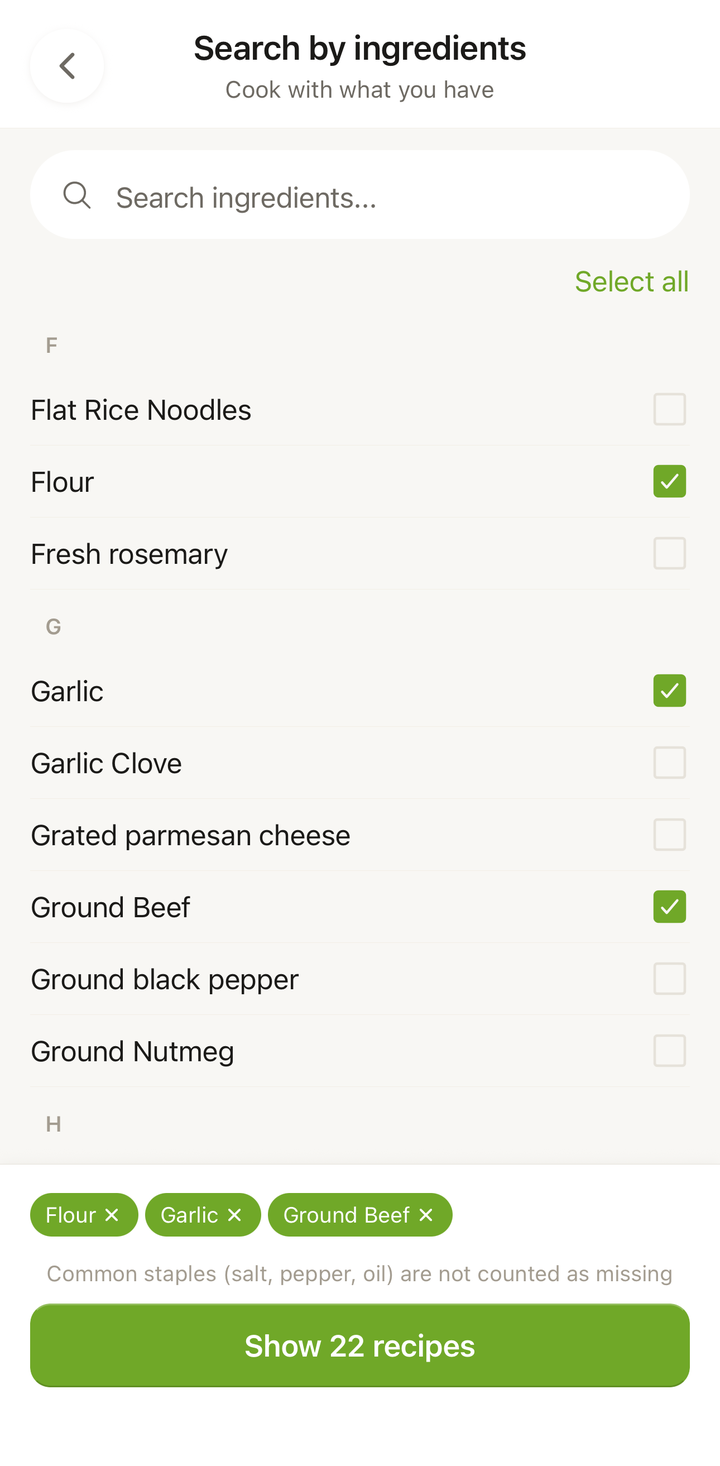
- In the ingredient picker, search for and tap each ingredient you have — for example, “chicken,” “bell pepper,” “rice”
- Tap Find recipes
- Cookonut shows the recipes in your collection you can make, sorted by how well they match
Reading Your Results
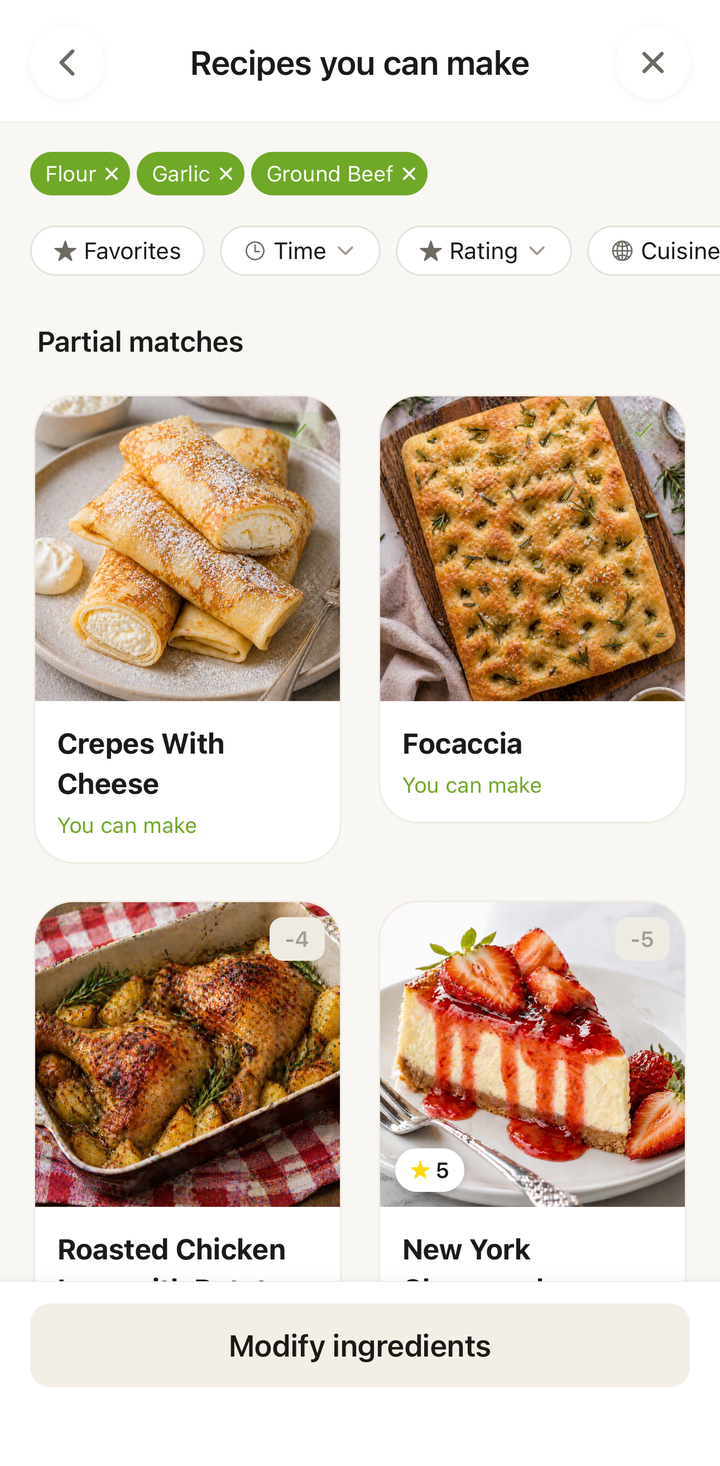
The results screen (“Recipes you can make”) groups matches into tiers so you can decide at a glance:
- Best matches — recipes where you have every ingredient
- Partial matches — recipes where you’re missing a few items (the missing ones are listed)
- Other recipes — recipes that use only some of what you selected
Common staples like salt, pepper, and oil aren’t counted as missing, so a “best match” really means you’re ready to cook.
Refining Your Results
Want to narrow things down further? On the results screen you can:
- Modify ingredients — go back to the picker to add or remove ingredients and see how the matches change
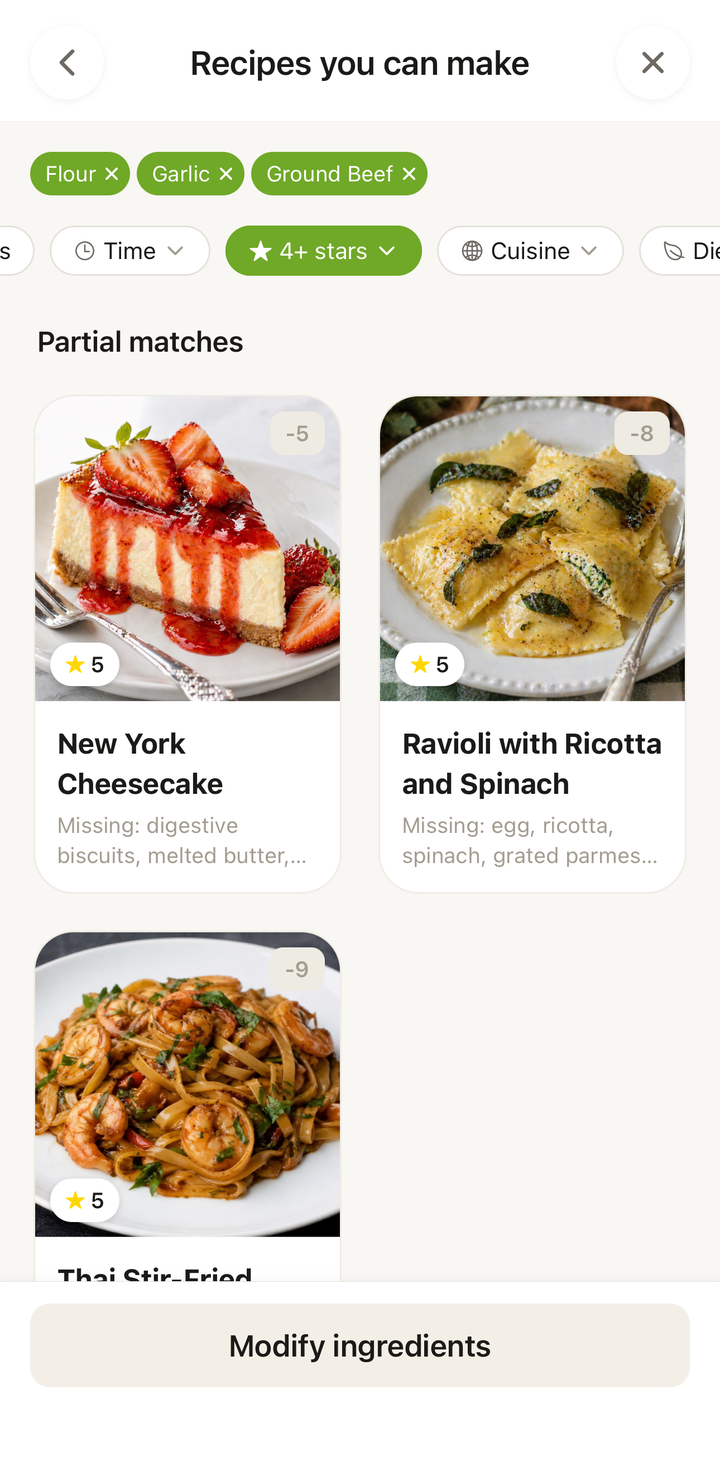
- Filter by Favorites, Time, or Rating — for example, keep only matches under 30 minutes or rated 4+ stars
This is incredibly useful for meal planning when you have constraints on both ingredients and time.
Practical Scenarios
Fridge cleanout: Add that ingredient that’s about to expire. If you have zucchini that needs using up, pick “zucchini” in the ingredient picker and find a recipe.
Pantry staples: Select ingredients you always have on hand — “pasta,” “eggs,” “rice” — to find easy recipes you can make tonight without a grocery run.
Using up leftovers: Have leftover roast chicken? Add “chicken” and look for recipes that work with pre-cooked meat, like salads, sandwiches, or casseroles.
Seasonal cooking: When seasonal produce is available, add that ingredient to find inspiration. “Pumpkin” in fall, “strawberry” in summer, “asparagus” in spring.
Tips for Better Ingredient Searches
- Pick the base ingredient, not a specific form — “chicken” rather than “boneless skinless chicken thighs”
- Try alternate names if the picker doesn’t list what you expect — “bell pepper” vs. “capsicum,” “eggplant” vs. “aubergine”
- Don’t bother adding staples — salt, pepper, and oil aren’t counted as missing anyway, so focus on the ingredients that define the dish
- The more recipes you save, the more useful this becomes — ingredient search gets better as your collection grows
Building a “What’s in My Kitchen” Habit
Some Cookonut users develop a habit of:
- Checking what’s in the fridge and pantry at the start of the week
- Selecting those key ingredients in Cookonut’s ingredient search
- Adding matching recipes to their meal plan
- Generating a grocery list only for the missing items
This approach reduces food waste and saves money by building meals around what you already have.
Limitations
Ingredient search works across the recipes you’ve saved in Cookonut. It doesn’t search the entire internet for recipes — only your personal collection. The more recipes you import and save, the more useful and varied your search results will be.
Thanks for your feedback! We're glad it helped.