
Import from a Website
Articles in this section
🚀 Getting Started
📥 Importing Recipes
- How to Import Recipes
- Import from a Website
- Import from Instagram
- Import from Facebook
- Import from TikTok
- Import from Pinterest
- Import from YouTube
- Scan a Recipe from Photo
- Dictate a Recipe by Voice
- Import by Pasting Text
- Use the In-App Browser
- Write a Recipe from Scratch
- Review & Edit Before Saving
- Understanding Import Credits
📂 Managing Recipes
👨🍳 Cooking Mode
📅 Meal Planning
🛒 Grocery List
📤 Sharing & Export
💳 Billing & Subscription
⚙️ Account & Settings
ℹ️ About Cookonut
💡 Ideas & Feedback
Importing from a website is the most popular way to save recipes in Cookonut. Whether it’s a food blog, an online magazine, or a recipe database, you open the page in Cookonut’s built-in browser and save it with one tap — no copying and pasting URLs.
How to Import from a Website
-
Open Cookonut and go to the Recipes tab
-
Tap the + button at the bottom of the screen to open the Add Recipe hub
-
Choose “Search the web”
-
Find the recipe — type a search like “easy chicken tikka masala recipe”, or enter a website address directly. You can also paste a recipe URL into the browser’s address bar if you already have one
-
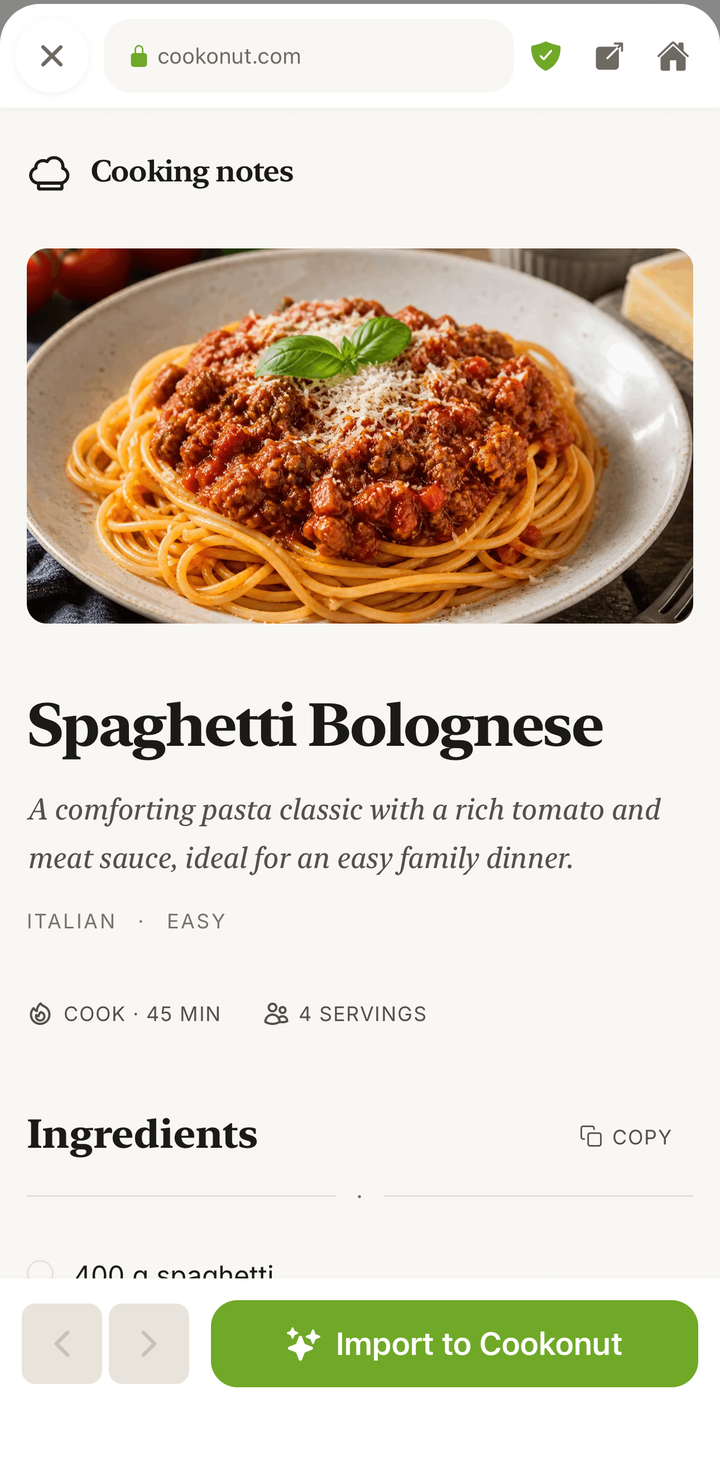
Open the recipe page so the full recipe is on screen
-
Tap Save and wait a few seconds while Cookonut reads the page and extracts the recipe
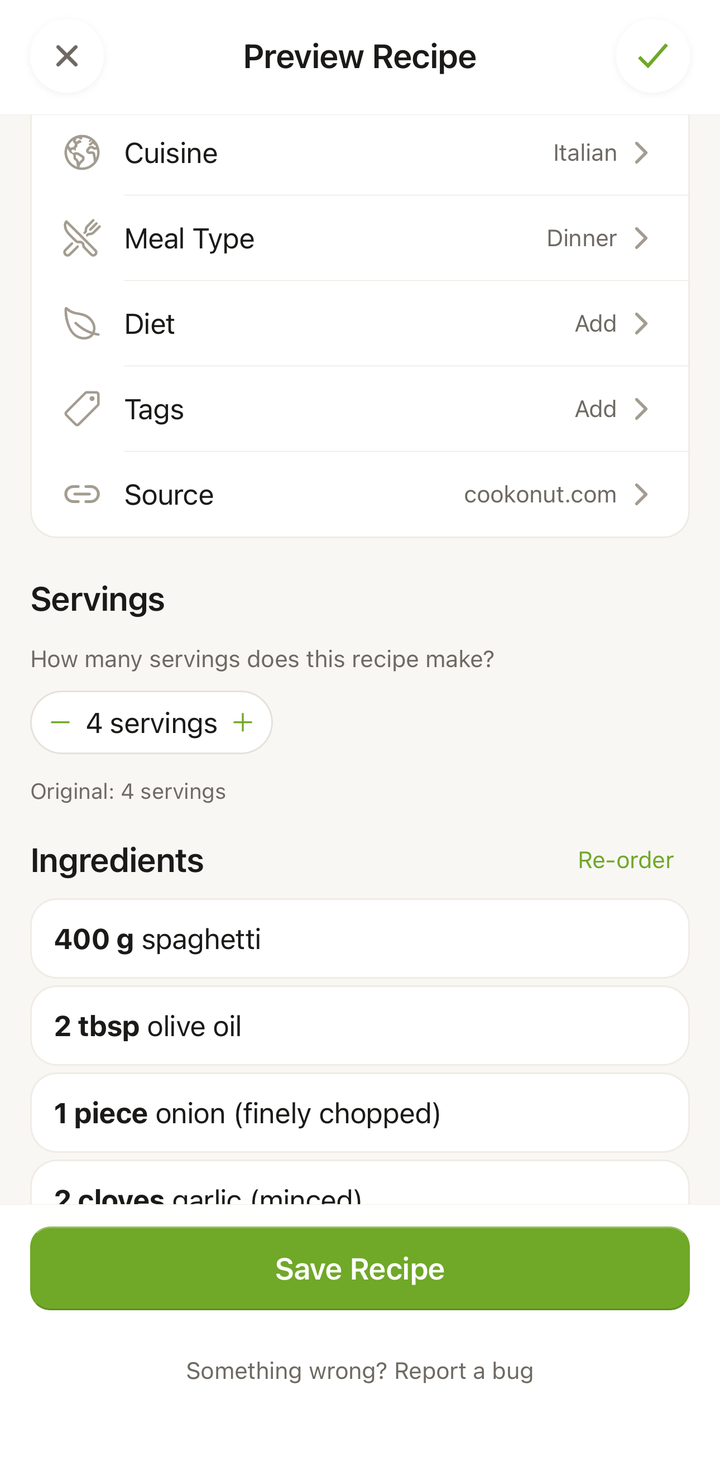
Review and Save
After processing, you’ll see the import preview with everything Cookonut extracted:
- Recipe title and description
- Photo from the source page
- Ingredients with quantities and units
- Step-by-step instructions
- Prep time, cook time, and servings
- Suggested tags (meal type, cuisine, etc.)
Review each section. If anything needs adjusting, tap on it to edit. When you’re happy with the result, tap Save.
Using the Share Sheet
An even faster method: you can share a recipe directly from your phone’s own browser to Cookonut without opening the app first.
- Open a recipe page in Safari, Chrome, or any browser
- Tap the share button (the square with an arrow on iOS, or the three dots on Android)
- Find and tap Cookonut in the share sheet
- Cookonut opens and imports the recipe — review it, then tap Save
This also works from within other apps like Pinterest, Instagram, Facebook, TikTok, and YouTube. For the full social media walkthroughs, see our dedicated import guides for each platform.
What Websites Work?
Cookonut works with virtually any website that has a recipe on it, including:
- Recipe blogs (e.g., Smitten Kitchen, Half Baked Harvest, Minimalist Baker)
- Major recipe sites (e.g., Allrecipes, Food Network, BBC Good Food, Taste)
- Online magazines (e.g., Bon Appetit, Epicurious, NYT Cooking)
- International food sites in any language
Some websites work better than others. Sites that use standard recipe formatting tend to produce the most accurate imports with fewer edits needed.
Tips for Better Imports
- Use the direct recipe page URL, not a search results page or a homepage
- If a recipe is behind a paywall, Cookonut may not be able to access the full content
- Multi-recipe pages (like “10 Best Pasta Recipes”) may not import cleanly — try to find the individual recipe page instead
- If the import misses something, you can always edit the recipe after saving
Credit Usage
Each website import uses 1 credit from your monthly allowance. Free plan users get 10 credits per month; Premium users have unlimited imports. Browsing pages does not use credits — only saving a recipe counts.
Troubleshooting
Import takes a long time — Some websites are slower to process than others. If it takes more than 30 seconds, try again or check your internet connection.
Recipe is incomplete — The source page may not have structured its recipe data clearly. You can edit the imported recipe to fill in missing details.
“Could not find a recipe” — The page may not be a recipe page, or the recipe may be behind a paywall or login. Make sure the full recipe is visible on screen before tapping Save, or copy the recipe text and use Paste text instead.
Thanks for your feedback! We're glad it helped.