
App Overview: Tabs & Navigation
Articles in this section
🚀 Getting Started
📥 Importing Recipes
- How to Import Recipes
- Import from a Website
- Import from Instagram
- Import from Facebook
- Import from TikTok
- Import from Pinterest
- Import from YouTube
- Scan a Recipe from Photo
- Dictate a Recipe by Voice
- Import by Pasting Text
- Use the In-App Browser
- Write a Recipe from Scratch
- Review & Edit Before Saving
- Understanding Import Credits
📂 Managing Recipes
👨🍳 Cooking Mode
📅 Meal Planning
🛒 Grocery List
📤 Sharing & Export
💳 Billing & Subscription
⚙️ Account & Settings
ℹ️ About Cookonut
💡 Ideas & Feedback
Cookonut is organized around four main tabs at the bottom of the screen. Each tab is a core part of your cooking workflow — from storing recipes to planning meals to shopping. Here’s a quick tour.
The Four Main Tabs
The bottom tab bar has exactly four tabs: Recipes, Plan, List, and More.
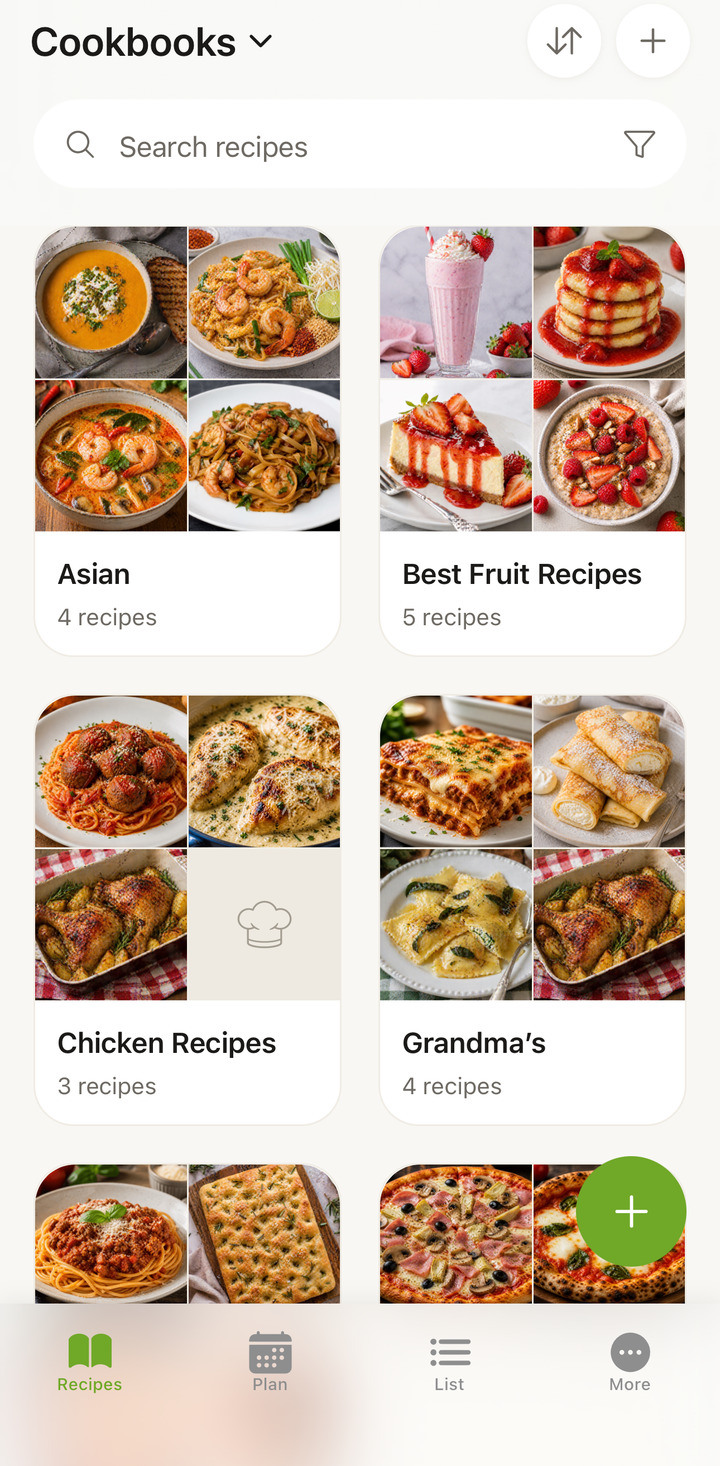
Recipes Tab
This is your home base — a scrollable list of every recipe you’ve saved. From here you can:
- Browse your full collection with cover photos, titles, and quick info
- Search by recipe name, ingredient, or keyword
- Filter by meal type, cuisine, cook time, tags, and more
- Tap a recipe to open its full detail view
- Tap the + button to import or create a new recipe
The Recipes tab also shows your most recently added and recently cooked recipes at the top for quick access.
Cookbooks live here too. Cookbooks aren’t a separate tab — they’re a view inside the Recipes tab. Switch to the cookbooks view to see your recipes grouped into collections like “Quick Weeknight Dinners,” “Baking,” or “Holiday Favorites.” A single recipe can belong to multiple cookbooks, so you never have to choose just one.
Plan Tab
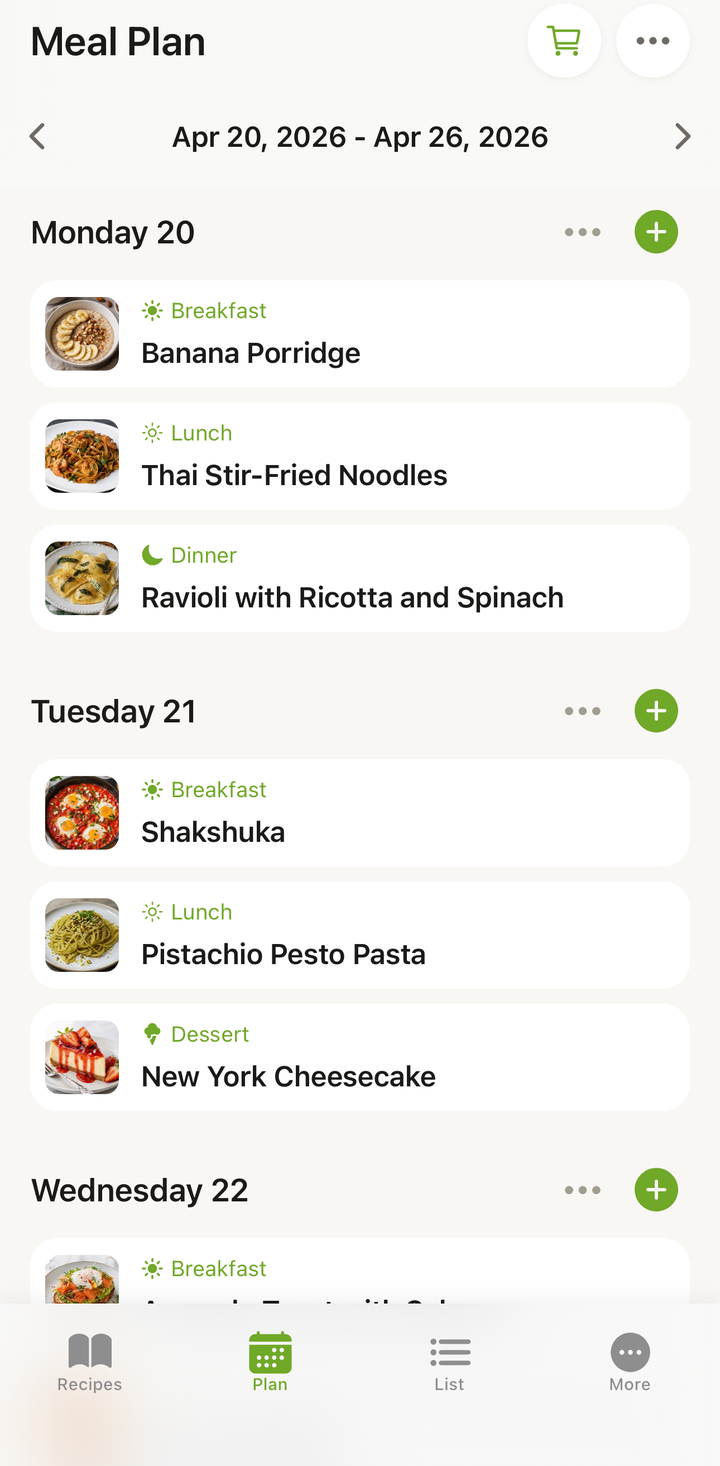
The Plan tab is your meal planner — it shows your week at a glance, with each day broken into meal slots.
- Tap an empty slot to add a recipe from your collection
- Swipe between weeks to plan ahead
- See what’s coming with a clear visual layout of your week
- Generate a grocery list from your planned meals with one tap
- Use the randomizer to fill empty slots with recipe suggestions
List Tab
The List tab is your smart grocery list. It can be generated automatically from your meal plan or from individual recipes.
- View items grouped by category (produce, dairy, pantry, etc.) or as a simple list
- Check off items as you shop
- Add custom items that aren’t tied to any recipe
- Share the list with family members via text, email, or other apps
More Tab
The More tab is where everything else lives — your plan and usage, account settings, app preferences, and feedback tools. From here you can:
- Manage your account and subscription
- Change your language, units, and appearance (light/dark mode)
- View your remaining import credits
- Open Ideas & Suggestions to suggest features and vote on them
- Report a Bug if something isn’t working
The + Button
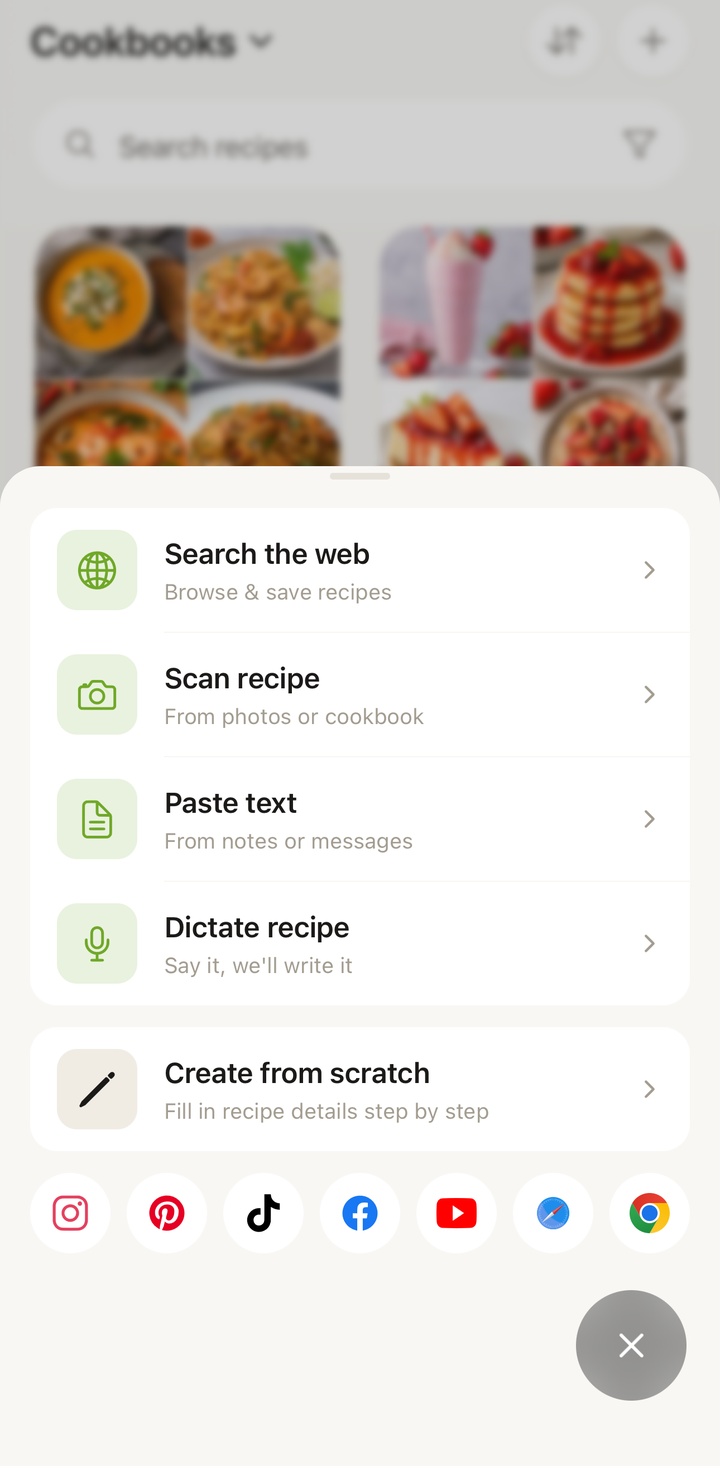
The + button in the tab bar is your gateway to adding new content. Tap it to see all your options:
- Search the web — browse recipe websites in the in-app browser and save what you find
- Scan recipe — scan a cookbook page, handwritten card, or screenshot
- Paste text — paste recipe text you’ve copied
- Dictate recipe — dictate a recipe out loud
- Create from scratch — write a recipe manually
Settings
Settings live under the More tab. Open More to:
- Change your language (9 languages supported)
- Switch between metric and imperial units
- Toggle dark mode or light mode
- Manage your account and subscription
- View your remaining import credits
Recipe Detail View
When you tap any recipe, you’ll see its full detail view with:
- The recipe photo, title, and description
- Prep time, cook time, and servings (with a serving scaler)
- A full ingredients list
- Step-by-step instructions
- Tags, cuisine, and meal type
- A Cook button to enter cooking mode
- Options to edit, share, export, or add to a cookbook
Navigation Tips
- Swipe back from any detail screen to return to the previous view
- Long-press a recipe in your list for quick actions (add to meal plan, add to shopping list, manage cookbooks)
- Pull down on any list to refresh
- Use search at the top of the Recipes tab — it matches recipe names; to find recipes by what’s in them, use Search by ingredients from the ••• menu
That covers the basics of getting around Cookonut. Once you know the four tabs — Recipes, Plan, List, and More — and the + button, you’ll find everything else quickly.
Thanks for your feedback! We're glad it helped.