
Edit a Saved Recipe
Articles in this section
🚀 Getting Started
📥 Importing Recipes
- How to Import Recipes
- Import from a Website
- Import from Instagram
- Import from Facebook
- Import from TikTok
- Import from Pinterest
- Import from YouTube
- Scan a Recipe from Photo
- Dictate a Recipe by Voice
- Import by Pasting Text
- Use the In-App Browser
- Write a Recipe from Scratch
- Review & Edit Before Saving
- Understanding Import Credits
📂 Managing Recipes
👨🍳 Cooking Mode
📅 Meal Planning
🛒 Grocery List
📤 Sharing & Export
💳 Billing & Subscription
⚙️ Account & Settings
ℹ️ About Cookonut
💡 Ideas & Feedback
You can edit any recipe in your collection at any time. Whether you want to fix a typo, adjust quantities, add personal notes, or completely rewrite the instructions, here’s how.
How to Open the Recipe Editor
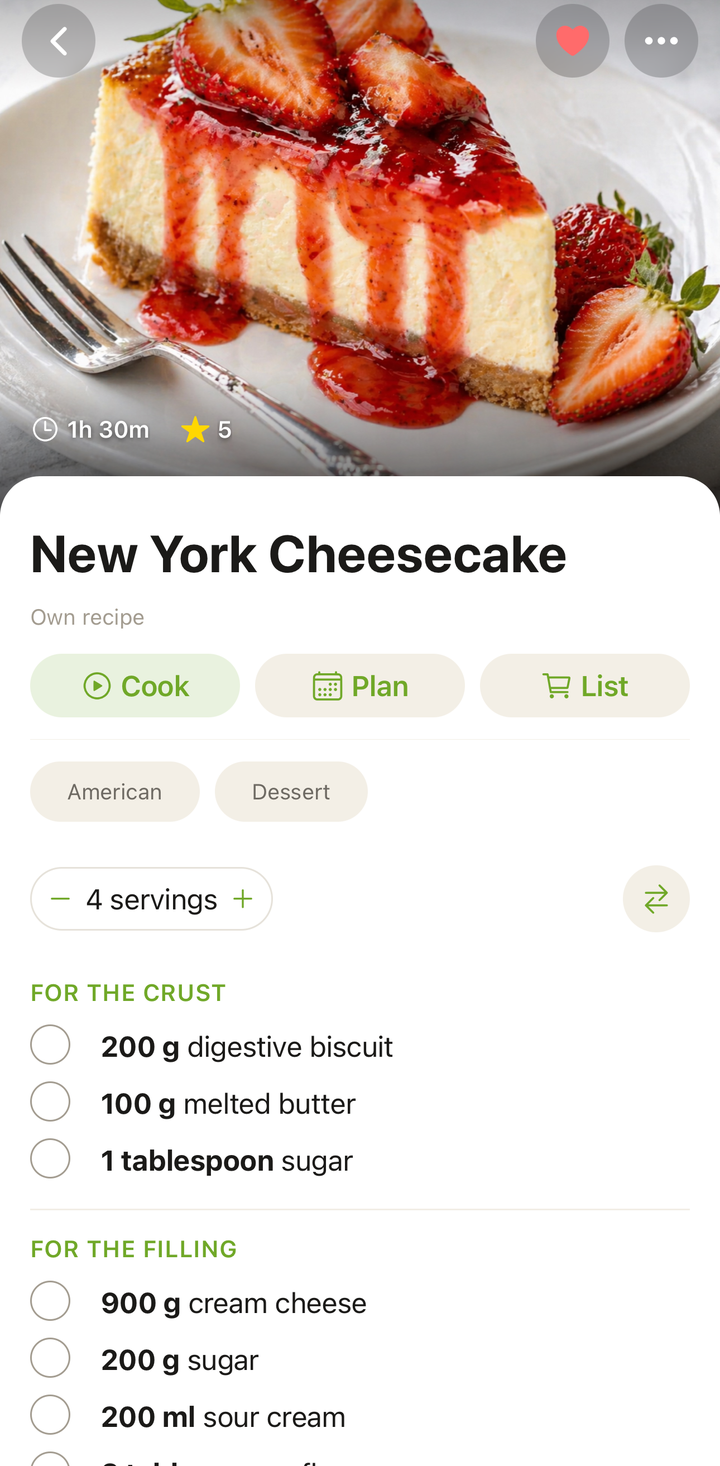
- Open the recipe you want to edit
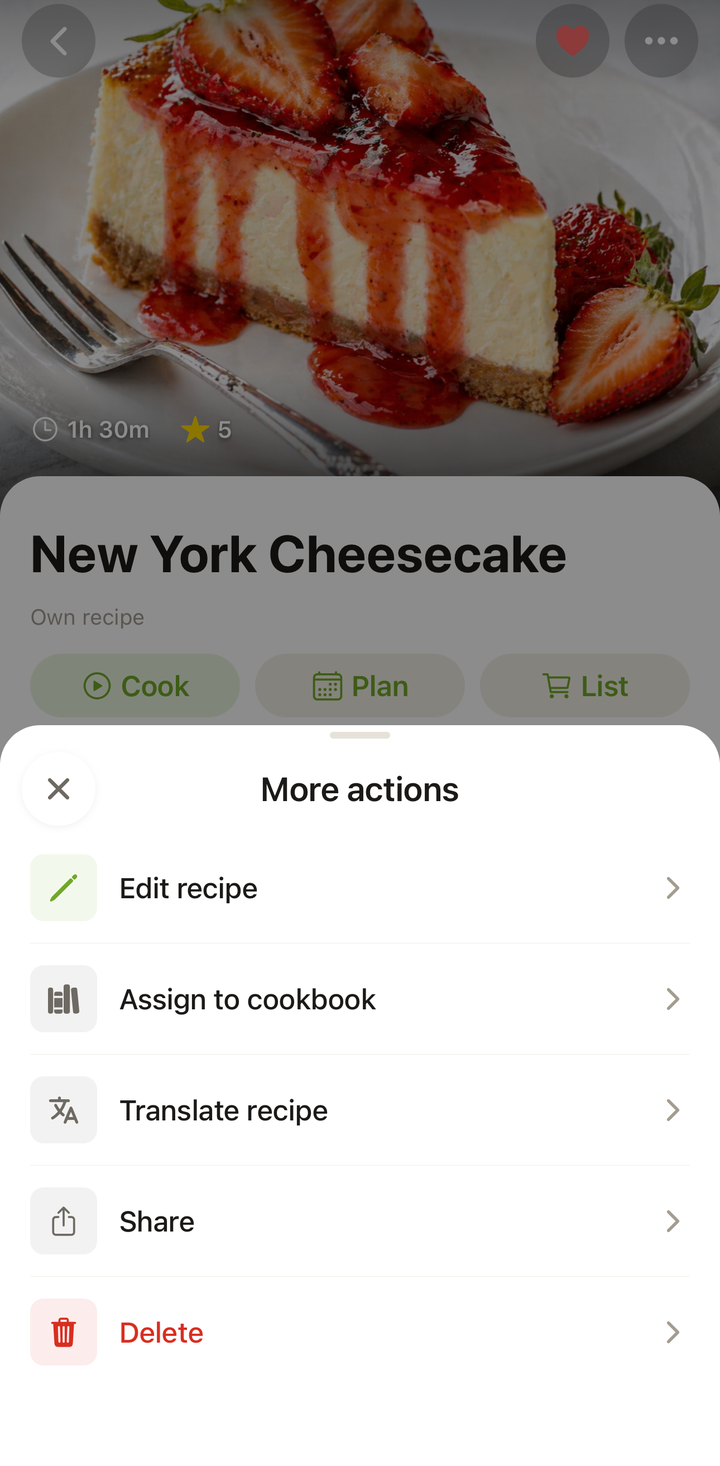
- Tap the ••• button at the top of the screen
- Choose Edit recipe from the options
- The recipe editor opens with all fields ready to modify
What You Can Edit
Every part of a recipe is editable:
Title and Description
Tap the title to rename it. Use the description field for personal notes like “Mom’s version — uses less sugar” or “Double the garlic next time.”
Photo
- Add a photo — tap the Add photo card and choose Take photo or Choose from library
- Remove a photo — tap the X in the corner of the thumbnail
Taking a photo of your finished dish is a great way to personalize imported recipes.
Ingredients
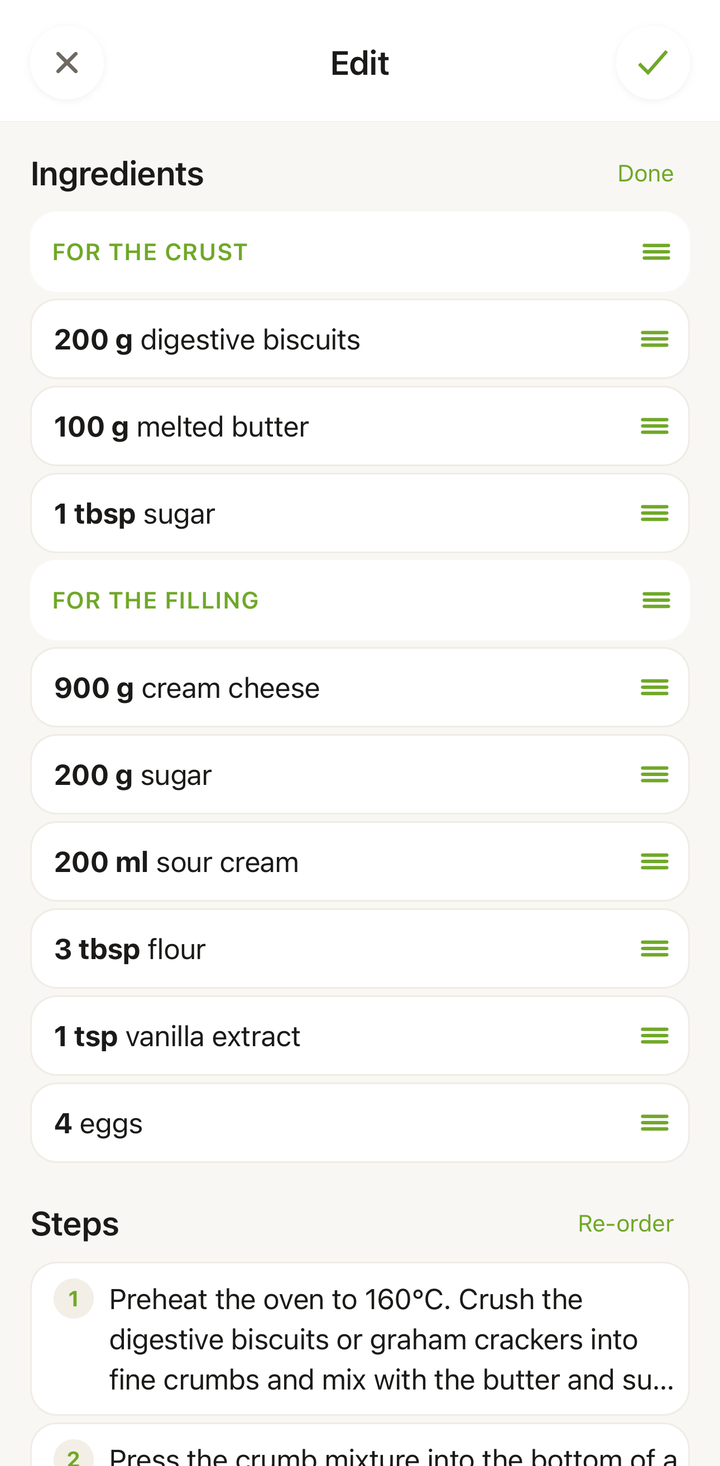
- Tap an ingredient to change its quantity, unit, or name
- Swipe left to delete an ingredient
- Tap “Add Ingredient” to add a new one
- Tap “Re-order”, then long-press a drag handle to reorder ingredients
- Add ingredient groups to organize complex recipes (e.g., “For the sauce,” “For the pasta”)
Instructions
- Tap a step to rewrite it
- Swipe left to delete a step
- Tap “Add Step” to insert a new step
- Tap “Re-order”, then long-press a drag handle to rearrange steps
Times and Servings
Update prep time, cook time, and the number of servings. These affect serving scaling and meal planning.
Tags and Categories
Tap the Tags row to open the tag picker, then toggle tags on or off. You can also change the meal type, update the cuisine, or adjust other categories.
Saving Your Edits
When you’re done editing:
- Tap the checkmark icon in the top corner of the editor
- Your changes are saved immediately and synced to the cloud
If you change your mind, tap Cancel or the back button to discard your changes. Nothing is saved until you tap the checkmark.
Common Editing Scenarios
Adjusting after a first cook — You made the recipe and realized it needs more seasoning or a different cook time. Open the editor and update the details while they’re fresh in your mind.
Personalizing an import — The imported recipe calls for heavy cream, but you always use Greek yogurt. Change the ingredient to match how you actually make it.
Adding notes to steps — “Let the dough rest — this is important, don’t skip it!” Practical notes make recipes more useful over time.
Fixing import mistakes — An ingredient got merged with another, or a step is unclear. Quick edits after import keep your collection clean.
Splitting or combining steps — If a step has too many actions, split it into two. If two steps are trivially simple, combine them. This improves the cooking mode experience.
Editing Does Not Use Credits
Editing a saved recipe is always free and does not use any import credits. Edit as many times as you want.
Version History
Edits overwrite the previous version of the recipe. Cookonut does not keep a version history, so make a note of any details you might want to keep before making significant changes.
Tips
- Edit right after cooking — your memory of what worked and what didn’t is freshest
- Add personal notes in the description — future you will thank present you
- Take a photo of your dish — it helps you remember what the finished result looks like
- Keep step text concise — short, clear steps work best in cooking mode
Thanks for your feedback! We're glad it helped.