
Import from Instagram
Articles in this section
🚀 Getting Started
📥 Importing Recipes
- How to Import Recipes
- Import from a Website
- Import from Instagram
- Import from Facebook
- Import from TikTok
- Import from Pinterest
- Import from YouTube
- Scan a Recipe from Photo
- Dictate a Recipe by Voice
- Import by Pasting Text
- Use the In-App Browser
- Write a Recipe from Scratch
- Review & Edit Before Saving
- Understanding Import Credits
📂 Managing Recipes
👨🍳 Cooking Mode
📅 Meal Planning
🛒 Grocery List
📤 Sharing & Export
💳 Billing & Subscription
⚙️ Account & Settings
ℹ️ About Cookonut
💡 Ideas & Feedback
Found a delicious recipe on Instagram? Cookonut can extract the recipe from Instagram posts and Reels so you don’t have to screenshot and retype everything manually.
How to Import from Instagram
The easiest way is to share the post straight from Instagram to Cookonut — the share extension handles the link for you.
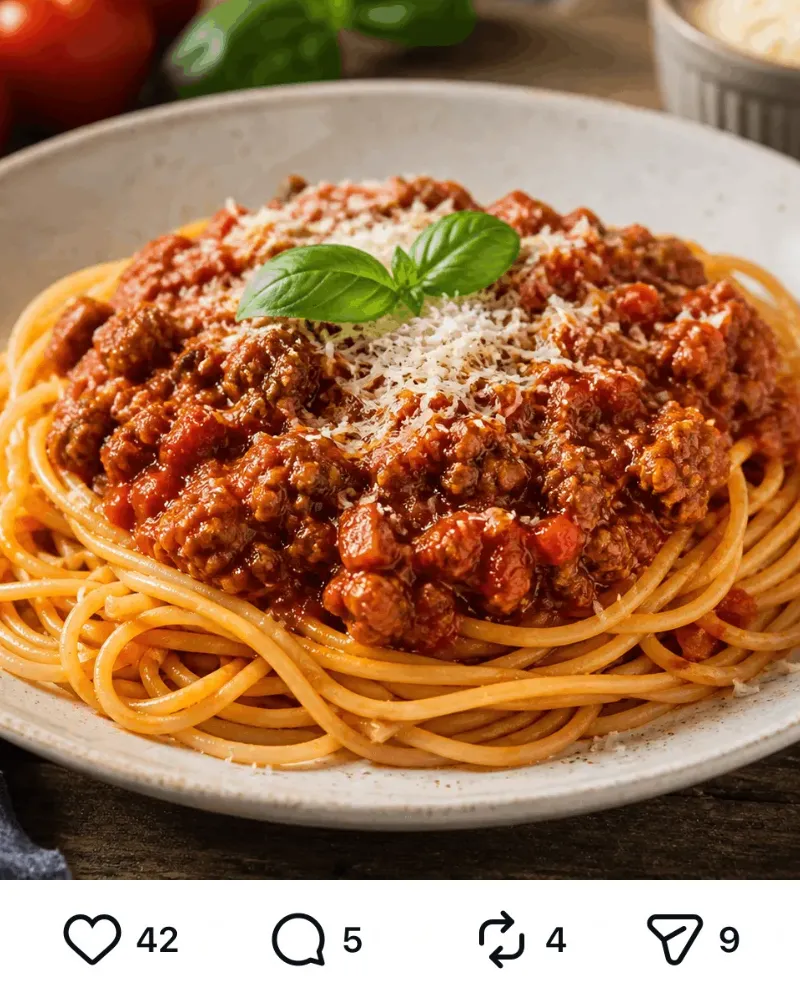
tap Send
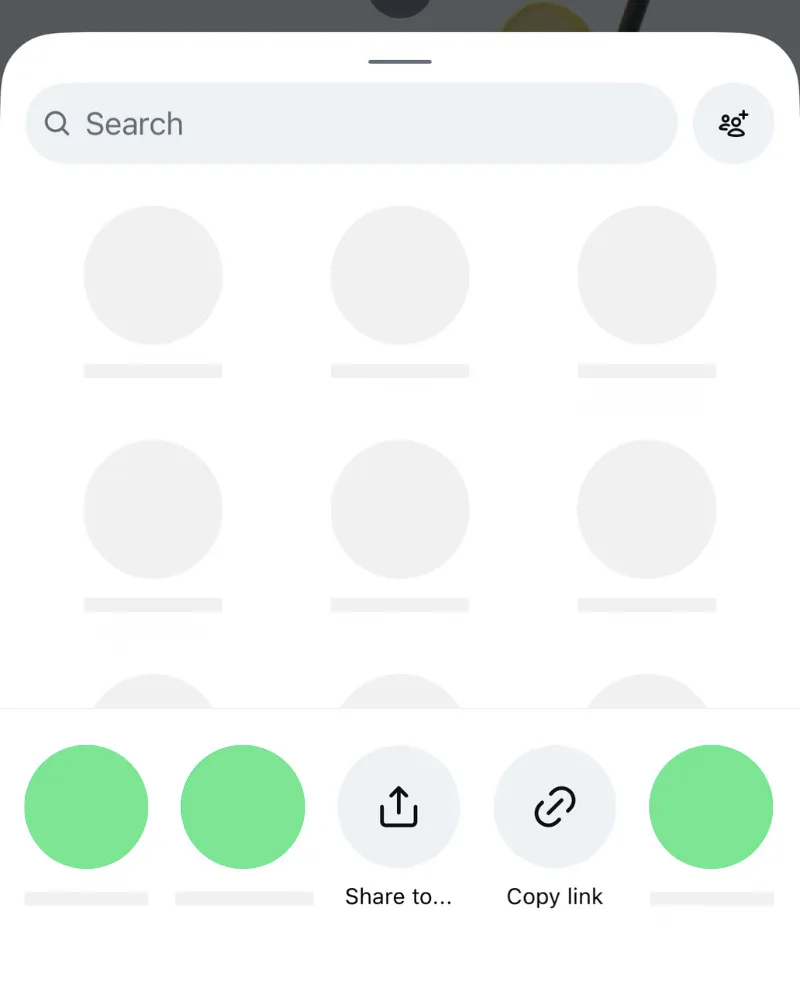
tap Share to...
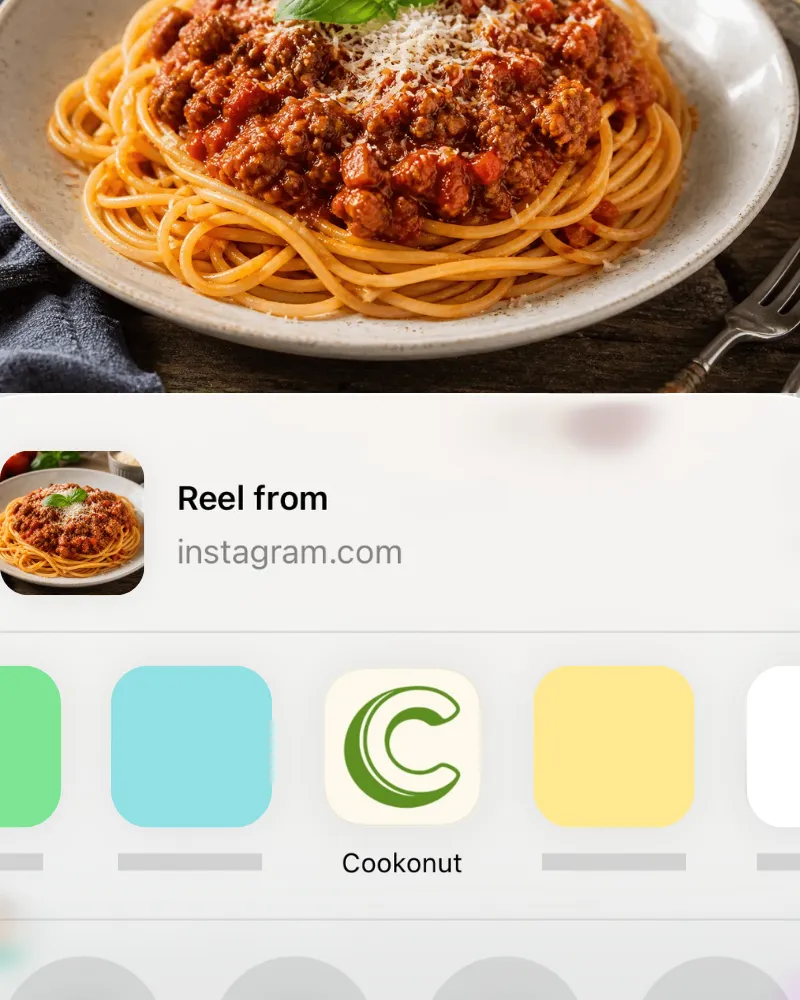
tap Cookonut
- Open the Instagram post or Reel with the recipe
- Tap the paper airplane icon (share button) below the post
- Select Cookonut from the share options (scroll the app row and tap More if you don’t see it)
- Cookonut opens with the link pre-loaded — tap Import and let the AI extract the recipe
The screenshots above show iOS. On Android the flow is the same through the share menu — use the iOS and Android tabs at the top for device-specific steps.
If the caption links to a recipe
If the post’s caption doesn’t spell out the recipe itself but links to a recipe website, Cookonut follows that link and extracts the recipe from the linked page — so a post that just says “full recipe at the link” still works.
What Cookonut Extracts
Cookonut doesn’t stop at the caption. It works through the post in layers and only moves on when the previous layer didn’t give a complete recipe:
- Caption — the written text under the post
- Carousel slides — text on the images, for posts with up to 10 slides
- The Reel itself — for Reels up to 90 seconds, AI watches the video: what the creator says, text shown on screen, and what is visibly being done. Nothing is downloaded to your phone.
Depending on what the creator included, you may get the title, ingredients, instructions and a photo. If the recipe came from slides or the video, the preview shows a notice asking you to double-check amounts and step order.
Tips for Better Instagram Imports
- Posts with the recipe written in the caption import fastest
- Carousels with ingredients in the caption and steps on the slides work — Cookonut reads the slides for the steps instead of saving a recipe without instructions
- Reels up to 90 seconds are analyzed as video, so a caption that’s just hashtags is fine
- Reels longer than 90 seconds rely on the caption and slides only
- If the import is missing ingredients or steps, you can easily edit the recipe in the preview before saving
When Instagram Imports Are Tricky
Instagram recipes can vary a lot in how they’re presented. Some common situations:
- Recipe in comments, not caption — If the recipe details are in the comments rather than the main caption, Cookonut may not capture them. Try pasting the recipe text manually instead.
- “Link in bio” recipes — If the caption says “full recipe on my blog,” follow that link and import from the blog directly for better results.
- Long Reels without a written recipe — videos over 90 seconds aren’t analyzed, so if the recipe is only spoken there, try voice dictation while watching.
Credit Usage
Each Instagram import uses 1 credit from your monthly pool. Free plan users get 10 credits per month; Premium users have unlimited imports. The credit covers every layer — you never pay more because Cookonut had to read the slides or the video.
After Import
Once Cookonut finishes processing, review the extracted recipe on the preview screen. Instagram imports sometimes need a bit more editing than website imports, since social media posts aren’t as structured as recipe blogs. Take a moment to:
- Check that all ingredients are listed with correct quantities
- Make sure the steps are in the right order
- Add any missing details (prep time, cook time, servings)
- Assign tags and a cookbook if you’d like
When everything looks good, tap Save and the recipe joins your collection.
Thanks for your feedback! We're glad it helped.