
Scan a Recipe from Photo
Articles in this section
🚀 Getting Started
📥 Importing Recipes
- How to Import Recipes
- Import from a Website
- Import from Instagram
- Import from Facebook
- Import from TikTok
- Import from Pinterest
- Import from YouTube
- Scan a Recipe from Photo
- Dictate a Recipe by Voice
- Import by Pasting Text
- Use the In-App Browser
- Write a Recipe from Scratch
- Review & Edit Before Saving
- Understanding Import Credits
📂 Managing Recipes
👨🍳 Cooking Mode
📅 Meal Planning
🛒 Grocery List
📤 Sharing & Export
💳 Billing & Subscription
⚙️ Account & Settings
ℹ️ About Cookonut
💡 Ideas & Feedback
Have a recipe in a cookbook, on a handwritten card, or in a screenshot? Cookonut can scan the image and turn it into a structured, editable recipe in your collection.
How to Scan a Recipe
- Open Cookonut and go to the Recipes tab
- Tap the + button
- Choose Scan recipe
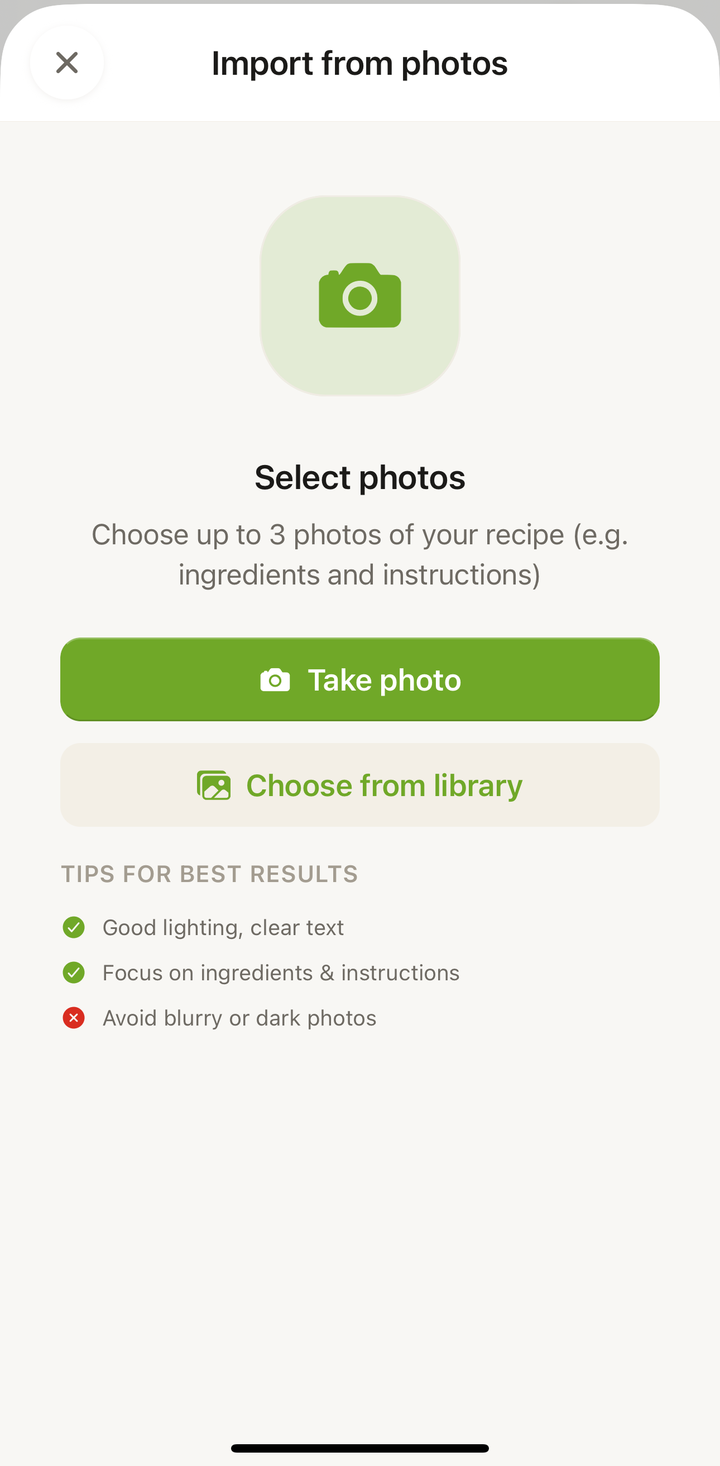
- You’ll have two options:
- Take Photo — use your camera to snap a picture right now
- Choose from Library — select an existing photo from your camera roll
- After selecting or taking the photo, tap Import
- Wait while Cookonut reads and processes the image
Share Photos from Your Gallery
You don’t have to start inside Cookonut. Pick the photos where they already are and send them over — you land straight on the import screen with them loaded.
- Open Photos on iPhone or iPad, or Google Photos (or Gallery) on Android
- Select up to 5 photos of the recipe
- Tap Share and choose Cookonut
- Cookonut opens Import from photos with your photos already added
- Add a title if you want one, then tap Import to Cookonut
Worth knowing:
- Sent more than 5? They all stay on screen and the import button waits until you remove the extras — so you decide which pages to keep, not us.
- One credit per import, however many photos you send.
- Formats are handled for you. JPEG, PNG, HEIC and WebP all work; everything is converted and resized before it is read.
What Works Best
Cookonut can read text from many types of images:
- Cookbook pages — lay the book flat for the best results
- Handwritten recipe cards — clear handwriting works surprisingly well
- Magazine clippings — printed text is easy to read
- Screenshots — of recipes from apps, websites, or messages
- Photos of whiteboard or chalkboard recipes — as long as the text is legible
Tips for Taking Good Recipe Photos
The clearer your photo, the better the import:
- Lay the page flat — avoid curved pages that distort text
- Good lighting — natural light or a well-lit room works best; avoid harsh shadows
- Shoot straight on — hold your phone directly above the page, not at an angle
- Fill the frame — get close enough that the recipe text is large and readable
- Keep it steady — blurry photos produce blurry results
- One recipe per photo — if a page has multiple recipes, focus on the one you want
Multiple Pages
A recipe spread over two cookbook pages fits in a single import: take up to 5 photos and send them together, in page order. Cookonut reads all of them and merges the ingredients and steps into one recipe. Capturing both pages in one wide photo works too, as long as the text stays readable.
Handwritten Recipes
Cookonut handles handwritten recipes remarkably well, but here are some tips:
- Print-style handwriting is easier to read than cursive
- Dark ink on light paper produces the best contrast
- Avoid smudges and stains — they can confuse the text recognition
- Be prepared to make a few edits in the preview, especially for unusual abbreviations
After Scanning
Once the image is processed, you’ll see the standard import preview screen. Take a moment to:
- Verify all ingredients were captured with correct quantities
- Check the instructions — make sure no steps were missed or combined incorrectly
- Add prep time, cook time, and servings if they weren’t in the original
- Assign tags and a cookbook for organization
Tap Save when everything looks good.
Credit Usage
Each photo import uses 1 credit from your monthly pool. Free plan users get 10 credits per month; Premium users have unlimited imports.
Common Issues
Text not recognized — The photo may be too blurry or too dark. Try taking a new photo with better lighting.
Recipe partially imported — The photo may have been cropped too tightly or included extraneous content. Edit the preview to fill in any gaps.
Wrong language detected — Cookonut automatically detects the language, but if it guesses wrong, you can correct the recipe text in the preview.
Thanks for your feedback! We're glad it helped.