
Check the Original Recipe Source
Articles in this section
🚀 Getting Started
📥 Importing Recipes
- How to Import Recipes
- Import from a Website
- Import from Instagram
- Import from Facebook
- Import from TikTok
- Import from Pinterest
- Import from YouTube
- Scan a Recipe from Photo
- Dictate a Recipe by Voice
- Import by Pasting Text
- Use the In-App Browser
- Write a Recipe from Scratch
- Review & Edit Before Saving
- Understanding Import Credits
📂 Managing Recipes
👨🍳 Cooking Mode
📅 Meal Planning
🛒 Grocery List
📤 Sharing & Export
💳 Billing & Subscription
⚙️ Account & Settings
ℹ️ About Cookonut
💡 Ideas & Feedback
You imported a recipe weeks ago and now you want to revisit the original blog post, watch the video again, or check the comments for tips from other cooks. Cookonut saves the source information so you can always find your way back.
Where to Find the Source
- Open the recipe
- Look for the Source section — it’s typically near the top of the recipe detail view, below the title and description
- You’ll see the source name, website, or link
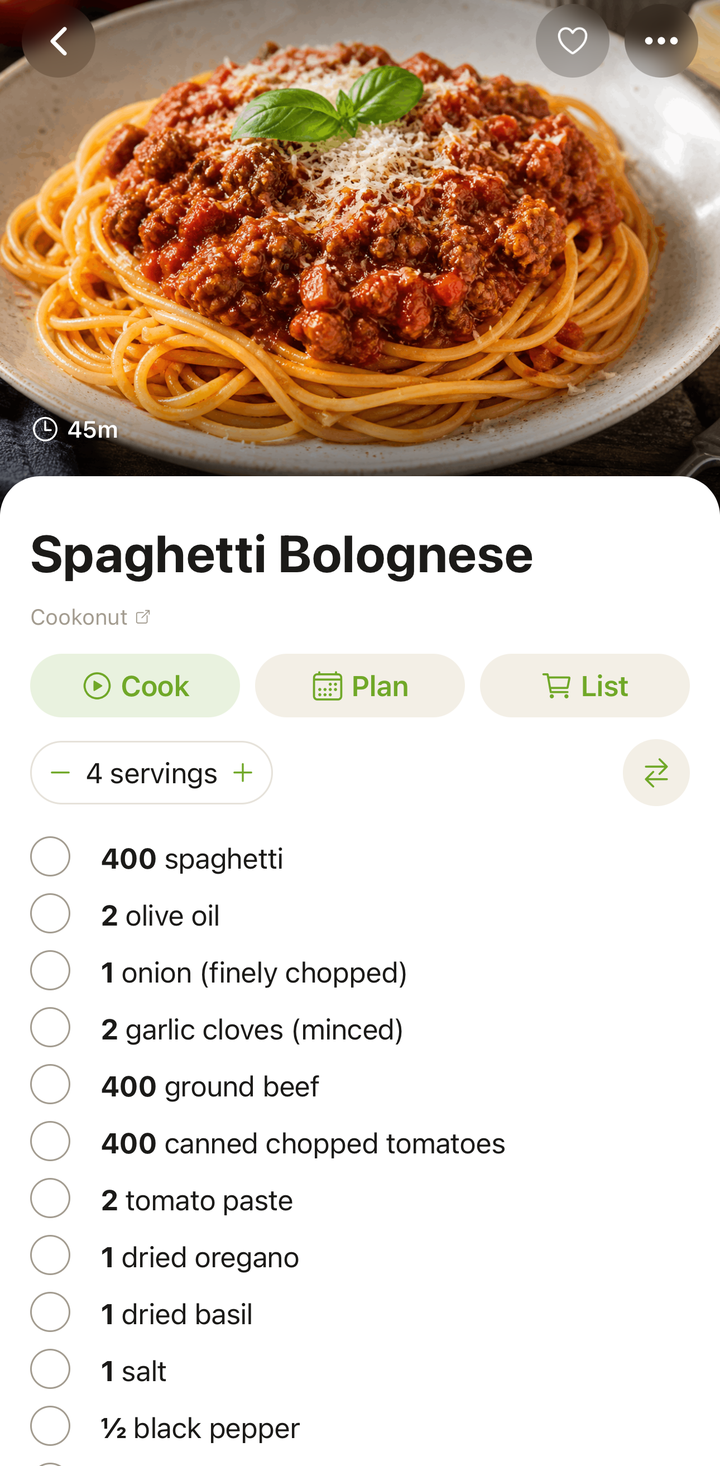
Source Information by Import Method
The source information depends on how you imported the recipe:
Web Imports
When you import from a website, Cookonut saves:
- The URL of the original page
- The website name (e.g., “Serious Eats,” “Budget Bytes”)
Social Media Imports
When you import from Instagram, Facebook, TikTok, YouTube, or Pinterest, Cookonut saves:
- The link to the original post or video
- The creator’s name or account (when available)
Scanned Recipes
When you scan a recipe from a photo or a cookbook page, there’s typically no URL. The source might show:
- “Photo scan” or similar label
- Any source text Cookonut was able to extract from the image
Manually Created Recipes
Recipes you write from scratch in Cookonut don’t have a source link by default. You can add one manually through the recipe editor if you want to reference where the recipe originally came from.
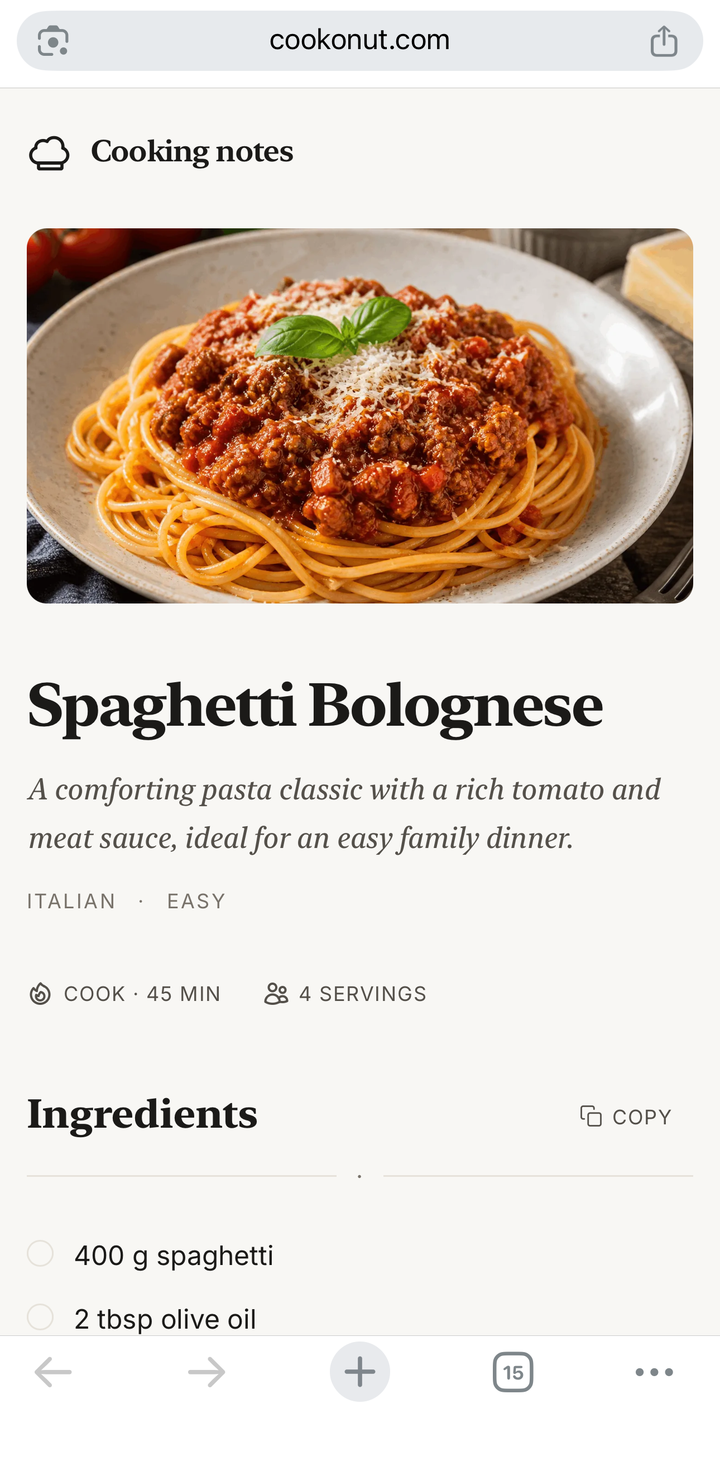
Opening the Source in a Browser
If the source is a web link:
- Tap the source link on the recipe
- The link opens in your device’s default browser
- You can view the full original page — comments, related recipes, and all
This is useful when you want to:
- Read comments from other people who tried the recipe
- Check if the author posted any updates or corrections
- Watch the original video demonstration
- See other recipes from the same source
Editing the Source
You can change the source name at any time:
- Open the recipe
- Tap the ••• button and choose Edit recipe
- Find the Source field
- Enter a text reference (e.g., “Grandma’s recipe box,” “Jamie Oliver cookbook, p. 42”)
- Tap the checkmark to save
The source name is editable, but the saved source URL itself is read-only and can’t be changed.
When There’s No Source
Some recipes won’t have source information:
- Recipes created from scratch in the app
- Recipes where the source page is no longer available
- Recipes imported from text that didn’t include a URL
In these cases, the source section may be empty or not visible. You can always add a source manually through the editor.
Tips
- Check the source before modifying a recipe — the original page might have useful context about why certain steps or quantities matter
- Add a source to manually created recipes — even a note like “Mom’s handwritten recipe” or “Adapted from NY Times Cooking” is helpful
- Use the source link to reimport — if you want a fresh version of the recipe (for example, if the author updated it), you can use the source URL to import it again
Thanks for your feedback! We're glad it helped.