
Subscription Not Working?
Articles in this section
🚀 Getting Started
📥 Importing Recipes
- How to Import Recipes
- Import from a Website
- Import from Instagram
- Import from Facebook
- Import from TikTok
- Import from Pinterest
- Import from YouTube
- Scan a Recipe from Photo
- Dictate a Recipe by Voice
- Import by Pasting Text
- Use the In-App Browser
- Write a Recipe from Scratch
- Review & Edit Before Saving
- Understanding Import Credits
📂 Managing Recipes
👨🍳 Cooking Mode
📅 Meal Planning
🛒 Grocery List
📤 Sharing & Export
💳 Billing & Subscription
⚙️ Account & Settings
ℹ️ About Cookonut
💡 Ideas & Feedback
If you’ve subscribed to Cookonut Premium but the app still shows the free plan, don’t worry — this is usually easy to fix. Here’s how to get your Premium access back.
Premium and Your Cookonut Account
Premium is linked to one Cookonut account at a time, not to one phone. Once it’s linked, you can use Premium on every device where you sign in to that same Cookonut account.
Bought Premium before you signed in? Sign in to the account you want to use, then tap Link my Premium — you’ll see it right after signing in, or under Already have Cookonut Premium? on the credits screen. Restore Purchases in Settings does the same thing.
Linking the same subscription to a different Cookonut account moves Premium there immediately, and the first account goes back to Free. Your subscription in the store isn’t cancelled — you can move it back by signing in to the first account and linking it again.
1. Check Your Subscription Status in the App
Start by confirming what the app sees:
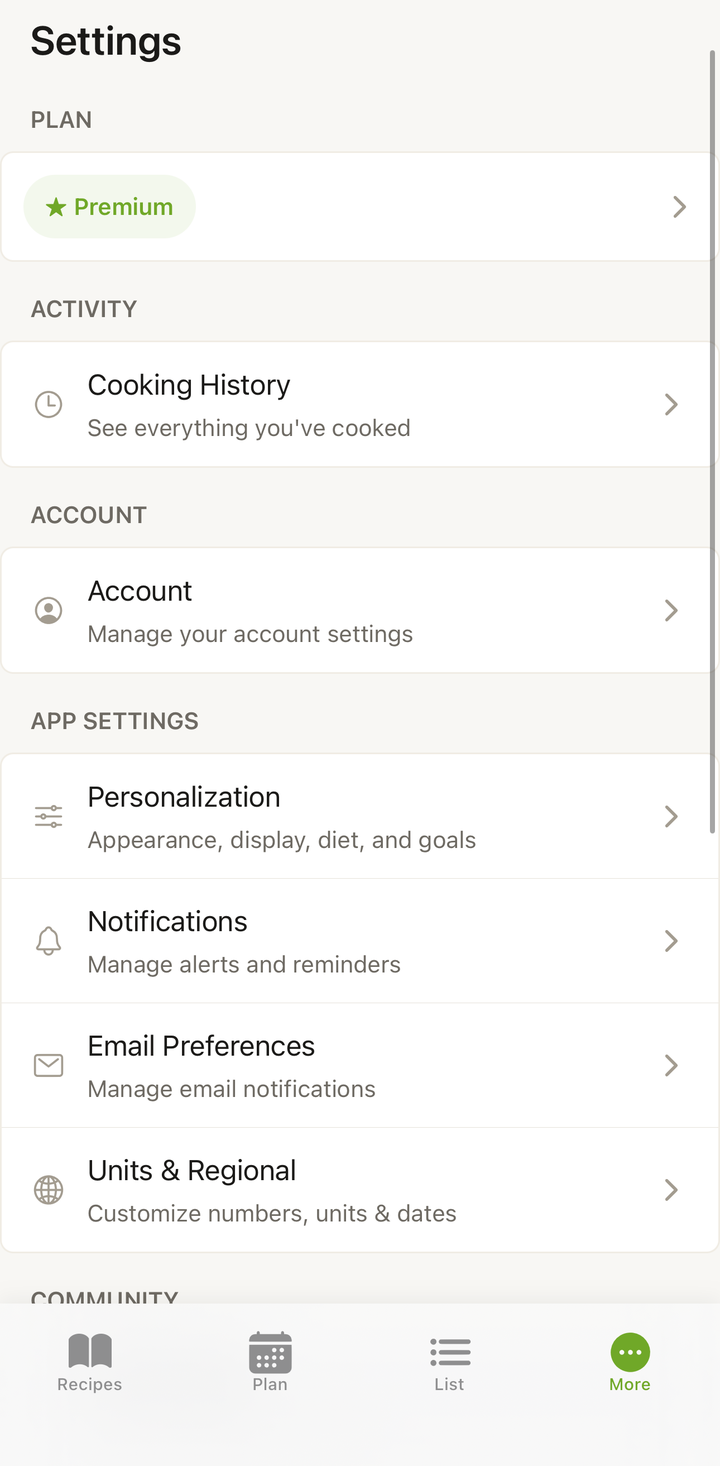
- Open Cookonut
- Go to the More tab
- Tap Account
- Look at the subscription status section
If it shows “Free” even though you’ve paid, continue with the steps below.
2. Restore Your Purchase
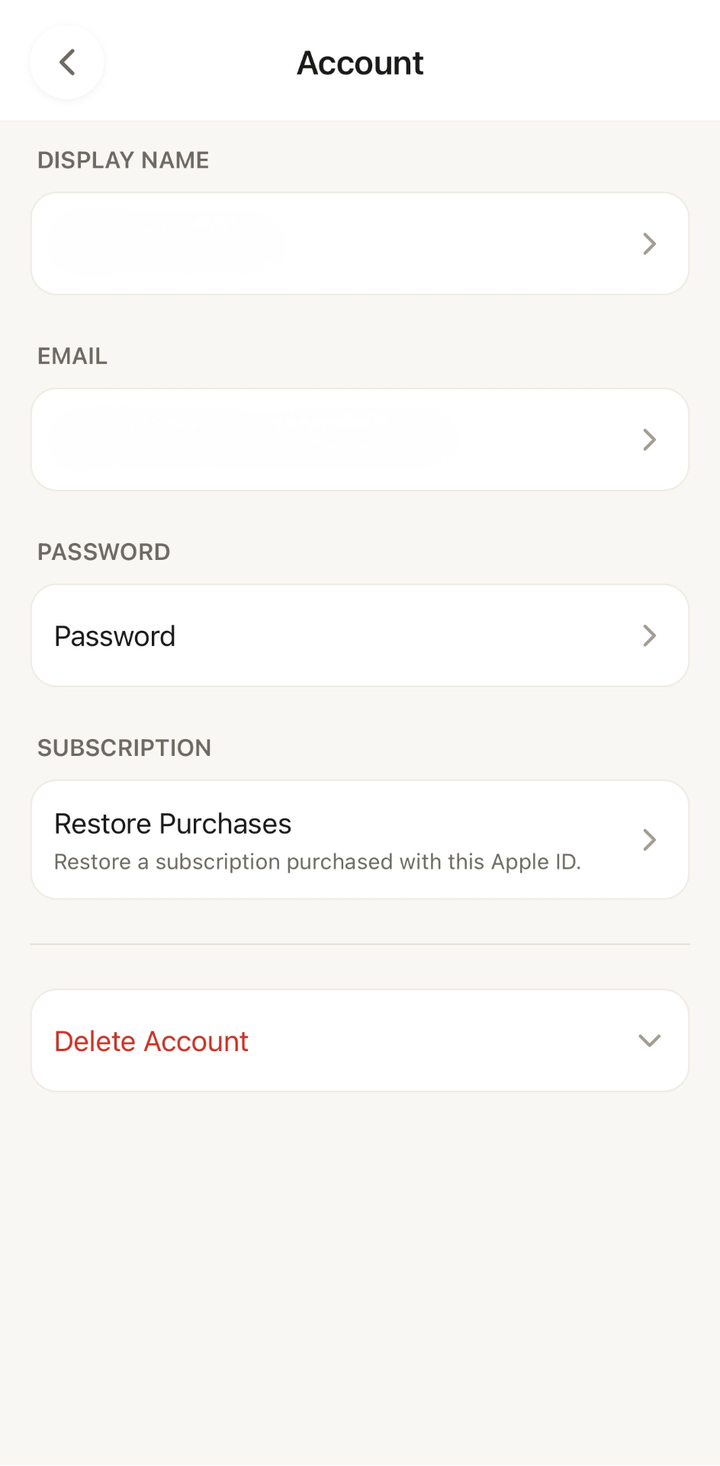
This is the most common fix. It tells the app to re-check with the App Store or Google Play:
- Go to Settings
- Tap Restore Purchase
- Wait a few seconds — the app will verify your subscription
- If successful, Premium features activate immediately
3. Verify Your Purchase in the Store
Make sure the subscription is actually active on your account.
On iPhone:
- Open Settings on your phone (not in Cookonut)
- Tap your Apple ID at the top
- Tap Subscriptions
- Look for Cookonut — check that the status is “Active” and the renewal date is in the future
On Android:
- Open the Google Play Store
- Tap your profile icon
- Tap Payments & subscriptions → Subscriptions
- Look for Cookonut — check that it’s active
If Cookonut isn’t listed in your subscriptions, the purchase may not have gone through. Try subscribing again from the app.
4. Check That You’re Using the Right Account
This is a common cause — especially if you have multiple Apple IDs or Google accounts.
Cookonut Premium has two layers. The subscription is billed to the store account you bought it with (Apple ID or Google account), and the Premium access itself is linked to one Cookonut account. If your phone is signed in to a different Apple ID or Google account than the one you subscribed with, the app can’t see the subscription at all. If the store account is right but Cookonut still shows Free, the subscription simply isn’t linked to this Cookonut account yet.
On iPhone:
- Go to Settings → tap your name at the top → check which Apple ID is signed in
- If it’s not the one you used to subscribe, switch to the correct Apple ID
On Android:
- Open the Google Play Store → tap your profile icon → check which Google account is active
- If it’s not the right one, switch accounts and reopen Cookonut
5. Force Close and Reopen the App
Sometimes the app needs a fresh start to pick up the subscription:
On iPhone:
- Swipe up from the bottom of the screen (or double-click the Home button)
- Find Cookonut in the app switcher
- Swipe it up to close
- Reopen Cookonut
On Android:
- Open your recent apps view
- Swipe Cookonut away to close it
- Reopen Cookonut
6. Check Your Internet Connection
Subscription verification requires an internet connection. Make sure you’re connected to Wi-Fi or cellular data — the app needs to communicate with Apple or Google servers to confirm your subscription.
Try opening a website in your browser to verify your connection is working.
7. Other Common Issues
Expired Payment Method
If the card or payment method linked to your App Store or Google Play account has expired, the subscription renewal may have failed silently.
On iPhone: Settings → Apple ID → Payment & Shipping → update your card On Android: Google Play → Payments & subscriptions → Payment methods → update your card
Family Sharing
Cookonut Premium isn’t shared through Apple Family Sharing or the Google Play Family Library. The subscription stays on the store account that paid for it, and Premium applies to one Cookonut account. If someone else in your household wants Premium on their own Cookonut account, they need their own subscription.
Subscription Just Purchased
If you just subscribed moments ago, give it a minute. Sometimes it takes a short while for the store to confirm the purchase with the app. Force close and reopen after a minute.
Switched Between iPhone and Android
Subscriptions purchased on iPhone (App Store) don’t transfer to Android (Google Play), and vice versa. If you switched devices across platforms, you’ll need to subscribe again on the new platform.
Still Not Working?
If none of the above steps resolve the issue, contact our support team:
- Email [email protected]
- Include the following:
- Your Cookonut account email
- Whether you’re on iOS or Android
- A screenshot of your subscription from your phone’s settings (App Store or Google Play subscriptions screen)
- A screenshot of the Cookonut Settings → Account screen
- If you have a purchase receipt (email confirmation from Apple or Google), forward it along
We’ll investigate and get your Premium access sorted as quickly as possible.
Tips
- Always restore purchases first — it solves most subscription recognition issues
- Keep your payment method up to date — an expired card can silently prevent renewal
- Use the same store account — switching Apple IDs or Google accounts is the most common cause of “missing” subscriptions
- Don’t resubscribe before checking — if you already have an active subscription, restoring it is free. Subscribing again may result in duplicate charges
- Premium follows your Cookonut account — it works on all your devices, but only on one Cookonut account at a time
Thanks for your feedback! We're glad it helped.