
Generate a Grocery List
Articles in this section
🚀 Getting Started
📥 Importing Recipes
- How to Import Recipes
- Import from a Website
- Import from Instagram
- Import from Facebook
- Import from TikTok
- Import from Pinterest
- Import from YouTube
- Scan a Recipe from Photo
- Dictate a Recipe by Voice
- Import by Pasting Text
- Use the In-App Browser
- Write a Recipe from Scratch
- Review & Edit Before Saving
- Understanding Import Credits
📂 Managing Recipes
👨🍳 Cooking Mode
📅 Meal Planning
🛒 Grocery List
📤 Sharing & Export
💳 Billing & Subscription
⚙️ Account & Settings
ℹ️ About Cookonut
💡 Ideas & Feedback
One of Cookonut’s most time-saving features is automatic grocery list generation. Instead of manually writing out every ingredient from every recipe, Cookonut compiles everything into a single organized list.
Generate from Your Meal Plan
The most common way to create a shopping list:
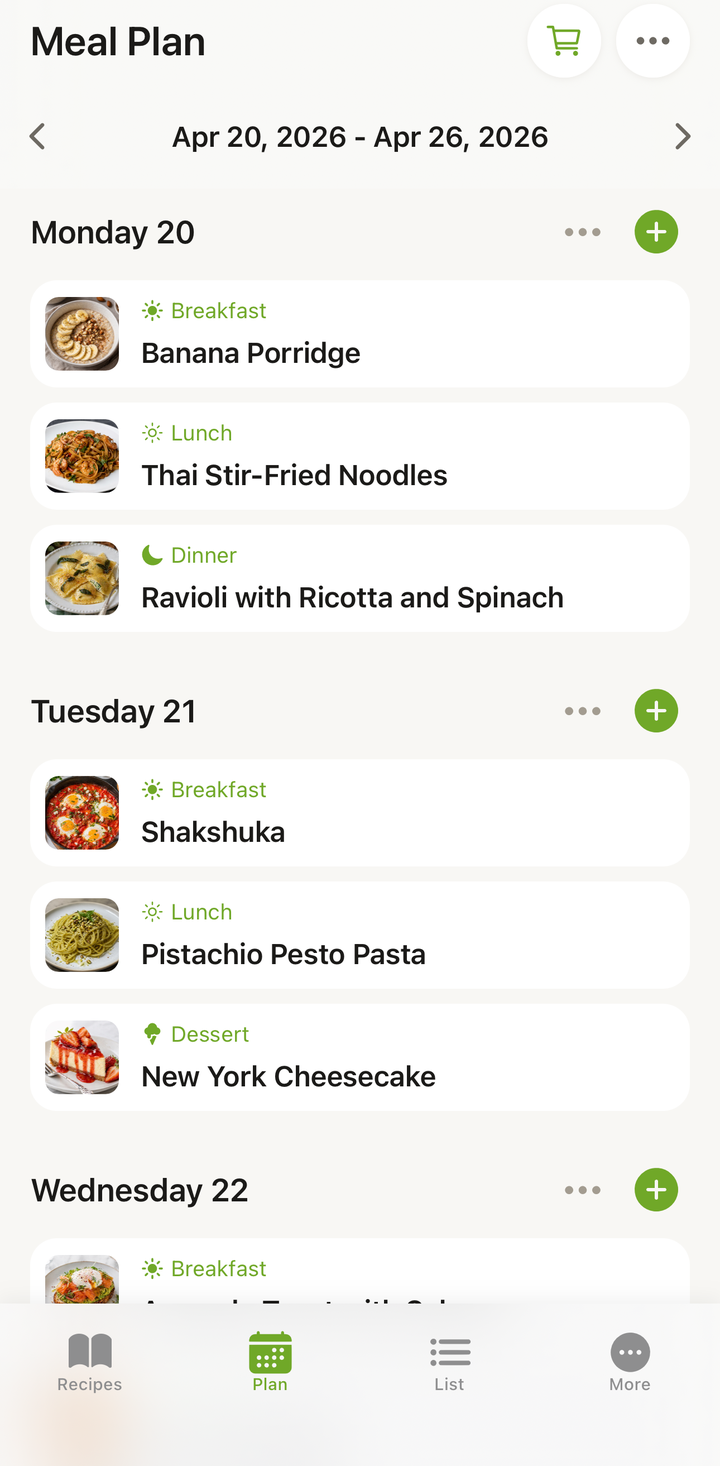
- Go to the Plan tab
- Make sure your week is planned with recipes
- Tap the cart icon in the Plan header
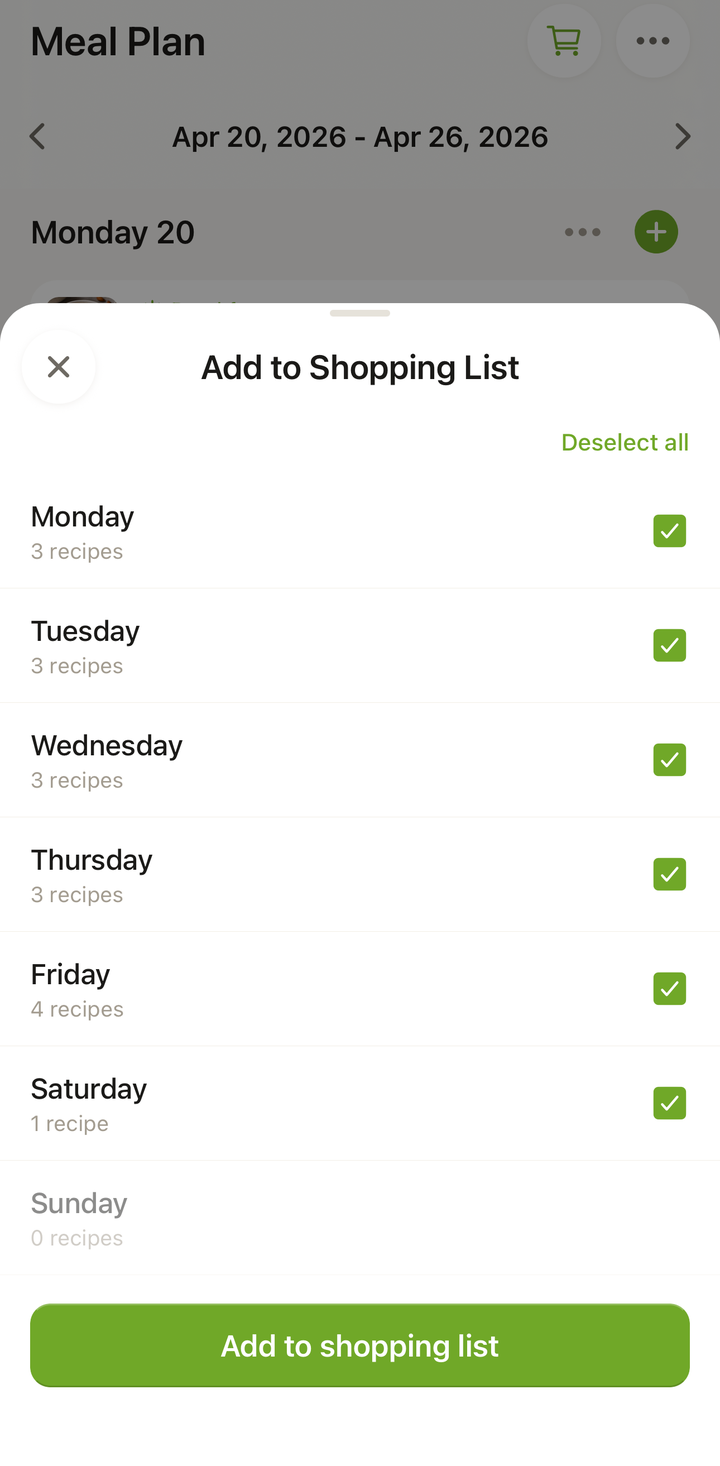
- In the Add to Shopping List modal, under Select days to add, pick the days you want (use Select all or Deselect all)
- Review the ingredients and confirm
- You’ll see an Added to Shopping List toast with a List button — tap it to jump to the List tab, where your items are ready
What Happens During Generation
Cookonut does several smart things when building your list:
- Combines duplicate ingredients — if three recipes need onions, you’ll see one entry for onions with the total amount
- Groups by category — produce, dairy, meat, pantry, etc.
- Respects serving sizes — if you scaled a recipe to 6 servings, the list reflects those larger quantities
- Merges compatible units — two recipes calling for 100g and 200g of chicken breast become a single 300g entry
Generate from a Single Recipe
If you’re not using the meal planner and just want a shopping list for one recipe:
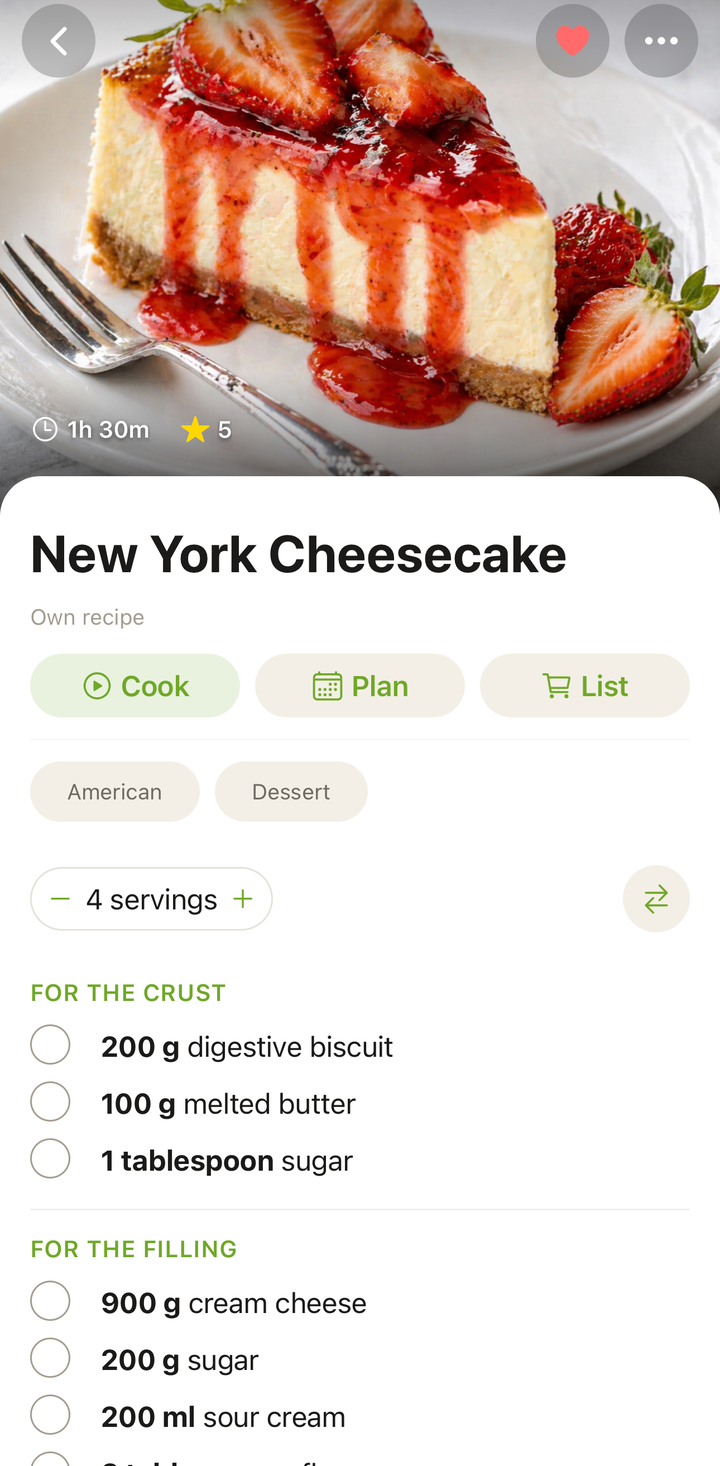
- Open the recipe
- Tap the options menu (three dots)
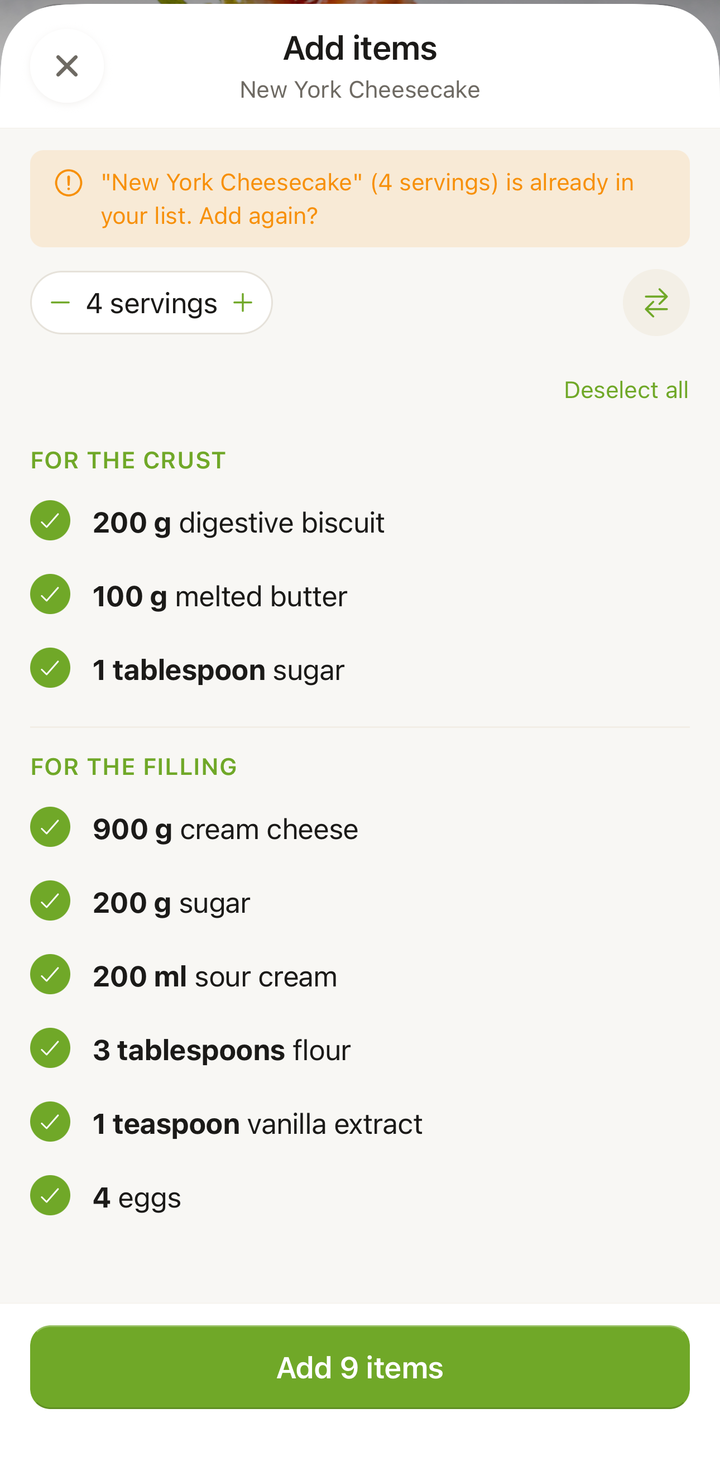
- Choose Add to Shopping List
- The recipe’s ingredients are added to your shopping list
You can repeat this for multiple recipes to build up a list from individual recipes.
Adding to an Existing List
When you generate a grocery list, you may be asked if you want to:
- Replace the current list — start fresh with only ingredients from this week’s plan
- Add to the current list — keep existing items and add the new ingredients on top
Choose “Add to” if you already have a list going and want to combine ingredients from additional recipes.
Checking What You Already Have
After building the list, take a minute to review it before heading to the store:
- Go to the List tab
- Scan through the items
- Check off anything you already have at home (tap the checkbox)
- Checked items move to the bottom or become dimmed
This simple step prevents buying duplicates of things already in your pantry.
Adding Custom Items
Need something that’s not tied to a recipe?
- Go to the List tab
- Tap the floating + button (or Add Item)
- Type the item name (e.g., “Paper towels,” “Dog food”) — you can add several at once, comma-separated
- It’s added to your list alongside recipe ingredients
This way your shopping list is complete — not just recipe ingredients but everything you need.
The Grocery List Workflow
Here’s the recommended weekly flow:
- Sunday evening: Plan your meals for the week
- Tap the cart icon in the Plan header and add the week’s days to your shopping list
- Review the list and check off items you already have
- Add custom items (household supplies, snacks, etc.)
- Go shopping with the list on your phone
- Check off items as you put them in the cart
Tips
- Generate before shopping — don’t wait until you’re in the store
- Check your pantry against the list to avoid overbuying
- Keep the list updated throughout the week — if you use up something, uncheck it
- Share the list with your shopping partner if someone else is going to the store
Grocery Lists Are Free
Grocery list generation and management are available on all plans, including the free tier.
What Gets Left Out
Water, ice and basic pantry staples are handled differently — see what isn’t added to your grocery list.
Thanks for your feedback! We're glad it helped.