
Add Recipes to Your Meal Plan
Articles in this section
🚀 Getting Started
📥 Importing Recipes
- How to Import Recipes
- Import from a Website
- Import from Instagram
- Import from Facebook
- Import from TikTok
- Import from Pinterest
- Import from YouTube
- Scan a Recipe from Photo
- Dictate a Recipe by Voice
- Import by Pasting Text
- Use the In-App Browser
- Write a Recipe from Scratch
- Review & Edit Before Saving
- Understanding Import Credits
📂 Managing Recipes
👨🍳 Cooking Mode
📅 Meal Planning
🛒 Grocery List
📤 Sharing & Export
💳 Billing & Subscription
⚙️ Account & Settings
ℹ️ About Cookonut
💡 Ideas & Feedback
There are several ways to get recipes into your meal plan. Use whichever method fits your workflow — adding from the Plan, browsing your collection, or adding straight from a recipe.
Method 1: Add a Meal from the Plan
The most intuitive way:
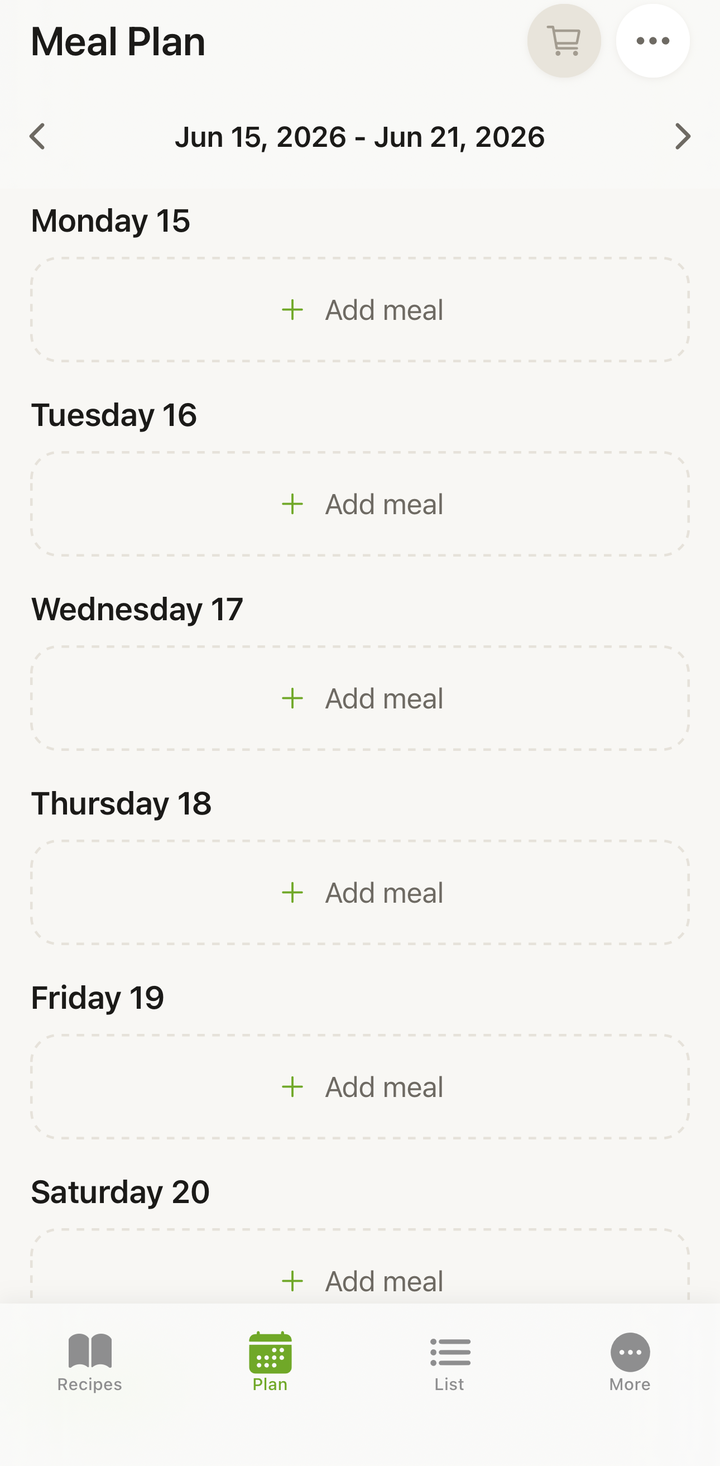
- Go to the Plan tab
- Find the day you want to fill (e.g., Wednesday)
- Tap Add meal
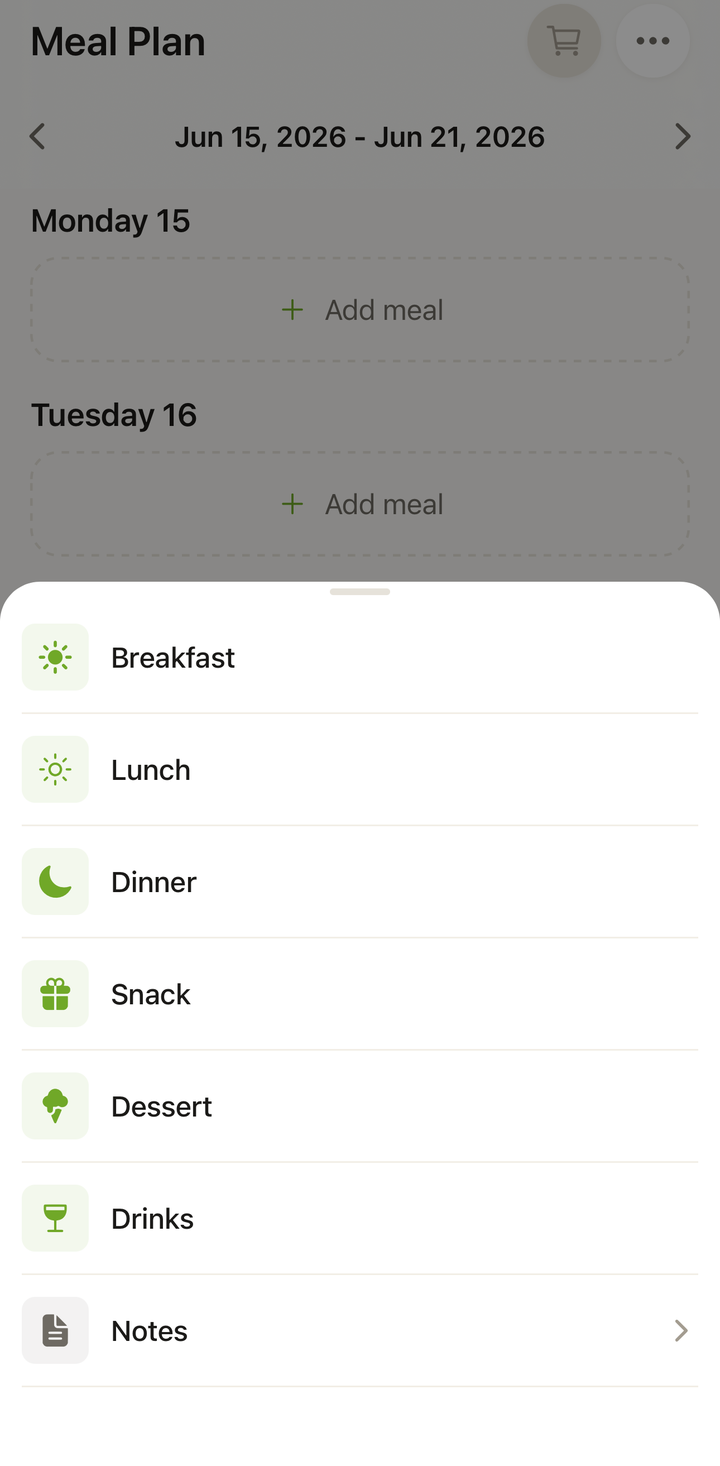
- Choose a meal type (Breakfast, Lunch, Dinner, Snack, Dessert, or Drinks — or the names you gave them under Customize Your Meal Types)
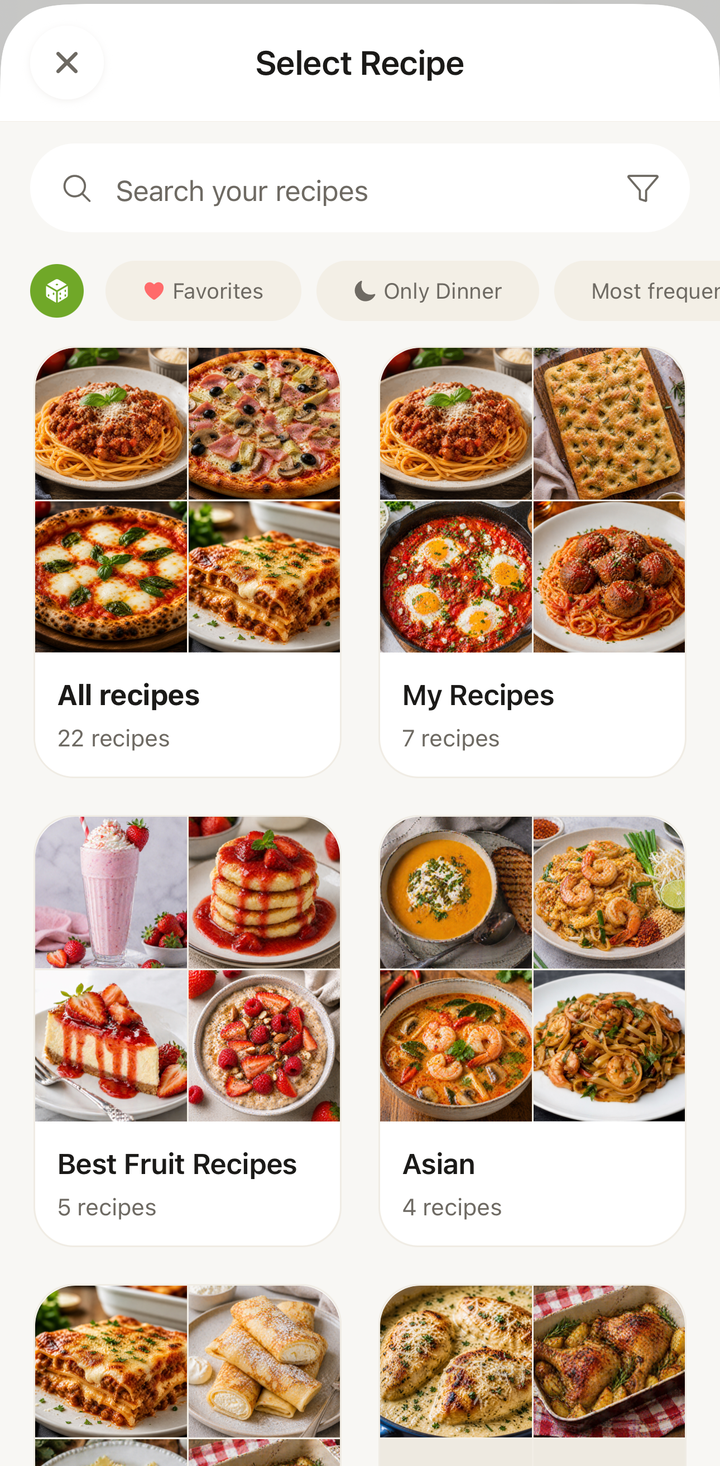
- The recipe picker opens — browse or search your recipes
- Tap the recipe to assign it
Method 2: From the Recipe Detail View
When you’re browsing recipes and spot one perfect for this week:
- Open the recipe
- Tap the options menu (three dots)
- Choose Add to Meal Plan
- Select the day and meal slot — one of your meal types
- Tap Add or Confirm
This method is great when you’re browsing your collection for inspiration and want to plan as you go.
Method 3: Long-Press from the Recipe List
For quick planning without opening the full recipe:
- Go to the Recipes tab
- Long-press on a recipe card
- Choose Add to Meal Plan from the quick actions menu
- Select the day and meal slot
Method 4: From a Cookbook
If you have a specific cookbook in mind:
- Go to the Recipes tab
- Switch to the cookbooks view and open a cookbook (e.g., “Weeknight Dinners”)
- Browse the recipes inside
- Long-press or tap options on a recipe
- Choose Add to Meal Plan
This is perfect for themed planning — open your “Meal Prep” cookbook and add recipes for the week.
Method 5: Generate a Random Week
When you can’t decide:
- In the Plan tab, tap the ••• icon to open the Manage week sheet
- Choose Generate random week to auto-fill the week with recipes
- Step through the wizard, then review the suggestions
- Re-roll individual slots or confirm the plan
See the Use the Meal Plan Randomizer article for details.
Replacing a Planned Meal
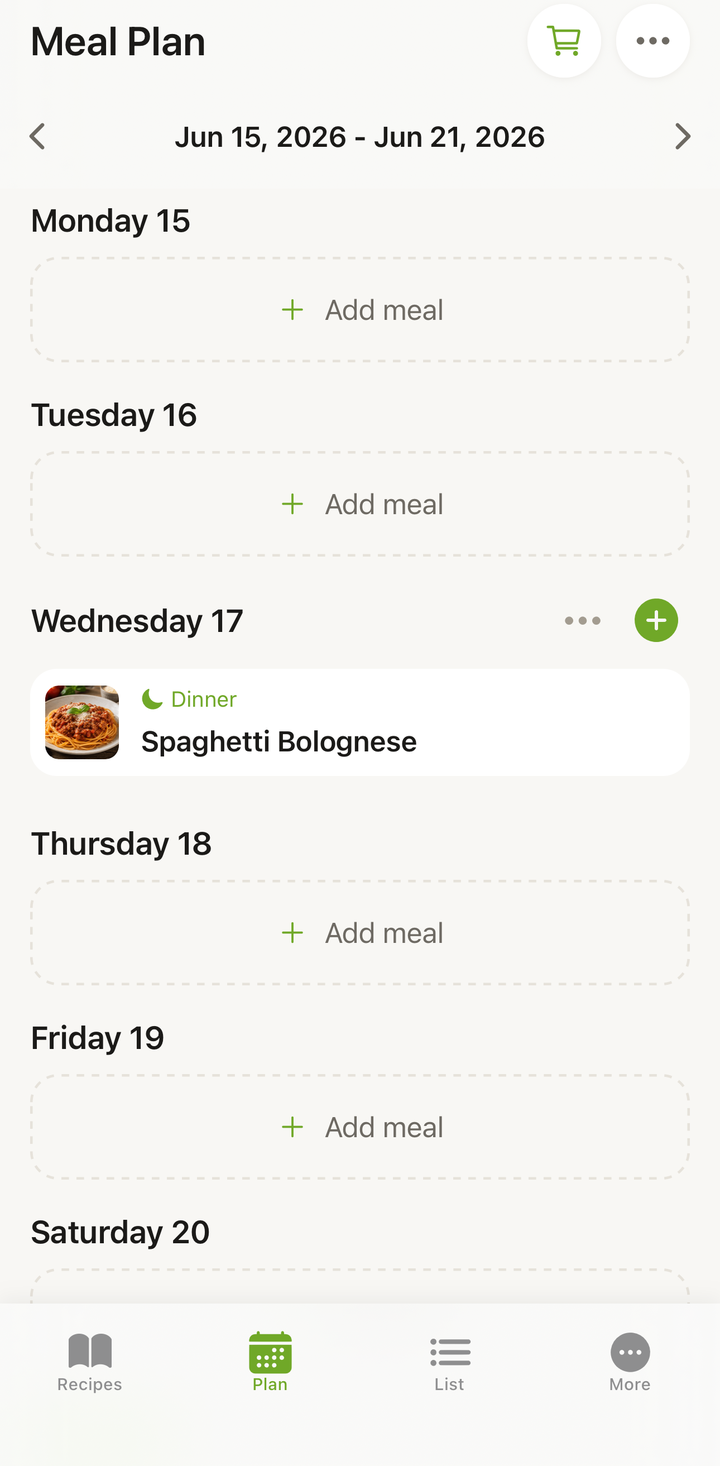
There’s no in-place “replace” — to change a planned meal, remove the current one and add a new one:
- Swipe the planned meal left and tap delete
- Tap Add meal on that day
- Choose the meal type and pick the new recipe
Removing a Planned Meal
To clear a planned meal, swipe it left and tap delete. This only removes it from your schedule — the recipe itself stays in your collection. (Tapping a planned meal opens its full recipe instead.)
Adding the Same Recipe Multiple Times
You can add the same recipe to multiple days. If you’re meal prepping chicken stir-fry for Tuesday, Wednesday, and Thursday lunches:
- Add it to Tuesday Lunch
- Add it again to Wednesday Lunch
- And again to Thursday Lunch
When you build a shopping list from the plan, Cookonut will combine and scale the ingredients accordingly.
Scaling for the Meal Plan
If a recipe normally serves 4 but you’re cooking for 2:
- Open the recipe and adjust the servings before adding to the meal plan
- Or adjust servings from within the meal plan slot
- The shopping list will reflect the adjusted quantities
Tips
- Plan around your calendar — check for busy days and assign quick recipes there
- Use filters when choosing recipes — filter by cook time to find quick options for weeknights
- Build a rotation — if your family loves certain meals, plan them on a regular cycle
- Mix cuisines throughout the week for variety
- Don’t forget leftovers — if a recipe serves 6 and you’re a family of 3, plan leftovers for the next day’s lunch
Thanks for your feedback! We're glad it helped.