
Review & Edit Before Saving
Articles in this section
🚀 Getting Started
📥 Importing Recipes
- How to Import Recipes
- Import from a Website
- Import from Instagram
- Import from Facebook
- Import from TikTok
- Import from Pinterest
- Import from YouTube
- Scan a Recipe from Photo
- Dictate a Recipe by Voice
- Import by Pasting Text
- Use the In-App Browser
- Write a Recipe from Scratch
- Review & Edit Before Saving
- Understanding Import Credits
📂 Managing Recipes
👨🍳 Cooking Mode
📅 Meal Planning
🛒 Grocery List
📤 Sharing & Export
💳 Billing & Subscription
⚙️ Account & Settings
ℹ️ About Cookonut
💡 Ideas & Feedback
Every time you import a recipe — whether from a website, social media post, photo, voice recording, or pasted text — Cookonut shows you a preview before saving. This is your chance to review the extracted recipe, make corrections, and add any missing details.
The Import Preview Screen
After an import finishes processing, you’ll see the preview screen with all the extracted information:
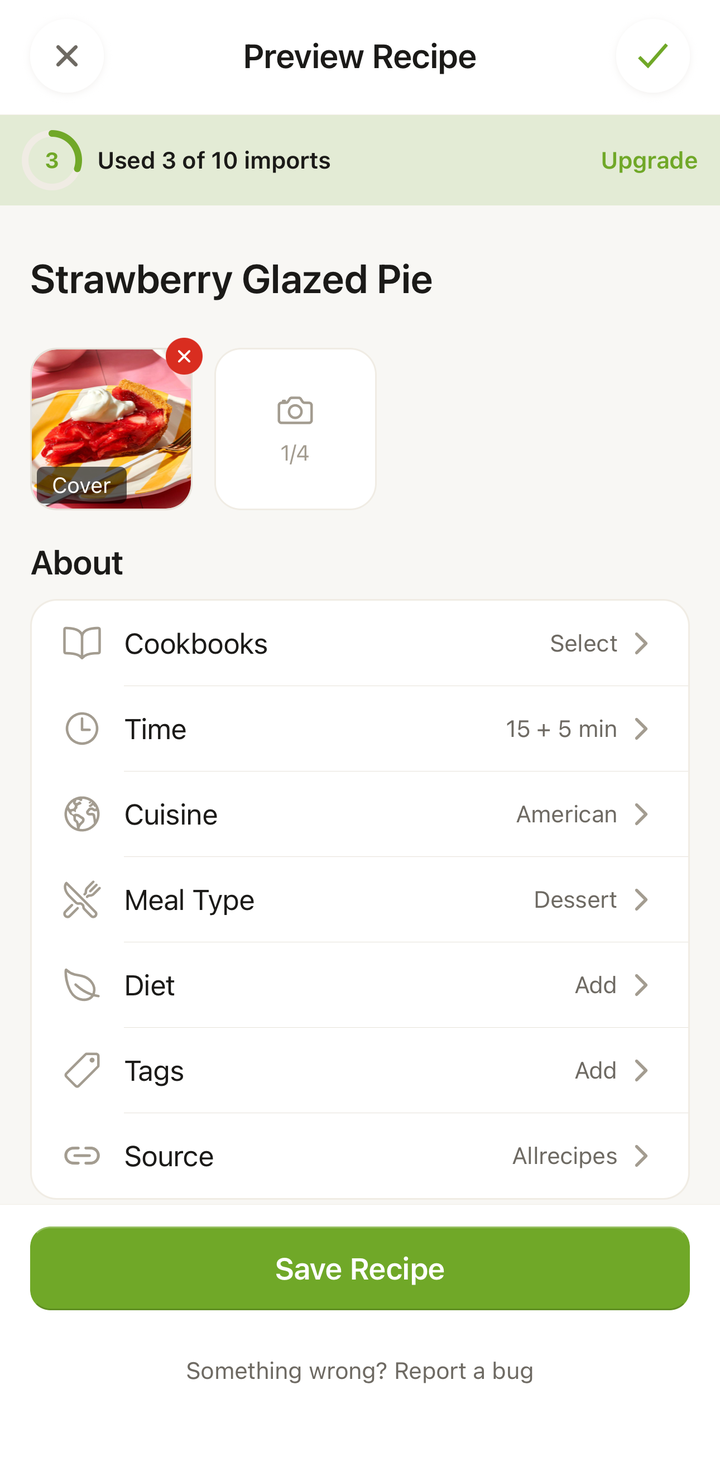
The preview includes:
- Title and description
- Photo (if available)
- Ingredients with quantities and units
- Instructions broken into steps
- Prep time, cook time, and servings
- Tags — meal type, cuisine, and other categories
- Cookbook assignment
How to Edit
Every field on the preview screen is editable. Simply tap on any section to modify it:
Editing the Title
Tap the title text to change it. You might want to simplify a long blog-style title like “The Best Ever Amazing Triple Chocolate Chip Cookies You’ll Ever Make” to just “Triple Chocolate Chip Cookies.”
Editing Ingredients
- Tap an ingredient to edit its quantity, unit, or name
- Swipe left on an ingredient to delete it
- Tap “Add Ingredient” to add one that was missed
- Tap “Re-order”, then long-press a drag handle to reorder ingredients
Common edits include:
- Fixing a quantity that was misread (“1” instead of “I”)
- Splitting an ingredient that got combined with another
- Adding a missing ingredient
Editing Instructions
- Tap a step to rewrite or correct it
- Swipe left to delete a step
- Tap “Add Step” to insert a missing step
- Tap “Re-order”, then long-press a drag handle to rearrange the order
Editing Times and Servings
Tap the prep time, cook time, or servings fields to adjust them. If these weren’t in the source, they may be blank — this is a good time to fill them in.
Managing Tags
- Tap to add or remove tags like meal type, cuisine, and custom labels
- Tags help with searching and filtering later, so it’s worth adding a few
Assigning a Cookbook
Tap the cookbook field to assign the recipe to one or more cookbooks. You can also do this later from the recipe detail view.
When to Edit vs. When to Save As-Is
Save as-is when the import looks accurate — all ingredients have correct quantities, the steps make sense, and the key details are there. Most website imports fall into this category.
Take time to edit when:
- Quantities look wrong or are missing
- Steps are combined or out of order
- The title is overly long or includes non-recipe text
- Important details (like oven temperature or resting time) are missing
- You want to personalize the recipe (your own notes or modifications)
Saving
When you’re happy with the preview:
- Scroll to the bottom of the preview
- Tap Save
- The recipe is added to your collection
You can always edit the recipe again later by opening it and tapping ••• → Edit recipe, so don’t stress about getting everything perfect in the preview.
Discarding an Import
If the import didn’t work well or you’ve changed your mind:
- Tap Back or the close button to leave the preview without saving
- The import credit is used once processing begins, even if you don’t save the result
- You won’t be charged a second credit if you re-import the same recipe
Thanks for your feedback! We're glad it helped.