
Create & Manage Cookbooks
Articles in this section
🚀 Getting Started
📥 Importing Recipes
- How to Import Recipes
- Import from a Website
- Import from Instagram
- Import from Facebook
- Import from TikTok
- Import from Pinterest
- Import from YouTube
- Scan a Recipe from Photo
- Dictate a Recipe by Voice
- Import by Pasting Text
- Use the In-App Browser
- Write a Recipe from Scratch
- Review & Edit Before Saving
- Understanding Import Credits
📂 Managing Recipes
👨🍳 Cooking Mode
📅 Meal Planning
🛒 Grocery List
📤 Sharing & Export
💳 Billing & Subscription
⚙️ Account & Settings
ℹ️ About Cookonut
💡 Ideas & Feedback
Cookbooks are a key way to organize your recipes in Cookonut. Think of them as custom collections — group recipes by theme, cuisine, occasion, or whatever system works for you.
Cookbooks aren’t a separate tab. They live as a view inside the Recipes tab, alongside your full recipe list.
Creating a Cookbook
- Go to the Recipes tab and switch to the Cookbooks view
- Tap the + button or Create Cookbook
- Enter a name for your cookbook (e.g., “Weeknight Dinners”)
- Tap Save
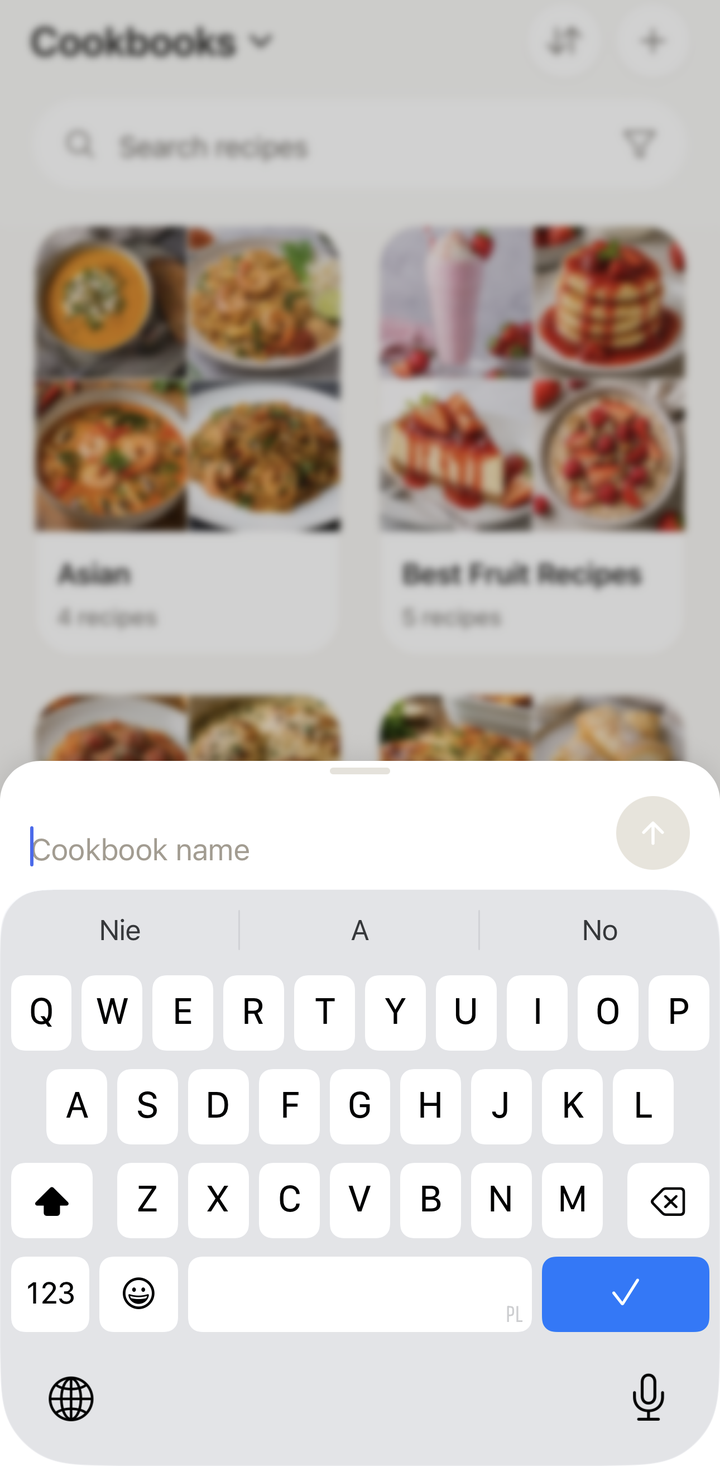
Your new cookbook is ready. Now you can start adding recipes to it.
Adding Recipes to a Cookbook
A recipe can belong to as many cookbooks as you like — you toggle which ones it’s in. There are several ways to do this:
From the Recipe Detail View
- Open any recipe
- Tap the options menu (three dots)
- Choose Assign to cookbook
- Toggle the cookbooks this recipe should belong to
- Tap Done
From the Recipe List (Long-Press)
Long-press a recipe card in your collection to open quick actions, then choose Manage Cookbooks and toggle which cookbooks it belongs to.
During Import
When reviewing an imported recipe on the preview screen, you’ll see a cookbook assignment option. Tap it to assign the recipe before saving.
Recipes Can Belong to Multiple Cookbooks
Unlike physical folders, a single recipe can live in as many cookbooks as you want. Your banana bread can be in “Breakfasts,” “Baking,” and “Kid-Friendly” all at the same time. There’s no single-step “move” — you simply toggle the cookbooks a recipe belongs to, and adding it to a new one doesn’t remove it from any others.
Browsing a Cookbook
- Go to the Recipes tab and switch to the Cookbooks view
- Tap on a cookbook to open it
- You’ll see all recipes in that cookbook displayed with their photos and titles
- Tap any recipe to view it, or use the search bar to find something specific within the cookbook
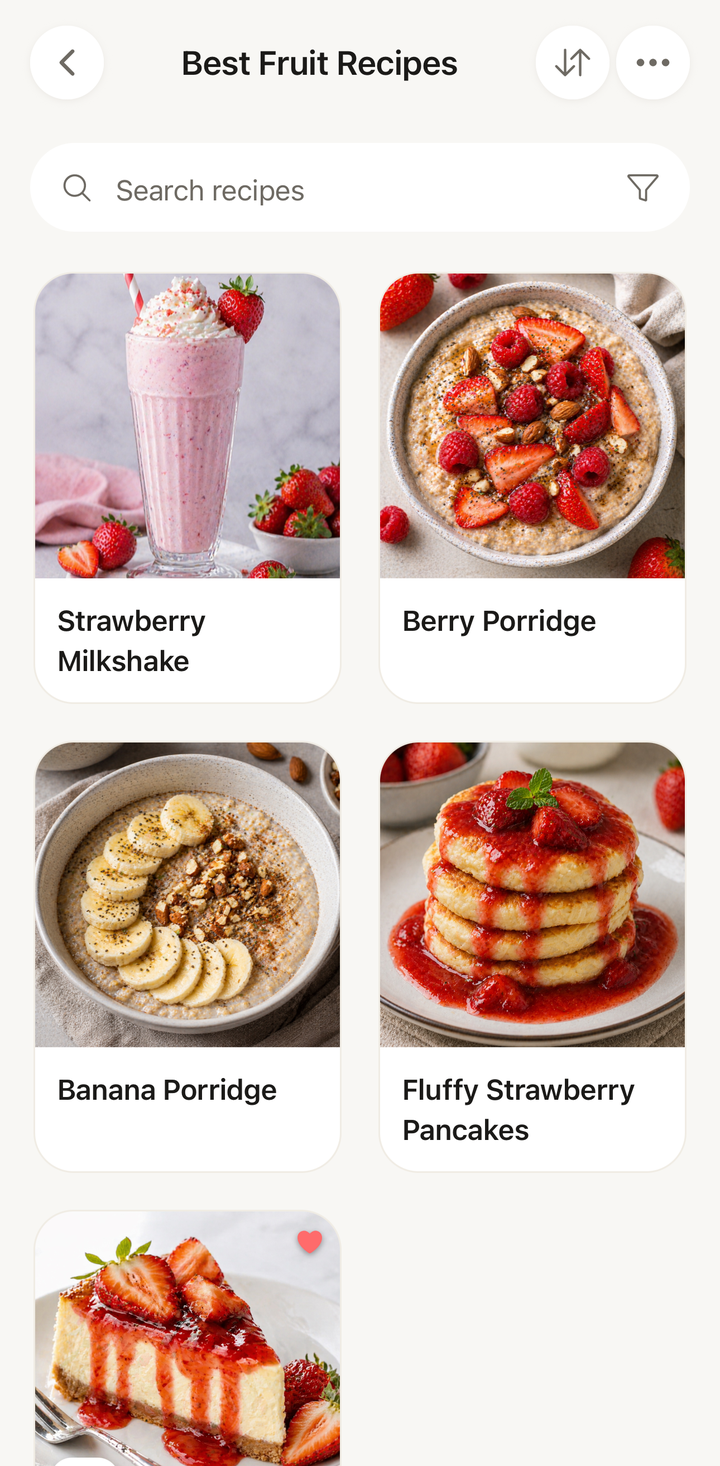
Editing a Cookbook
To change a cookbook’s name:
- Open the cookbook
- Tap the options menu (three dots) at the top
- Choose Edit Cookbook
- Make your changes and tap Save
Removing a Recipe from a Cookbook
- Open the cookbook
- Find the recipe you want to remove
- Swipe left on the recipe or tap its options menu
- Choose Remove from Cookbook
Removing a recipe from a cookbook does not delete the recipe itself — it simply removes the association. The recipe stays in your collection and in any other cookbooks it belongs to.
Deleting a Cookbook
- Open the cookbook
- Tap the options menu (three dots)
- Choose Delete Cookbook
- Confirm the deletion
Deleting a cookbook does not delete any recipes inside it. Your recipes are safe — only the cookbook grouping is removed.
Cookbook Ideas
Not sure what cookbooks to create? Here are some popular setups:
By meal planning:
- Quick Weeknights (under 30 minutes)
- Meal Prep
- Weekend Projects
- Entertaining
By cuisine:
- Italian
- Asian
- Mexican
- Mediterranean
By dietary need:
- Vegetarian
- Gluten-Free
- Dairy-Free
By source:
- Family Recipes
- Blog Favorites
- Social Media Finds
By season:
- Summer Grilling
- Fall Comfort Food
- Holiday Baking
Tips
- Start with 3-5 cookbooks — you can always add more later
- Name them based on how you think about food, not by rigid categories
- Assign cookbooks during import — it takes two seconds and saves organizing time later
- Review periodically — merge similar cookbooks and delete empty ones
- A well-organized cookbook collection makes meal planning much faster
Thanks for your feedback! We're glad it helped.