
Import from Facebook
Articles in this section
🚀 Getting Started
📥 Importing Recipes
- How to Import Recipes
- Import from a Website
- Import from Instagram
- Import from Facebook
- Import from TikTok
- Import from Pinterest
- Import from YouTube
- Scan a Recipe from Photo
- Dictate a Recipe by Voice
- Import by Pasting Text
- Use the In-App Browser
- Write a Recipe from Scratch
- Review & Edit Before Saving
- Understanding Import Credits
📂 Managing Recipes
👨🍳 Cooking Mode
📅 Meal Planning
🛒 Grocery List
📤 Sharing & Export
💳 Billing & Subscription
⚙️ Account & Settings
ℹ️ About Cookonut
💡 Ideas & Feedback
Found a delicious recipe on Facebook? Cookonut can extract the recipe from Facebook posts and Reels so you don’t have to screenshot and retype everything manually.
How to Import from Facebook
The easiest way is to share the post straight from Facebook to Cookonut — the share extension handles the link for you.
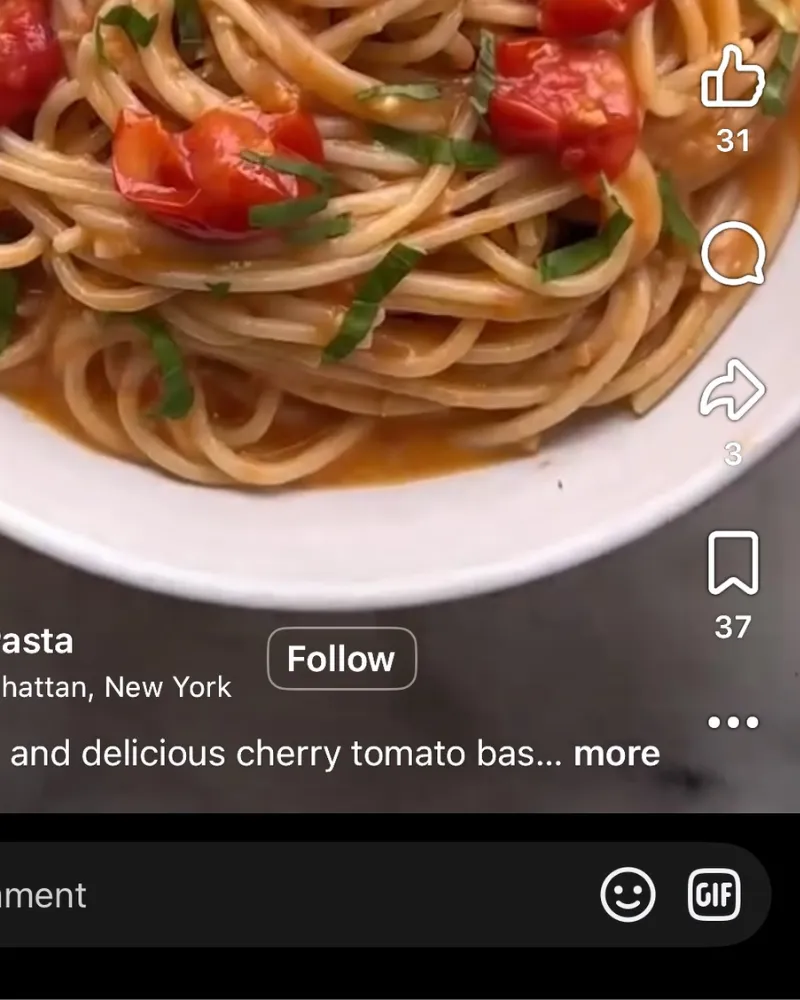
tap Share

tap Share to...
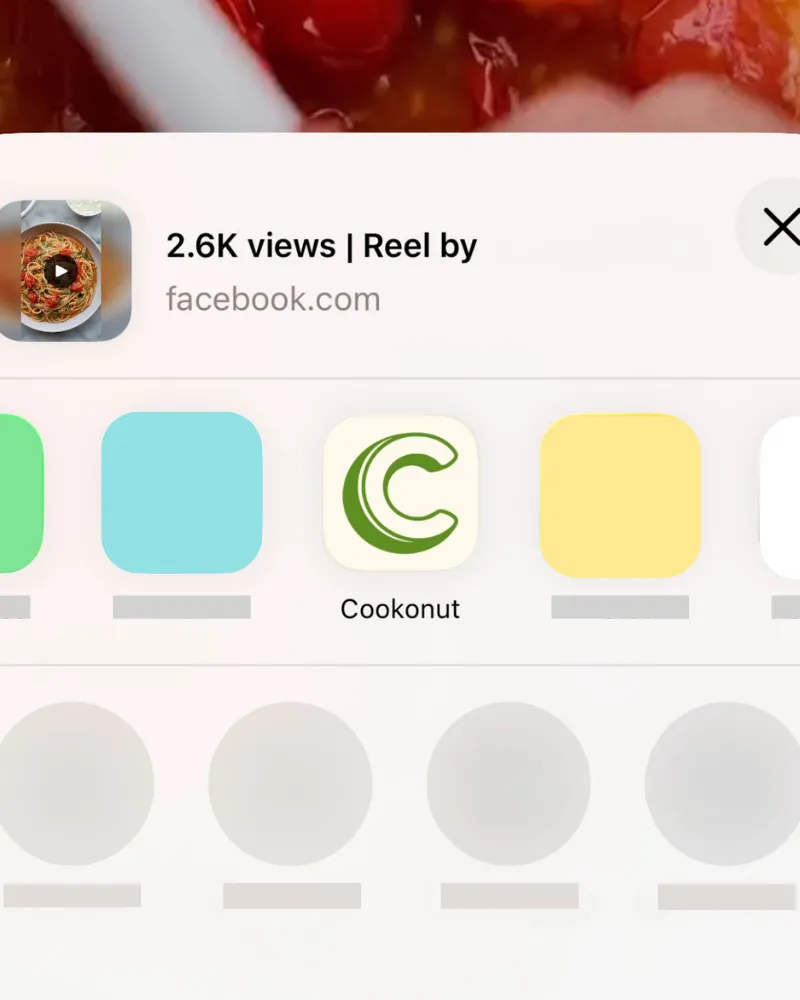
tap Cookonut
- Open the Facebook post or Reel with the recipe
- Tap the Share button below the post
- Select Cookonut from the share options (scroll the app row and tap More if you don’t see it)
- Cookonut opens with the link pre-loaded — tap Import and let the AI extract the recipe
The screenshots above show iOS. On Android the flow is the same through the share menu — use the iOS and Android tabs at the top for device-specific steps.
If the caption links to a recipe
If the post’s caption doesn’t spell out the recipe itself but links to a recipe website, Cookonut follows that link and extracts the recipe from the linked page — so a post that just says “full recipe at the link” still works.
What Cookonut Extracts
On Facebook, Cookonut reads the post caption — the written text under the post. Facebook doesn’t give access to the video of a Reel, so spoken instructions or text shown in the video can’t be read. Depending on what the creator included, you may get:
- Recipe title from the post caption
- Ingredients list when written out in the caption
- Instructions when written out in the caption
- Photo from the post image
Tips for Better Facebook Imports
- Posts with written recipes in the caption work best — the more detail the creator included, the better the import
- Reels and video posts are imported from the caption only — if the recipe is only in the video, expect gaps
- If the import is missing ingredients or steps, you can easily edit the recipe in the preview before saving
When Facebook Imports Are Tricky
Facebook recipes can vary a lot in how they’re presented. Some common situations:
- Recipe in comments, not caption — If the recipe details are in the comments rather than the main post, Cookonut may not capture them. Try pasting the recipe text manually instead.
- “Link in bio” recipes — If the post says “full recipe on my blog,” follow that link and import from the blog directly for better results.
- Recipe only in the video — Cookonut can’t read Facebook videos; try voice dictation while watching.
Credit Usage
Each Facebook import uses 1 credit from your monthly pool. Free plan users get 10 credits per month; Premium users have unlimited imports.
After Import
Once Cookonut finishes processing, review the extracted recipe on the preview screen. Facebook imports sometimes need a bit more editing than website imports, since social media posts aren’t as structured as recipe blogs. Take a moment to:
- Check that all ingredients are listed with correct quantities
- Make sure the steps are in the right order
- Add any missing details (prep time, cook time, servings)
- Assign tags and a cookbook if you’d like
When everything looks good, tap Save and the recipe joins your collection.
Thanks for your feedback! We're glad it helped.