
Account Settings
Articles in this section
🚀 Getting Started
📥 Importing Recipes
- How to Import Recipes
- Import from a Website
- Import from Instagram
- Import from Facebook
- Import from TikTok
- Import from Pinterest
- Import from YouTube
- Scan a Recipe from Photo
- Dictate a Recipe by Voice
- Import by Pasting Text
- Use the In-App Browser
- Write a Recipe from Scratch
- Review & Edit Before Saving
- Understanding Import Credits
📂 Managing Recipes
👨🍳 Cooking Mode
📅 Meal Planning
🛒 Grocery List
📤 Sharing & Export
💳 Billing & Subscription
⚙️ Account & Settings
ℹ️ About Cookonut
💡 Ideas & Feedback
Your account settings let you manage your details, subscription, and password. Here’s where to find everything and what you can do.
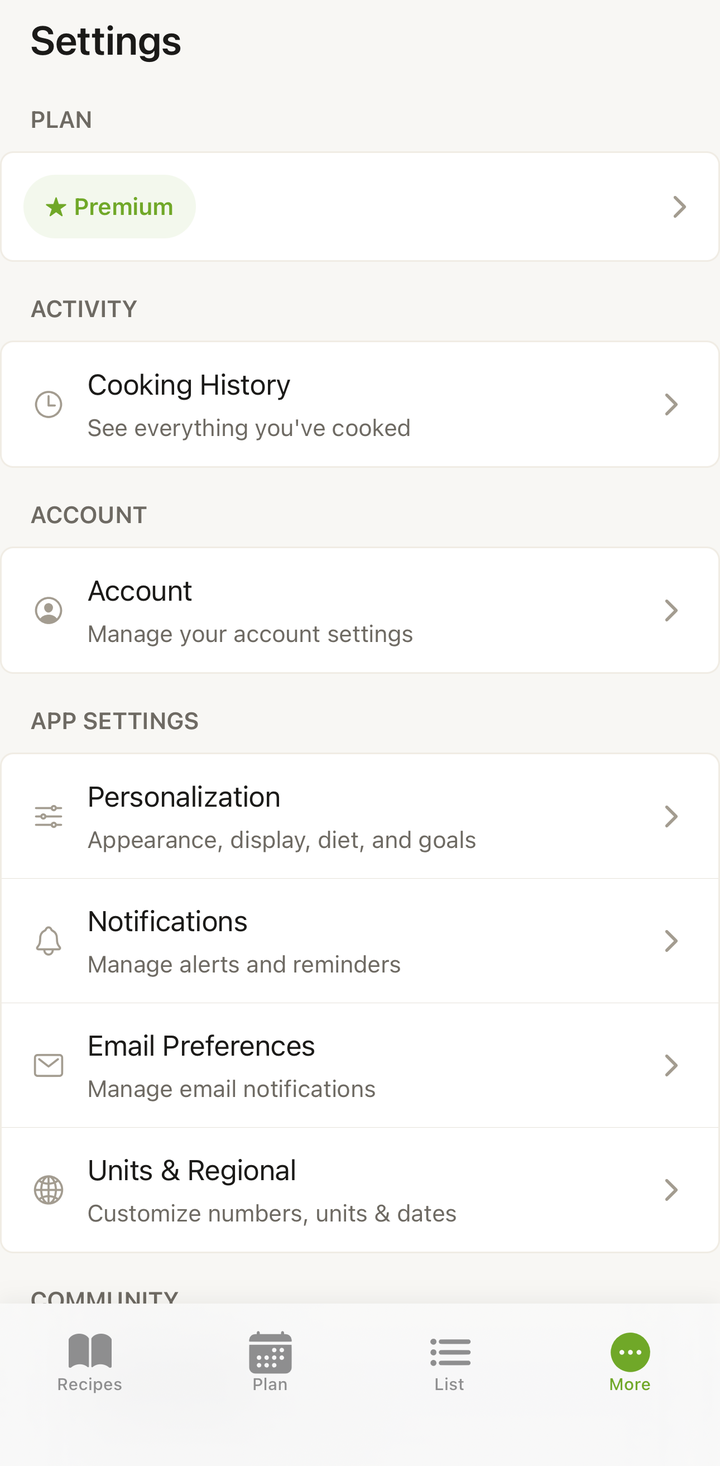
Accessing Account Settings
- Open Cookonut
- Go to the More tab
- Tap Account
What You’ll See
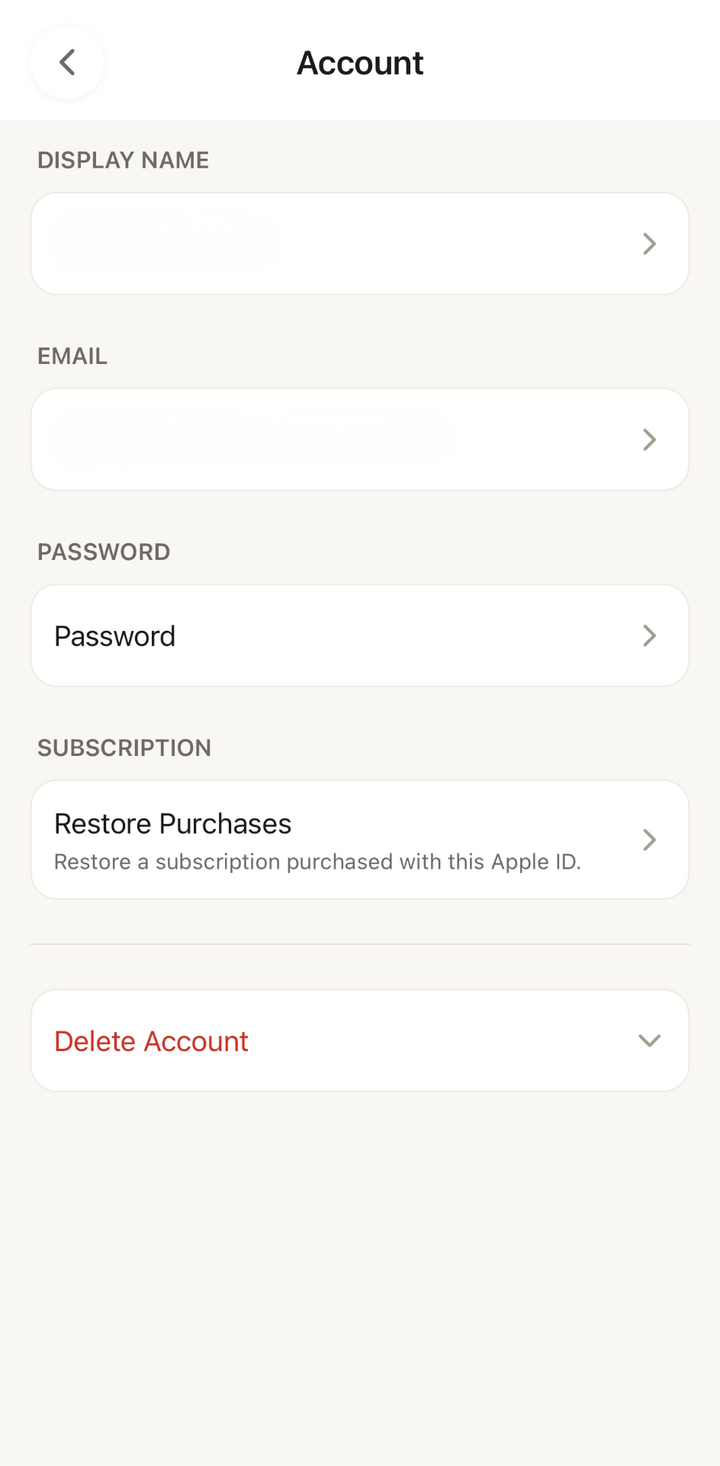
On the Account screen you can:
- Display Name — the name shown on your account; tap to update it
- Email — the email address tied to your account
- Password — change your password (email accounts only)
- Restore Purchases — recover a Premium subscription on a new device
- Delete Account — permanently remove your account and all data
Updating Your Display Name
- Open Account from the More tab
- Tap Display Name
- Enter your new name
- Tap Save
Restoring a Purchase
If your Premium subscription isn’t showing (for example, after reinstalling or switching devices):
- Open Account from the More tab
- Tap Restore Purchases
- Your subscription is verified and restored on this device
Restore works with the Apple ID or Google Account you originally used to subscribe.
Changing Your Password (Email Accounts)
If you signed up with email:
- Open Account from the More tab
- Tap Password
- Enter your current password
- Enter and confirm your new password
- Tap Save
If you signed in with Apple or Google, your password is managed through those services — there’s no separate Cookonut password.
Forgot Password
If you can’t remember your password:
- On the sign-in screen, tap Forgot Password
- Enter your email address
- Check your inbox for a password reset link
- Tap the link and create a new password
- Sign in with your new password
Signing Out
To sign out of Cookonut:
- Go to the More tab
- Scroll to the bottom
- Tap Sign Out
- Confirm
Signing out doesn’t delete any data. Your recipes, meal plans, and settings are saved in the cloud and will be there when you sign back in.
Signing In on Multiple Devices
Your Cookonut account works on any device:
- Install Cookonut on the new device
- Sign in with the same method (Apple, Google, or email)
- Everything syncs — recipes, cookbooks, meal plans, preferences
There’s no limit to the number of devices you can sign in on.
Deleting Your Account
If you want to permanently delete your account and all data, see the Delete Your Account article. This action is irreversible.
Thanks for your feedback! We're glad it helped.