
Edit & Manage Your Grocery List
Articles in this section
🚀 Getting Started
📥 Importing Recipes
- How to Import Recipes
- Import from a Website
- Import from Instagram
- Import from Facebook
- Import from TikTok
- Import from Pinterest
- Import from YouTube
- Scan a Recipe from Photo
- Dictate a Recipe by Voice
- Import by Pasting Text
- Use the In-App Browser
- Write a Recipe from Scratch
- Review & Edit Before Saving
- Understanding Import Credits
📂 Managing Recipes
👨🍳 Cooking Mode
📅 Meal Planning
🛒 Grocery List
📤 Sharing & Export
💳 Billing & Subscription
⚙️ Account & Settings
ℹ️ About Cookonut
💡 Ideas & Feedback
Your grocery list is fully editable. Add custom items, adjust quantities, remove things you don’t need, and keep the list current throughout the week.
Adding Custom Items
Need something that’s not from a recipe? Add it manually:
- Go to the List tab
- Tap the floating + button (or Add Item)
- Type the item name (e.g., “Paper towels,” “Dog treats,” “Bananas”) — add several at once, comma-separated
- Optionally add a quantity
- The item appears on your list
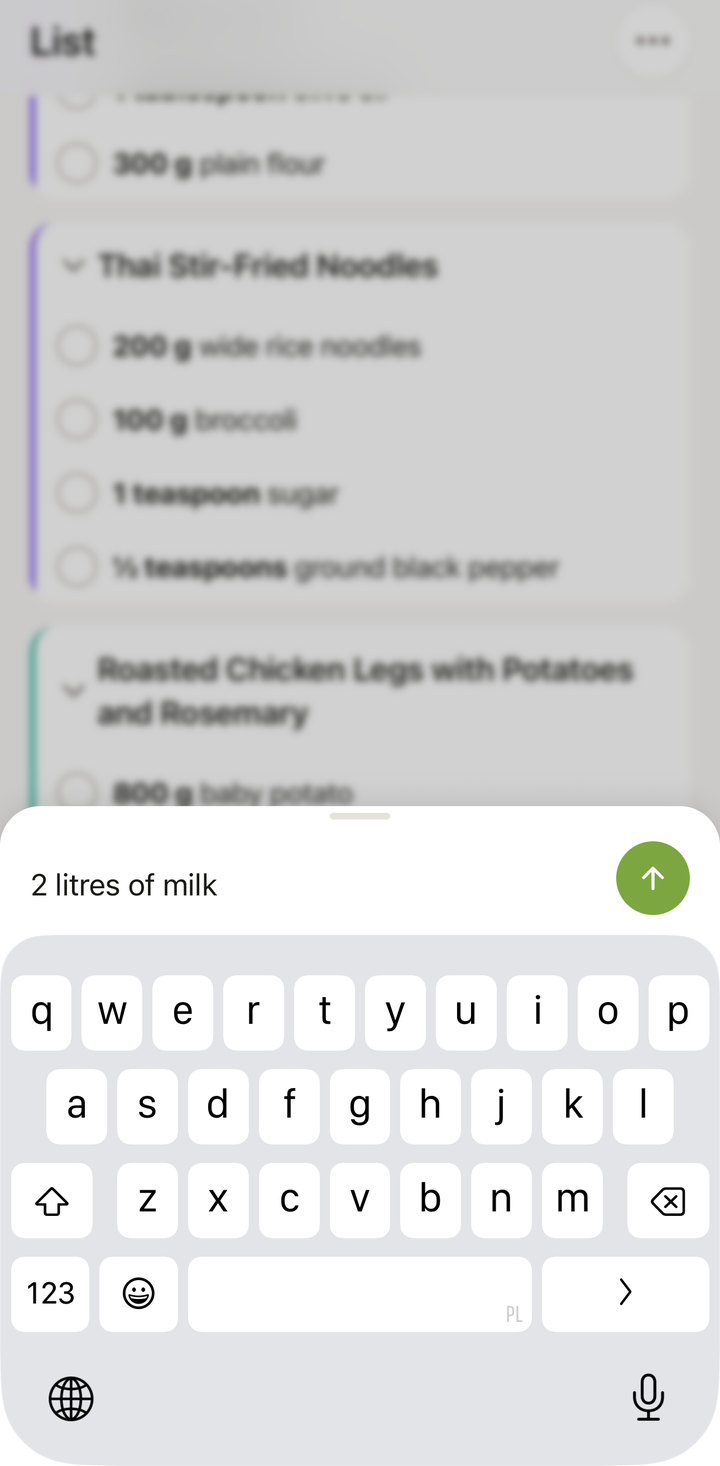
Custom items sit alongside recipe items, so your shopping list is truly complete — not just recipe ingredients.
Editing an Item
To change an item’s name, quantity, or details:
- Swipe right on the item and tap Edit to open the Edit Item sheet
- Modify the Name, Quantity, Unit, or Aisle
- Save your changes
A plain tap checks the item off instead, so editing lives behind the swipe — the mirror image of swiping left to delete.
This is useful when:
- The generated quantity doesn’t look right
- You want to change the brand or specificity (“milk” to “oat milk”)
- You need more or less than what the recipe calls for
Removing Items
To remove an item from the list:
- Swipe left on the item
- Tap Delete
- The item is removed from the list
Use this for:
- Ingredients you already have at home
- Items from a recipe you decided to skip
- Duplicates that didn’t get merged automatically
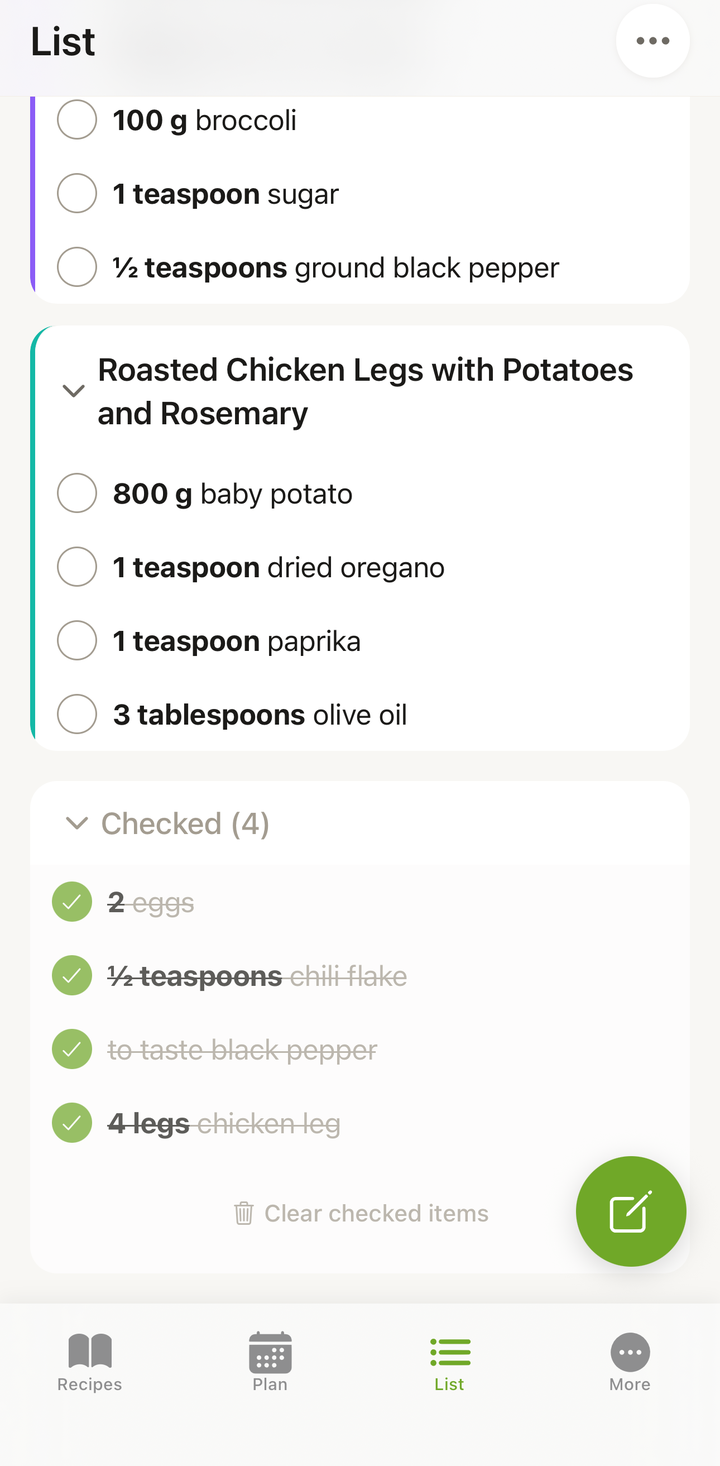
Checking Off Items
As you shop or check your pantry:
- Tap the checkbox next to an item
- The item is marked as done (dimmed or moved to the bottom)
- Tap again to uncheck if you change your mind
The counter at the top shows your progress (e.g., “15 of 22 items”).
Clearing Checked Items
After your shopping trip, you can clean up:
- Tap the ••• icon to open the Options sheet
- Choose Clear checked items
- Your list now shows only remaining items
This keeps the list tidy for next time.
Clearing the Entire List
To start fresh:
- Tap the ••• icon to open the Options sheet
- Choose Clear entire list
- Confirm the action
- The list is now empty and ready for your next shopping list
Managing Items from Multiple Sources
Your shopping list can contain items from:
- Your meal plan — ingredients added from the Plan’s cart icon
- Individual recipes — added via Add to Shopping List from a recipe
- Custom items — manually added by you
All items live on the same list regardless of source. In By recipe view, you can see which recipe each item came from.
Handling Duplicate Ingredients
Cookonut automatically merges duplicate ingredients when generating a list. For example:
- Recipe A needs 200g chicken breast
- Recipe B needs 300g chicken breast
- Your list shows: 500g chicken breast
If duplicates slip through (perhaps with slightly different names), you can manually remove the extra and adjust the quantity on the remaining one.
Tips
- Check your pantry before shopping — go through the list at home and check off what you already have
- Add non-food items — don’t forget household supplies, cleaning products, and pet food
- Edit quantities if you want to buy extra of something (e.g., “6 eggs” to “12 eggs” because you go through them fast)
- Clear the list weekly after shopping to keep things fresh
- Use the list throughout the week — if you run out of something mid-week, add it immediately so you don’t forget
Managing Your List Is Free
All grocery list editing and management features are available on all plans, including the free tier.
Thanks for your feedback! We're glad it helped.