
Import Not Working?
Articles in this section
🚀 Getting Started
📥 Importing Recipes
- How to Import Recipes
- Import from a Website
- Import from Instagram
- Import from Facebook
- Import from TikTok
- Import from Pinterest
- Import from YouTube
- Scan a Recipe from Photo
- Dictate a Recipe by Voice
- Import by Pasting Text
- Use the In-App Browser
- Write a Recipe from Scratch
- Review & Edit Before Saving
- Understanding Import Credits
📂 Managing Recipes
👨🍳 Cooking Mode
📅 Meal Planning
🛒 Grocery List
📤 Sharing & Export
💳 Billing & Subscription
⚙️ Account & Settings
ℹ️ About Cookonut
💡 Ideas & Feedback
If a recipe import isn’t working — it fails, takes too long, or gives an error — here’s how to troubleshoot the issue and get your recipe saved.
Common Issues and Solutions
”Could Not Find a Recipe”
This error means Cookonut processed the page but couldn’t identify recipe content.
Possible causes:
- The URL doesn’t point to a recipe page (it might be a homepage, category page, or search results)
- The website blocks automated access
- The recipe is behind a paywall or login wall
Solutions:
- Make sure the full recipe is open on screen — open the actual recipe page, not a search results or category page
- Use Search the web — browse to the page in Cookonut’s built-in browser and tap Save from there
- Copy the recipe text and use Paste text as an alternative
- If the site requires a login, sign in inside Search the web, open the recipe, then Save — or copy the recipe text and use Paste text
Import Takes Too Long
If the import has been loading for more than a minute — video analysis for Reels, TikToks, Shorts and video pins legitimately takes longer than a text import, so give those a little extra time before you worry:
- Check your internet connection — imports need a stable connection
- Cancel and retry — sometimes a second attempt works
- The source website may be slow or temporarily down
- Try again later if the site seems unresponsive
Import Produces an Error
If you see an error message:
- Try again — transient errors sometimes resolve on a retry
- Check if the URL is complete and correct — a truncated URL won’t work
- Make sure you have credits remaining — go to Settings to check your balance
- Try a different import method — if a web import fails, try Paste text or browse the page again with Search the web
Social Media Links Not Working
Instagram, Facebook, TikTok, and other social media imports can be trickier:
- Make sure you copied the correct link — it should be the direct post/video link
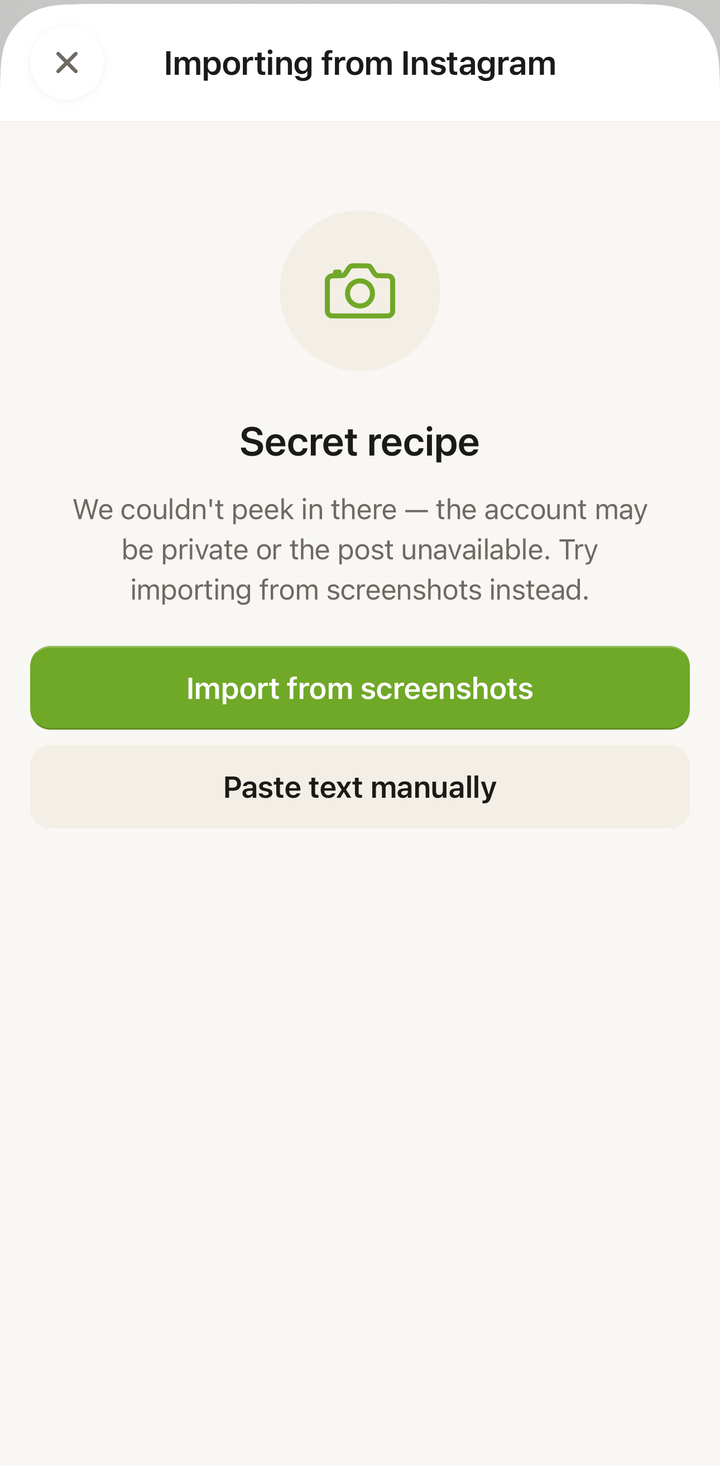
- Private accounts can’t be imported — the content needs to be publicly accessible
- If the caption has no recipe and the platform doesn’t expose more (Facebook videos can’t be read; Instagram Reels and TikToks over 90 seconds and YouTube videos over 3 minutes rely on the caption or description), copy the recipe text and use Paste text, or dictate while watching
- Some platforms change their link formats — if a link doesn’t work, try getting a fresh one
Photo Import Not Working
If scanning a photo fails:
- Check that the photo is clear and well-lit — blurry or dark photos are hard to read
- Make sure the text is visible — too small or too far away won’t work
- Try cropping the photo to just the recipe before importing
- For handwritten recipes, make sure the handwriting is legible
Quick Troubleshooting Checklist
Before doing anything else, run through this checklist:
- Is your internet connection working?
- Do you have import credits remaining?
- Is the URL correct and complete?
- Is the content publicly accessible (not behind a login)?
- Have you tried a different import method?
Workarounds
When a direct import fails, you have backup options:
Copy and paste the text: Open the recipe page in your browser, select and copy the recipe text, then use Paste text in Cookonut. This bypasses most website access issues.
Use Search the web: Browse to the recipe page in Cookonut’s built-in browser and tap Save from there. This sometimes works when other methods don’t.
Create it from scratch: If the recipe is short, typing it manually using Create from scratch is fast and uses no credits.
Try the share sheet: From your phone’s browser or a social app, use the share button to send the recipe straight to Cookonut.
Reporting Import Issues
If a specific website or recipe consistently fails to import:
- Note the URL that isn’t working
- Contact support (see the Contact Support article)
- Include the URL and a description of the error
- Our team investigates reported issues and improves import compatibility over time
Does a Failed Import Use a Credit?
Yes, a credit is used when the processing starts, even if the import fails. This is why we recommend checking the URL and your connection before importing, and using the workarounds above if an import fails rather than retrying the same method multiple times.
Thanks for your feedback! We're glad it helped.