
Using Cooking Mode
Articles in this section
🚀 Getting Started
📥 Importing Recipes
- How to Import Recipes
- Import from a Website
- Import from Instagram
- Import from Facebook
- Import from TikTok
- Import from Pinterest
- Import from YouTube
- Scan a Recipe from Photo
- Dictate a Recipe by Voice
- Import by Pasting Text
- Use the In-App Browser
- Write a Recipe from Scratch
- Review & Edit Before Saving
- Understanding Import Credits
📂 Managing Recipes
👨🍳 Cooking Mode
📅 Meal Planning
🛒 Grocery List
📤 Sharing & Export
💳 Billing & Subscription
⚙️ Account & Settings
ℹ️ About Cookonut
💡 Ideas & Feedback
Cooking mode transforms any recipe into a step-by-step guide optimized for the kitchen. Large text, easy navigation, and built-in timers make it perfect for cooking with your phone on the counter.
How to Start Cooking Mode
- Open any recipe from your collection
- Tap the Cook button
- Cooking mode launches full-screen
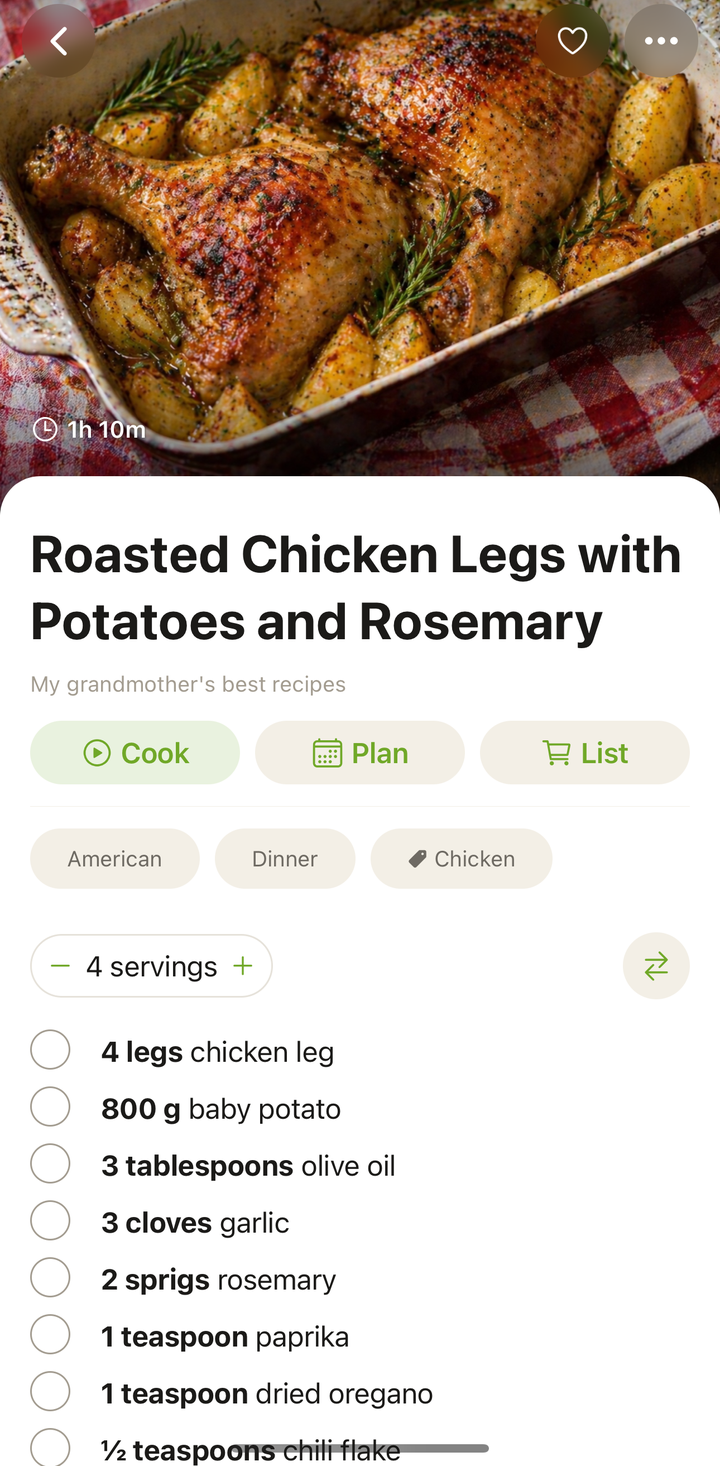
What Cooking Mode Looks Like
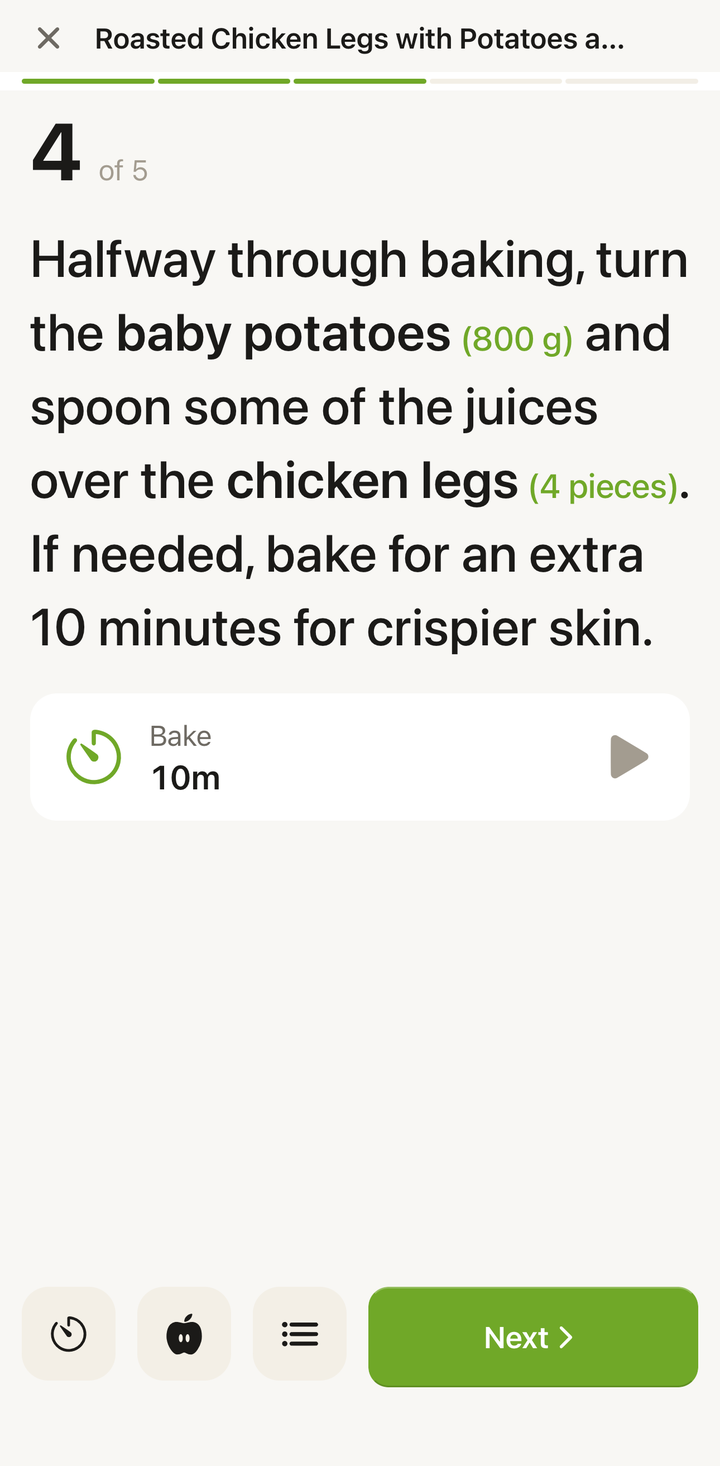
Cooking mode shows one step at a time with:
- Large, easy-to-read text — visible from across the kitchen
- Step number and total — so you know where you are (e.g., “Step 3 of 8”)
- A progress bar at the top — showing how far through the recipe you are
- Ingredient reference — quick access to the full ingredients list without leaving cooking mode
- Timer button — when a step mentions a time (like “bake for 25 minutes”), you can start a timer with one tap
- Screen stays on — the display won’t dim or lock while cooking mode is active
Navigating Between Steps
You have a few ways to move between steps:
- Tap the Next button at the bottom to advance to the next step (it changes to Finish on the last step)
- Swipe right to go back to the previous step
- Tap the steps list icon to open a list of all steps and jump straight to any one of them
The progress bar at the top shows where you are, but it isn’t tappable — use the steps list icon when you want to jump to a specific step.
Viewing Ingredients During Cooking
You don’t have to exit cooking mode to check the ingredients:
- While in cooking mode, tap the Ingredients button
- The full ingredients list slides up
- Tap the X in its header (or tap the overlay) to dismiss it and return to your current step
This is particularly useful when a step says “add the marinade” and you want to quickly check what’s in the marinade.
Using Timers
When a step mentions a cooking time, Cookonut can detect it and offer a timer:
- Look for the timer button on steps that involve waiting (baking, simmering, resting, etc.)
- Tap it to start a timer for the suggested duration
- A countdown appears — you can continue to other steps while the timer runs
- You’ll get a notification when the timer finishes
You can have multiple timers running simultaneously. See the Set & Manage Cooking Timers article for more details.
Keeping the Screen On
Cooking mode automatically keeps your screen awake. No need to worry about your phone locking while your hands are covered in dough. When you exit cooking mode, normal screen timeout behavior resumes.
Exiting Cooking Mode
To leave cooking mode, tap the X close button in the corner.
Cooking mode doesn’t remember your place — each time you open it, you start again from the first step.
Tips for the Best Cooking Experience
- Read through the entire recipe once before starting cooking mode, so there are no surprises
- Prep your ingredients first (mise en place) — cooking mode works best when you’re focused on cooking, not chopping
- Use the ingredient reference liberally — it’s faster than going back to find a specific quantity
- Set timers proactively — even if you think you’ll remember, a notification is more reliable
- Position your phone where you can see the screen — a phone stand on the counter works great, or lean it against a jar
Cooking Mode Is a Premium Feature
Cooking mode is part of Cookonut Premium. On the free plan, you can still open and read any recipe — the full step-by-step cooking mode, with timers and a screen that stays on, unlocks with Premium. See Free vs Premium for everything that’s included.
Thanks for your feedback! We're glad it helped.