
How to Log Out
Articles in this section
🚀 Getting Started
📥 Importing Recipes
- How to Import Recipes
- Import from a Website
- Import from Instagram
- Import from Facebook
- Import from TikTok
- Import from Pinterest
- Import from YouTube
- Scan a Recipe from Photo
- Dictate a Recipe by Voice
- Import by Pasting Text
- Use the In-App Browser
- Write a Recipe from Scratch
- Review & Edit Before Saving
- Understanding Import Credits
📂 Managing Recipes
👨🍳 Cooking Mode
📅 Meal Planning
🛒 Grocery List
📤 Sharing & Export
💳 Billing & Subscription
⚙️ Account & Settings
ℹ️ About Cookonut
💡 Ideas & Feedback
Signing out of Cookonut is straightforward. Your data stays safely in the cloud, and you can sign back in anytime.
How to Sign Out
- Open Cookonut
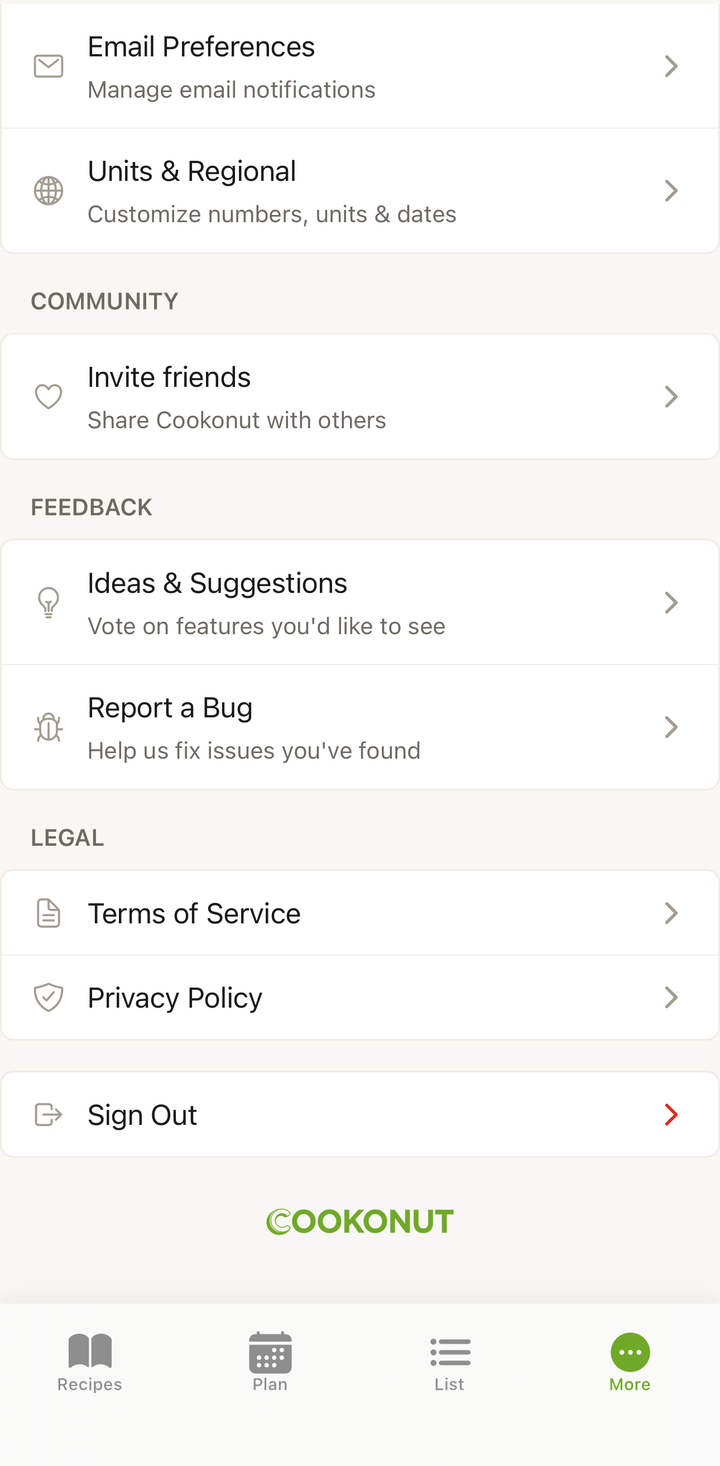
- Go to the More tab
- Tap Account
- Scroll to the bottom and tap Sign Out
- Confirm that you want to sign out
What Happens When You Sign Out
- Your recipes are safe — everything stays stored in the cloud
- Cookbooks, meal plans, and grocery lists are preserved
- Tags, preferences, and settings remain tied to your account
- You’re returned to the sign-in screen
Nothing is deleted. Signing out simply disconnects the app from your account on that device.
Signing Back In
When you’re ready to come back:
- Open Cookonut
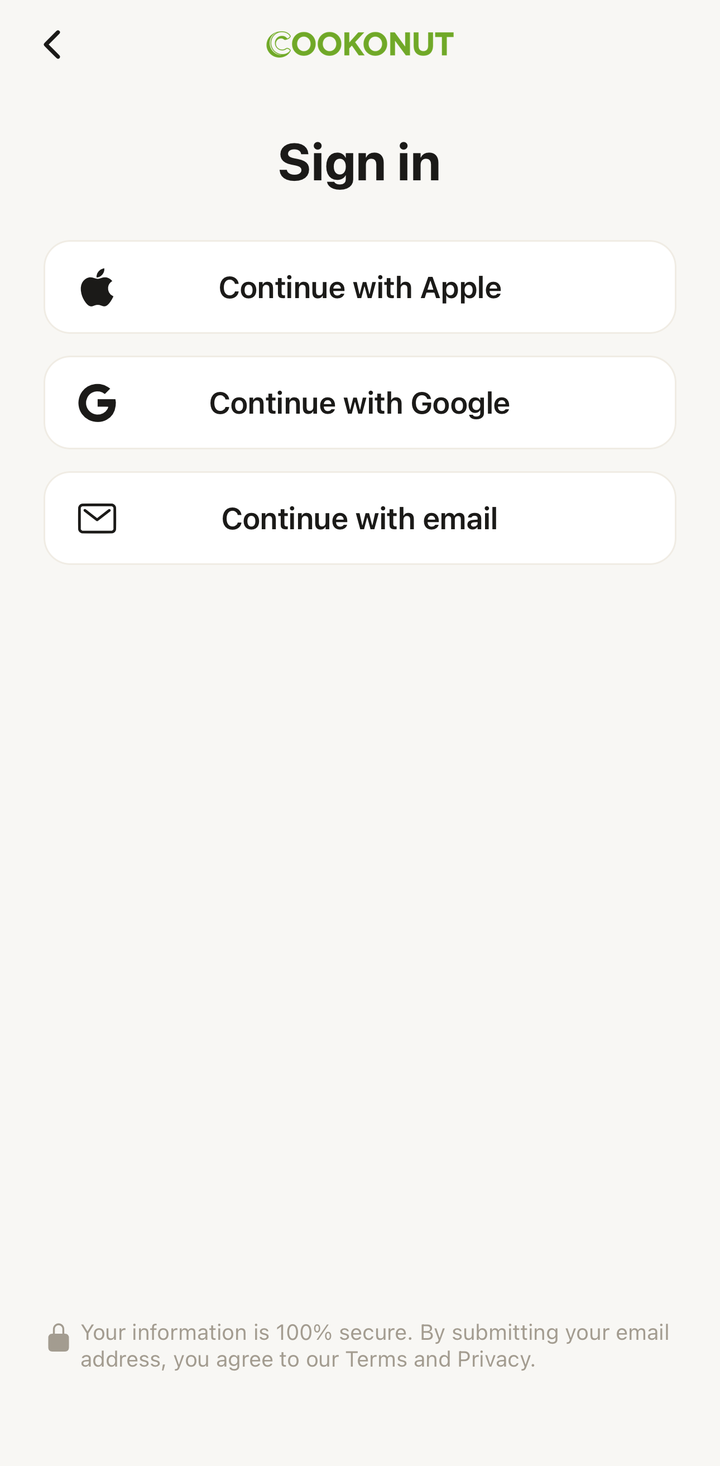
- Tap Sign In
- Use the same login method (Apple, Google, or Email)
- Everything syncs — recipes, cookbooks, meal plans, preferences
It only takes a moment, and your collection will be exactly as you left it.
When Signing Out Is Useful
Switching Accounts
If you share a device and each person has their own Cookonut account, you can sign out of one account and sign into another. Each account has its own separate recipe collection.
Troubleshooting
Occasionally, signing out and back in can resolve sync issues or unexpected behavior. It refreshes the connection between the app and our servers.
Selling or Giving Away Your Device
If you’re passing your phone to someone else, sign out first so they don’t have access to your recipes and account.
Privacy
If someone else will be using your phone temporarily, signing out ensures they can’t see or modify your recipes.
What Signing Out Does NOT Do
- Does not delete your account — your account continues to exist
- Does not cancel your subscription — Premium stays active
- Does not affect other devices — if you’re signed in on a tablet, that session continues
- Does not reset your import credits — your credit balance remains the same
Offline Recipes After Signing Out
If you had recipes available offline, they are removed from the device when you sign out. When you sign back in, the app will re-download them for offline access.
Troubleshooting
Can’t find the Sign Out button: Open the More tab, tap Account, and scroll all the way to the bottom. The button is placed at the very end.
App won’t let you sign out: Make sure you have an internet connection. The app needs to communicate with our servers to sign you out properly. If you’re offline, connect to Wi-Fi and try again.
Signed out unexpectedly: This can happen after an app update, a long period of inactivity, or a password change on your Apple/Google account. Simply sign back in with your usual method.
Thanks for your feedback! We're glad it helped.