
How to Import Recipes
Articles in this section
🚀 Getting Started
📥 Importing Recipes
- How to Import Recipes
- Import from a Website
- Import from Instagram
- Import from Facebook
- Import from TikTok
- Import from Pinterest
- Import from YouTube
- Scan a Recipe from Photo
- Dictate a Recipe by Voice
- Import by Pasting Text
- Use the In-App Browser
- Write a Recipe from Scratch
- Review & Edit Before Saving
- Understanding Import Credits
📂 Managing Recipes
👨🍳 Cooking Mode
📅 Meal Planning
🛒 Grocery List
📤 Sharing & Export
💳 Billing & Subscription
⚙️ Account & Settings
ℹ️ About Cookonut
💡 Ideas & Feedback
Cookonut gives you five different ways to save recipes, so no matter where you found a recipe — on a website, in a cookbook, on social media, or in your head — there’s a way to get it into your collection.
The Five Import Methods
Tap the + button on the Recipes tab to open the Add Recipe hub and see all your options:
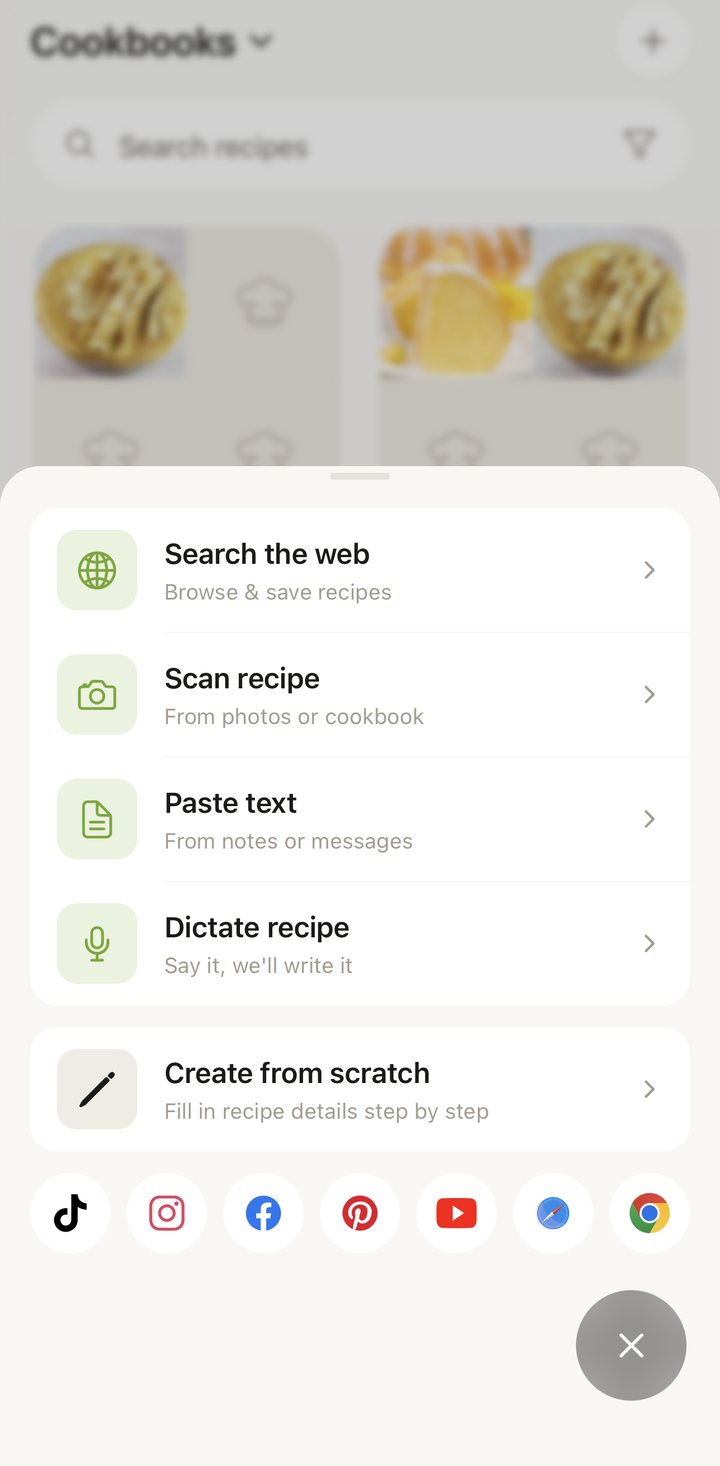
1. Search the web
Browse the web inside Cookonut’s built-in browser. Open any recipe website, food blog, or online magazine, and when you land on a recipe you like, tap Save to import it — no copying and pasting URLs. This is the way to import a recipe you found online. Works with:
- Recipe blogs and food websites
- Online magazines and news articles with recipes
- Sites in any language
To import a recipe from social media (Instagram, Facebook, TikTok, Pinterest, or YouTube), use the share menu inside that app instead. Cookonut reads more than the caption: depending on the platform it also reads subtitles, text on carousel slides, and — for Reels, TikToks, Shorts and video pins up to a few minutes — the video itself. See our dedicated social media import guides for what each platform supports.
2. Scan recipe
Take a photo of a recipe or choose one from your camera roll. Great for:
- Cookbook pages
- Handwritten recipe cards
- Screenshots of recipes
- Magazine clippings
3. Paste text
Copy recipe text from anywhere (an email, a message, a document) and paste it into Cookonut. The app figures out which parts are ingredients, which are steps, and structures everything neatly. This is for recipe text, not links — to import from a web page, use Search the web.
4. Dictate recipe
Speak a recipe out loud and Cookonut will structure it for you. Perfect when:
- Grandma is telling you her secret recipe
- You want to capture a recipe from memory without typing
- Your hands are busy
5. Create from scratch
Write a recipe manually, field by field. This is the only method that does not use an import credit, so it’s always unlimited. Ideal for:
- Your own original recipes
- Family recipes you know by heart
- Recipes you want to enter exactly how you want them
Understanding Import Credits
The first four methods (Search the web, Scan recipe, Paste text, and Dictate recipe) all use Cookonut’s AI to extract and structure recipe data. Each import uses one credit.
- Free plan: 10 credits per month, resetting on your billing cycle date
- Premium plan: Unlimited credits
All four AI methods share the same pool — there’s no separate budget for photos vs. web pages. Creating a recipe from scratch is always free and unlimited. A social media import is still one credit, no matter how many layers (caption, subtitles, slides, video) Cookonut had to read.
If you run out of credits, you can still add recipes by creating them from scratch, or you can upgrade to Premium for unlimited imports.
Which Method Should I Use?
| Situation | Best Method |
|---|---|
| Found a recipe online | Search the web |
| Scrolling Instagram, Facebook, TikTok, Pinterest, or YouTube | Share it from the app (see our social import guides) |
| Have a cookbook open in front of you | Scan recipe |
| Someone is telling you a recipe | Dictate recipe |
| Got a recipe in an email or text message | Paste text |
| Want to browse and discover recipes | Search the web |
| Know the recipe by heart | Create from scratch |
After Import: Review & Save
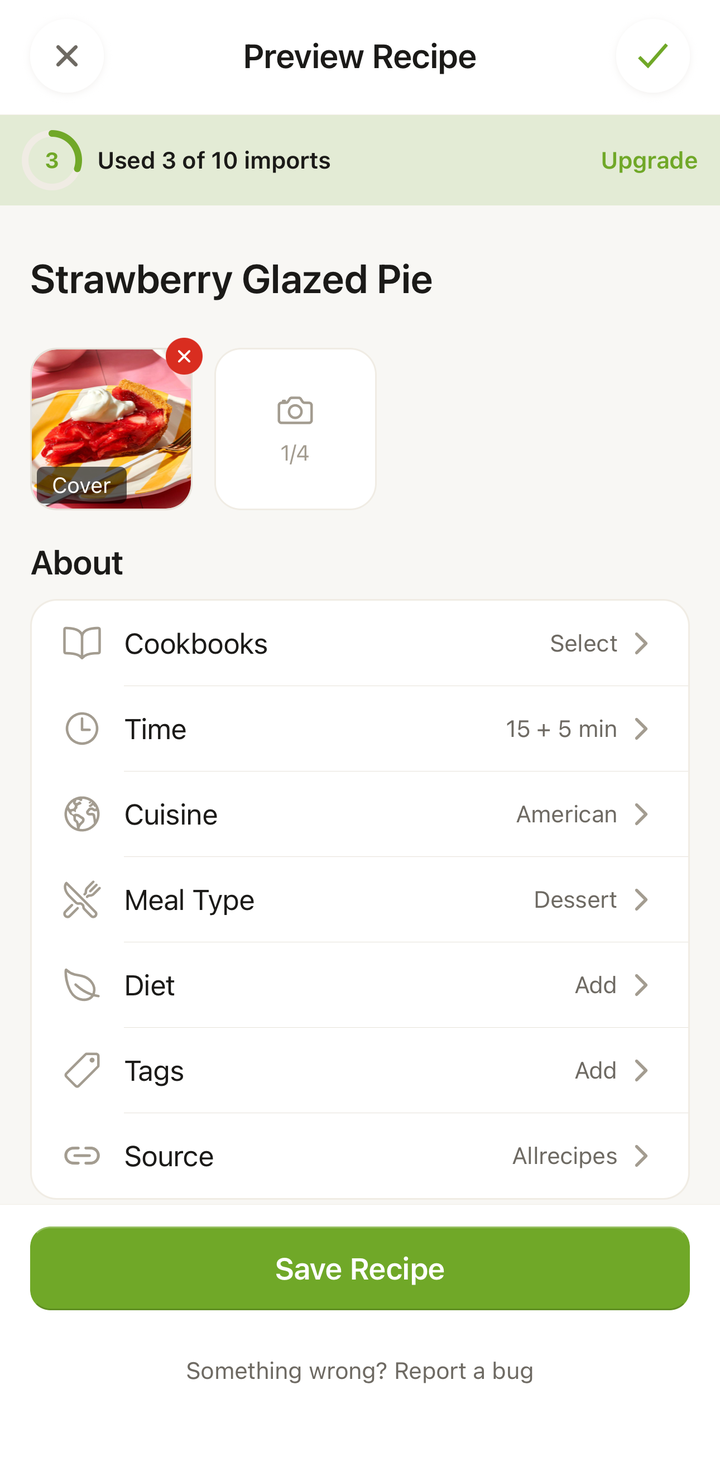
No matter which method you use, Cookonut always shows you a preview before saving. You can review and edit every detail — title, ingredients, instructions, tags, times — before the recipe goes into your collection. Nothing is saved until you tap Save.
Tips for Best Results
- Search the web tends to produce the most accurate imports because food blogs are well-structured
- Scan recipe works best when the text is clear, well-lit, and not at an extreme angle
- Dictate recipe works best in a quiet environment — speak clearly and include quantities
- When in doubt, you can always edit after importing — the preview screen lets you fix anything before saving
- Social media imports show a notice when the recipe was read from subtitles, slides, or video — double-check amounts and step order before saving
Thanks for your feedback! We're glad it helped.