
Import from Pinterest (iOS)
Articles in this section
🚀 Getting Started
📥 Importing Recipes
- How to Import Recipes
- Import from a Website
- Import from Instagram
- Import from Facebook
- Import from TikTok
- Import from Pinterest
- Import from YouTube
- Scan a Recipe from Photo
- Dictate a Recipe by Voice
- Import by Pasting Text
- Use the In-App Browser
- Write a Recipe from Scratch
- Review & Edit Before Saving
- Understanding Import Credits
📂 Managing Recipes
👨🍳 Cooking Mode
📅 Meal Planning
🛒 Grocery List
📤 Sharing & Export
💳 Billing & Subscription
⚙️ Account & Settings
ℹ️ About Cookonut
💡 Ideas & Feedback
Pinterest is one of the most popular places to discover recipes, but keeping track of pinned recipes across boards gets messy. With Cookonut on iPhone or iPad, you can import any Pinterest recipe in seconds using the iOS share extension.
Step-by-step
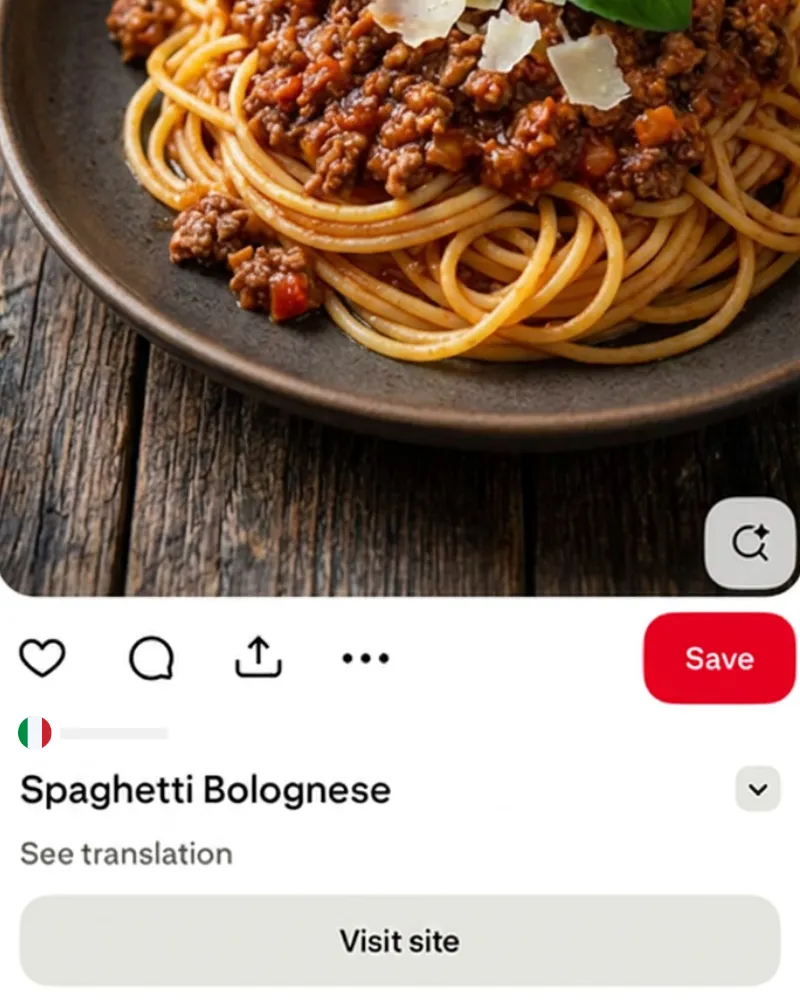
tap Share
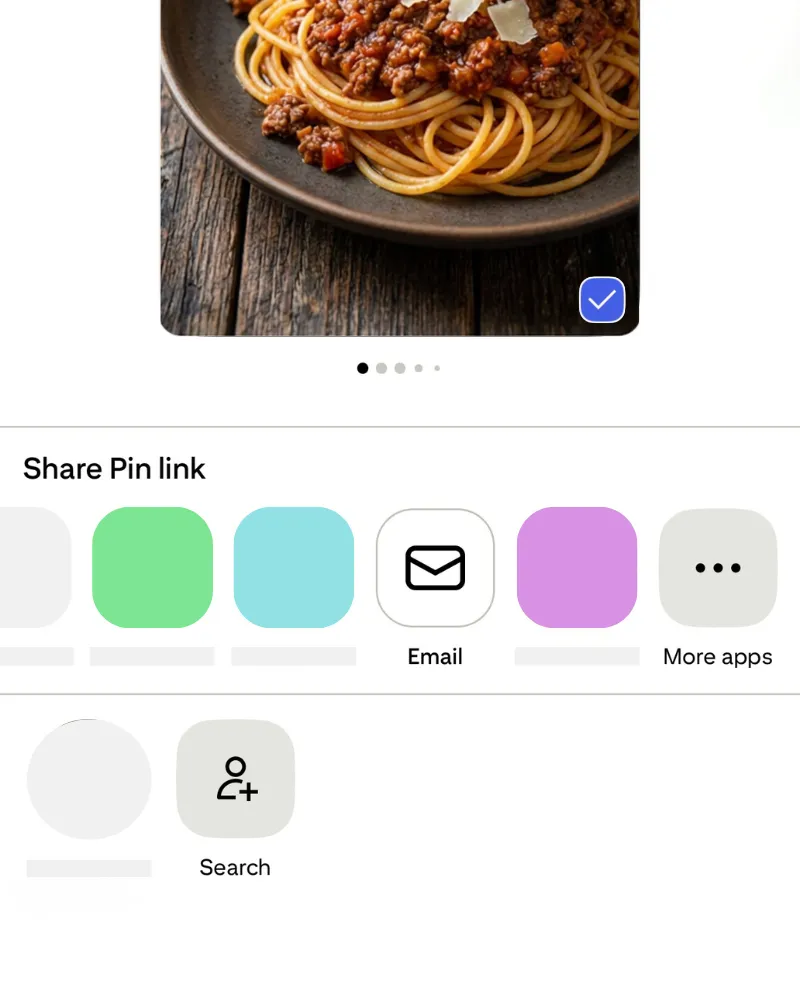
tap More apps
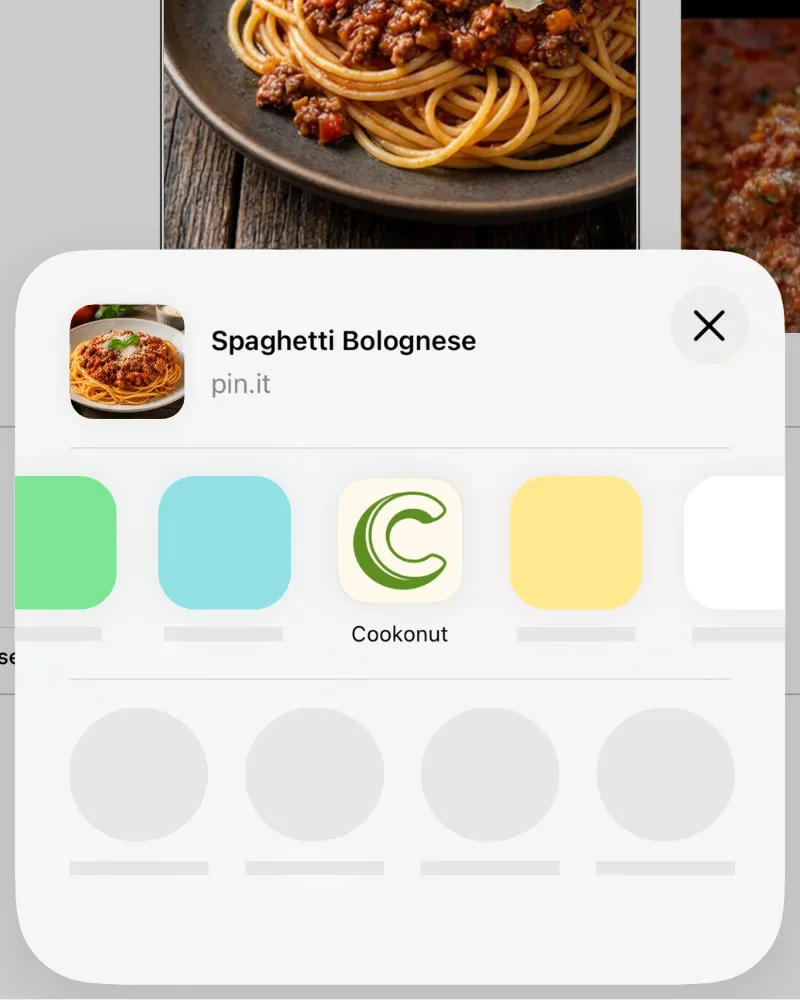
tap Cookonut
Use the iOS Share Sheet
The share extension lets you send a pin straight to Cookonut without leaving the Pinterest app.
- Open the Pinterest pin with the recipe
- Tap the share icon on the pin
- In the iOS share sheet, find and tap Cookonut (scroll the app row if needed)
- Cookonut will open with the link pre-loaded — tap Import
- Wait while Cookonut’s AI extracts the recipe
If Cookonut doesn’t appear in the share sheet, scroll to the end of the app row, tap More, and enable Cookonut in the list.
Tip: Import the Source Blog Instead
Many Pinterest pins link to an original recipe blog. For the best results, tap through to the blog, copy that URL, and import it directly. Blog pages have more structured recipe data, which produces cleaner imports.
What Gets Extracted
Cookonut checks the pin in layers, moving to the next only if the previous didn’t give a complete recipe:
- The linked recipe page — when the pin links to a blog or website
- Pin description
- Text on the pin image
- Video pins — for pins up to 90 seconds, AI watches the video, reading it straight from Pinterest’s servers
If the recipe came from the pin image, description or video, the preview shows a notice asking you to double-check amounts and step order.
Credit Usage
Each Pinterest import uses 1 credit from your monthly pool, no matter how many layers Cookonut had to read. Free plan users get 10 credits per month; Premium users have unlimited imports.
Review Before Saving
After import, review the extracted recipe on the preview screen. Pins that link to blogs usually import cleanly, but image-only pins may need some editing. Check that ingredients and steps are complete, add any missing details like prep time or servings, and tap Save when everything looks good.
Thanks for your feedback! We're glad it helped.